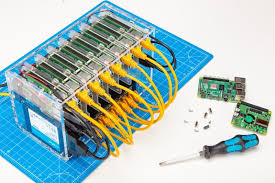

Thinking about setting up your own little computer to do jobs for your home? A Raspberry Pi server can seem like a cool project. But maybe you’re worried about the cost.
Or perhaps you wonder if it uses too much power. You might also think it gets too hot. It’s totally understandable to feel a bit unsure.
So many people want to use tech in new ways. They want their home to be smarter. Yet, they don’t want to break the bank or create a noisy, hot mess.
Let’s clear all that up. We will dive deep into what a Raspberry Pi server really means for your home. You’ll learn what’s needed.
You’ll see what it can do. And you’ll know if it’s right for you.
Setting up a Raspberry Pi server at home can be a cost-effective way to host services. It involves understanding power needs, cooling solutions, and common applications like file sharing and media streaming, making it accessible for many users.
What is a Raspberry Pi Server?
A Raspberry Pi server is basically a tiny, low-cost computer. It’s designed to run all the time. It offers services to other devices on your home network.
Think of it like a mini-computer that stays on. It’s always ready to share files. It can stream movies.
It can even manage smart home gadgets. Unlike a big desktop computer, it uses very little power. This makes it cheap to run 24/7.
It’s small enough to fit almost anywhere. Its size is a big plus.
The Raspberry Pi itself is a credit-card-sized circuit board. It has a processor, memory, and ports for USB drives and network cables. You add an SD card for storage and an operating system.
Then, you can install software. This software lets it do specific jobs. It acts as a server.
Other devices on your network can then ask it for things. This is how it shares files or streams music. It’s a very flexible little machine.
My First Raspberry Pi Server Project
I remember the first time I tried to build a Raspberry Pi server. It was late one evening. I had just got my new Raspberry Pi 4.
I wanted to make a personal cloud. I wanted to store all my photos and videos. I didn’t want to pay for online storage anymore.
I plugged everything in. The little green light blinked. But nothing happened on my computer screen.
I felt a wave of frustration. Was this too complicated? Was I wasting my time?
I spent hours troubleshooting. Then I found a tiny typo in a command line. It was so small!
But fixing it made everything work. Seeing my files appear on my phone felt amazing. It was a small victory.
But it showed me the power of these little machines.
Raspberry Pi Server: Core Components
1. Raspberry Pi Board: The main computer. Models like the Pi 4 or Pi 5 are great for servers.
They have more power.
2. Power Supply: Needs to be strong enough. A stable power source is key for a server.
3. SD Card: For the operating system. A fast card helps things run smoother.
4. Case: Protects the board. Some cases help with cooling.
5. Ethernet Cable: For a stable internet connection. Wi-Fi can work, but wired is better for servers.
6. Storage (Optional but Recommended): External hard drives or SSDs for storing files. These are often more reliable than SD cards for lots of data.
Why Build a Raspberry Pi Server?
People choose to build a Raspberry Pi server for many reasons. The biggest one is often cost. A Raspberry Pi board is much cheaper than a full computer.
Even with accessories, it’s a budget-friendly option. Running it 24/7 also costs very little in electricity. This is unlike a desktop PC.
That can add up on your power bill quickly.
Control is another big factor. When you host your own services, you own your data. You don’t have to trust a third-party company.
This is great for privacy. You decide who sees what. You set the rules.
This also means you can set it up exactly how you want. You can customize it to do almost any task you need.
Learning is a huge benefit too. Setting up a server involves a lot of practical tech skills. You learn about operating systems like Linux.
You learn about networking. You learn how to install and manage software. It’s a hands-on way to build valuable knowledge.
Many people find it very rewarding. It’s a fun way to grow your tech skills.
What Can a Raspberry Pi Server Do?
The tasks a Raspberry Pi server can handle are wide-ranging. It really depends on what software you install. Here are some popular uses:
1. Network Attached Storage (NAS)
This is a very common use. You can turn your Pi into a central storage device. You connect external hard drives to it.
Then, you set up software like Samba or Nextcloud. Your files are stored in one place. All devices on your network can access them.
It’s like having your own private Dropbox. You can store photos, videos, documents, and more. Accessing them from your computer, phone, or tablet is easy.
NAS Setup Basics
Storage Device: A USB hard drive or SSD is best. Format it properly for your Pi.
Network Connection: Use an Ethernet cable for speed and reliability.
Server Software:
- Samba: For sharing files with Windows, macOS, and Linux computers.
- OpenMediaVault: A full NAS operating system that runs on Raspberry Pi.
- Nextcloud: For a more feature-rich personal cloud with file sync, calendar, and contacts.
Access: Connect from any device on your home network. You can also set up remote access if you know how.
2. Media Server
Want to stream your movie collection or music library? A Raspberry Pi can do that. Software like Plex or Jellyfin can organize your media.
It then makes it available to devices like smart TVs, phones, and computers. You can watch or listen to your content anywhere in your home. Some people even set up remote access to stream when they are away.
Plex is very popular. It scans your files. It finds movie posters and descriptions.
It organizes everything neatly. Jellyfin is a great open-source alternative. Both are great choices for a home media server.
They can transform how you enjoy your digital media.
3. Home Automation Hub
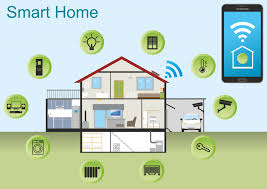
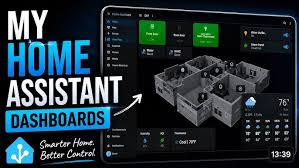
Smart homes are becoming more common. A Raspberry Pi can act as the brain for your smart devices. Software like Home Assistant or OpenHAB lets you control lights, thermostats, cameras, and more.
It can automate tasks. For example, you can set lights to turn on at sunset. Or have your thermostat adjust when you leave home.
It connects different brands of smart devices. This makes them work together. It’s a powerful way to manage your smart home.
4. Ad Blocker for Your Network
Tired of annoying ads on websites? You can set up a Pi-hole on your Raspberry Pi. Pi-hole blocks ads at the network level.
This means all devices connected to your network will stop seeing ads. It works for computers, phones, and even smart TVs. It’s a simple but very effective way to clean up your browsing experience.
It can also speed up web pages because they load less stuff.
Pi-hole: Network-Wide Ad Blocking
What it is: A DNS sinkhole that blocks unwanted domains.
How it works: You set your router to use the Pi-hole’s IP address for DNS requests. When a device asks for a website, Pi-hole checks if the domain is on its block list. If it is, the request is blocked.
Benefits:
- Blocks ads on all devices.
- Improves browsing speed.
- Reduces bandwidth usage.
- Provides network-wide statistics.
Easy Setup: Installation is usually a one-line command.
5. Web Server
You can even host your own website or blog on a Raspberry Pi. For personal projects or small sites, this is very feasible. You can install web server software like Apache or Nginx.
You can then host static HTML pages or dynamic sites using languages like PHP or Python. For a personal portfolio or a small family site, this works great.
It’s also a good way to learn about web development. You get hands-on experience with server administration. You understand how websites are delivered to users.
This can be a stepping stone to more complex projects. It’s a fantastic learning tool.
6. VPN Server
Want to access your home network securely when you’re away? Or maybe browse the internet from public Wi-Fi more safely? You can set up a VPN server on your Raspberry Pi.
Software like WireGuard or OpenVPN makes this possible. You can connect to your home network from anywhere. This lets you access your files or services securely.
It also encrypts your internet traffic.
This is a great privacy feature. It gives you peace of mind when using public hotspots. It’s like having a secure tunnel back to your home.
You can then browse as if you were sitting on your own couch.
Powering Your Raspberry Pi Server
One of the first things people ask is about power. How much electricity does a Raspberry Pi server use? The good news is, very little.
This is one of its biggest advantages. A Raspberry Pi board uses between 3 to 7 watts when it’s running. This is much less than a typical desktop computer.
A desktop can use 50 to 200 watts or more.
For a server that runs 24/7, this low power draw saves a lot of money on electricity bills. Over a year, the difference can be quite noticeable. It also means you don’t need a special power outlet.
A standard USB power adapter is usually enough. For the Raspberry Pi 4 and 5, a good quality 3A or 5A USB-C power supply is recommended. It needs to be stable.
Power fluctuations can cause problems for a server.
Power Supply Best Practices
Use the Right Adapter: Always use the power adapter recommended for your specific Raspberry Pi model. Using a phone charger might not provide enough stable power.
Check Amperage: Ensure the adapter has enough amperage (A). This is crucial for stability, especially if you connect USB devices.
Avoid Cheap Adapters: Low-quality power supplies can be unstable. They might cause random reboots or data corruption.
Consider a UPS: For critical services, a small Uninterruptible Power Supply (UPS) can protect against short power outages.
When you add peripherals like external hard drives, the power needs increase slightly. But it’s still very minimal. Most USB drives can be powered directly from the Pi’s USB ports.
For drives that need more power, you might need a powered USB hub or a drive with its own power supply. This ensures the Pi itself doesn’t get overloaded.
Cooling Your Raspberry Pi Server
Another common concern is heat. Will a Raspberry Pi server overheat? Modern Raspberry Pis, especially the Pi 4 and Pi 5, can get warm.
They have more powerful processors. They are designed to handle this. They have thermal management built-in.
However, if you plan to run demanding tasks for long periods, good cooling is important.
For most common server uses like file sharing or Pi-hole, the Pi might get warm but not hot enough to cause issues. If you run tasks that push the CPU hard, like video transcoding for a media server, then more cooling is a good idea. This helps maintain performance.
It also extends the life of the Pi.
Cooling Options for Your Pi Server
Passive Cooling:
- Heatsinks: Small metal fins that attach to the main chips (CPU, RAM). They help dissipate heat into the air.
- Cases with Ventilation: Many cases are designed with holes or slots to let air circulate freely.
Active Cooling:
- Fans: Small fans can be mounted in the case. They actively blow air over the components. These are very effective but can add a slight noise.
- Larger Cooling Solutions: Some advanced cases offer larger fans or even small liquid cooling options, though this is usually overkill for a home server.
My own Pi 4 server sits in a simple case with a small fan. It’s in a closet. It never gets too hot.
Even when I’m streaming movies to multiple devices. The fan is very quiet. It’s barely noticeable.
I found that investing in a case with a fan was worth it. It gives me peace of mind. It ensures stable performance.
For a server, stability is key. You don’t want it crashing.
Storage: SD Card vs. External Drives
The operating system for your Raspberry Pi server is stored on a microSD card. These cards are great for booting up the system. They are also good for operating systems and light use.
However, for a server that’s always on and handling lots of data, SD cards have limitations.
SD cards are not designed for constant read/write operations. Heavy server use can wear them out faster. This can lead to data corruption or drive failure.
It’s a common point of failure for Raspberry Pi projects. If your server holds important data, relying solely on an SD card is risky.
Storage Strategy: SD Card vs. External Drive
SD Card:
- Pros: Cheap, easy to use for OS, fast boot times.
- Cons: Limited lifespan for heavy writing, can fail suddenly, slower for large data transfers.
External SSD/HDD:
- Pros: Much higher endurance, larger capacity, faster for data access and transfers, more reliable for data storage.
- Cons: More expensive, requires power (sometimes), connection can be a point of failure.
Best Practice: Use the SD card for the operating system. Use a larger, more reliable external SSD or HDD for storing your data (files, media, databases).
I learned this the hard way with an early project. I used an SD card for all my files. It worked fine for months.
Then, one day, it just stopped. All my data was gone. It was a tough lesson.
Now, I always use an external SSD for my server’s main storage. I keep the OS on the SD card. This setup is much more robust.
It provides better performance and reliability. It’s a small investment for great peace of mind.
When choosing an external drive, consider an SSD (Solid State Drive). They are faster and more durable than traditional HDDs (Hard Disk Drives). While HDDs offer more storage for the money, SSDs are better for performance and reliability in a server context.
For large media libraries, an HDD might still be the most cost-effective choice for bulk storage.
Setting Up Your Raspberry Pi Operating System
To get your Raspberry Pi server running, you need an operating system. The most popular choice is Raspberry Pi OS (formerly Raspbian). This is a version of Linux.
It’s optimized for the Raspberry Pi. It’s free and easy to install.
You’ll need to download the Raspberry Pi Imager tool. This software lets you select an OS. You then write it to your microSD card.
You can choose Raspberry Pi OS Lite. This version has no desktop environment. It’s perfect for a server because it uses fewer resources.
It’s also more secure as it has a smaller attack surface.
Getting Started with Raspberry Pi OS
1. Download Raspberry Pi Imager: Get it from the official Raspberry Pi website. It’s available for Windows, macOS, and Linux.
2. Insert MicroSD Card: Put your microSD card into your computer. Use a card reader if needed.
3. Launch Imager: Open the Raspberry Pi Imager software.
4. Choose OS: Click “Choose OS”. Select “Raspberry Pi OS (other)”.
Then choose “Raspberry Pi OS Lite (64-bit)” or “(32-bit)”. Lite is best for servers.
5. Choose Storage: Click “Choose Storage”. Select your microSD card.
6. Advanced Options: Click the gear icon. Here you can set a hostname, enable SSH (very important for servers!), set a username and password, and configure Wi-Fi if needed.
Enabling SSH means you can connect to your Pi remotely without a screen.
7. Write: Click “Write”. The imager will format the card and install the OS.
This takes a few minutes.
8. Boot Up: Safely eject the SD card. Put it into your Raspberry Pi.
Connect power and network. The Pi will boot up.
Once the OS is installed, you’ll typically connect to your Pi using SSH. This is a secure way to control your computer over the network. You won’t need a monitor or keyboard connected to the Pi itself.
This is called running “headless.” It’s the standard way to manage servers.
Networking Your Raspberry Pi Server
For a server to be useful, it needs to be accessible on your home network. A stable network connection is crucial. While Wi-Fi works, a wired Ethernet connection is always preferred for servers.
It’s faster and much more reliable. This is especially true for tasks like file transfers or streaming.
When you connect your Pi to your router via Ethernet, it will get an IP address. This is like a unique address for your Pi on your network. Usually, your router assigns this automatically (DHCP).
However, for a server, it’s best to give it a static IP address.
Static IP Address for Your Pi Server
Why Static? A static IP address means your Pi’s address on the network will never change. This is important so other devices can always find it. If the IP changes, your NAS or media server might become inaccessible.
How to Set It Up:
- Method 1 (Router DHCP Reservation): Log into your router’s admin page. Find the DHCP settings. Look for an option to “Reserve” an IP address for your Pi’s MAC address.
This tells the router to always give your Pi the same IP.
- Method 2 (On the Pi): You can also configure a static IP directly on the Raspberry Pi itself. This involves editing network configuration files. This is more advanced.
Recommendation: DHCP reservation on the router is usually the easiest and most reliable method.
Making sure your Pi has a static IP address simplifies everything. It means you don’t have to keep checking its IP. You always know where to find it on your network.
This is a small step but a vital one for a stable server setup.
Security Considerations for Your Home Server
When you run a server, even just on your home network, security is important. You are opening up your computer to requests from other devices. Even if it’s just your own devices, it’s good practice.
First, strong passwords are a must. Don’t use default usernames and passwords. Change them immediately.
Use long, complex passwords. This applies to your Raspberry Pi login. It also applies to your router login.
And any services you install.
Basic Server Security Steps
1. Strong Passwords: Use unique, complex passwords for your Pi, router, and all services.
2. Keep Software Updated: Regularly update your Raspberry Pi OS and all installed software. Use commands like sudo apt update and sudo apt upgrade.
3. Limit SSH Access: If you enable SSH, make sure it’s secure. Consider using SSH keys instead of passwords.
Only allow access from trusted devices.
4. Firewall: Consider setting up a firewall on your Pi. Tools like UFW (Uncomplicated Firewall) can control which ports are open.
5. Be Cautious with Remote Access: If you set up remote access to your home server, do it securely. Use a VPN.
Avoid opening ports directly on your router unless you absolutely know what you are doing.
Updating your system regularly is key. Software updates often include security patches. These fix known vulnerabilities.
Think of it like locking your doors and windows. It’s about keeping unwanted visitors out. For a home server, this is just as important as for a business server.
If you decide to make your server accessible from the internet (e.g., for remote file access), the security risks increase. This is when you need to be extra careful. Using a VPN to connect to your home network is the safest method.
It avoids exposing your server directly to the public internet. This protects it from many common online threats.
When is a Raspberry Pi Server NOT Enough?
While a Raspberry Pi server is incredibly versatile, it’s not a replacement for everything. There are times when its limitations become clear.
Heavy Workloads: If you need to run virtual machines, host very busy websites, or perform intensive data processing, a Pi might struggle. Its processing power is limited. It’s not designed for high-performance computing tasks.
Massive Storage Needs: While you can connect multiple large hard drives, the Pi’s architecture might become a bottleneck for extremely high-speed storage operations across many drives simultaneously. For enterprise-level storage, dedicated NAS devices or servers are better.
Complex Databases or Applications: Running very large or complex databases, or applications that require significant RAM and CPU power, might push the Pi to its limits. Memory (RAM) on most Pi models is less than on standard computers. This can be a limiting factor.
Raspberry Pi Server Limitations
Processing Power: Not suitable for heavy computation, video transcoding for many streams, or running multiple demanding applications at once.
RAM: Limited memory means you can’t run as many services or handle as much data simultaneously as on a PC.
I/O Speed: While USB 3.0 is good, it’s still not as fast as internal SATA or NVMe connections on a desktop computer for storage.
Scalability: Adding more resources is limited compared to a traditional server or PC.
For example, if you’re a serious video editor needing to edit 4K footage directly from your home server, or if you expect hundreds of users to access your services simultaneously, a Raspberry Pi might not be the best fit. In these cases, a more powerful mini-PC, a used desktop computer, or a commercial NAS device would be more appropriate.
However, for personal use, home media, file storage, network management, and learning, the Raspberry Pi server is usually more than capable. It hits a sweet spot between cost, power, and functionality for many common home needs.
When to Worry About Your Raspberry Pi Server
Most of the time, your Raspberry Pi server will hum along nicely. But there are a few signs that might mean something is wrong. Or that it’s under too much strain.
Random Reboots: If your Pi shuts down and restarts randomly, it could be a power issue. The power supply might not be strong enough. Or it might be unstable.
It could also be overheating. Check your power adapter and the Pi’s temperature.
Slow Performance: If your server becomes very slow. File transfers take ages. Services are unresponsive.
This can mean the CPU is overloaded. Or the SD card or storage drive is failing. Or you might be running too many things at once.
Errors in Logs: The operating system keeps logs of what it’s doing. If you see lots of errors related to storage, networking, or services, it’s a sign something needs attention. You can check these logs using SSH.
Troubleshooting Common Pi Server Issues
Problem: Pi won’t boot.
Possible Cause: Bad SD card, insufficient power, incorrect OS image.
Check: Re-image SD card, use correct power supply, try a different SD card.
Problem: Services are slow or unresponsive.
Possible Cause: High CPU usage, insufficient RAM, slow storage, network congestion.
Check: Use htop or top to see CPU/RAM use. Check disk I/O. Ensure good network connection.
Problem: External drive not recognized.
Possible Cause: Insufficient power for the drive, bad USB cable, drive not formatted correctly.
Check: Use a powered USB hub, try a different cable, check drive format (e.g., ext4).
Don’t panic if you see errors. Many are minor. But frequent or serious errors should be investigated.
Checking logs and monitoring resource usage are key server maintenance tasks. They help you catch problems early. This prevents major issues down the line.
Quick Fixes and Tips for Your Pi Server
Here are a few quick tips that can make running your Raspberry Pi server much smoother.
- Regular Updates: Set a reminder to update your system weekly. Use
sudo apt update && sudo apt upgrade -y. - Backups: Regularly back up your critical data. You can copy files to another location. Or use a backup tool.
- Monitor Resources: Use tools like
htopto keep an eye on CPU and RAM usage. This helps you see if your Pi is overloaded. - Static IP: Always set a static IP address for your server. It makes things much easier to manage.
- Use a Good Power Supply: Don’t skimp on the power adapter. It’s vital for stability.
- Good Cooling: Invest in a case with a fan or good passive cooling. It ensures consistent performance.
- SSH Keys: If you’re comfortable, set up SSH key-based authentication. It’s more secure than passwords.
Frequently Asked Questions About Raspberry Pi Servers
Is a Raspberry Pi server expensive to run?
No, a Raspberry Pi server is very inexpensive to run. It uses very little electricity, typically only 3-7 watts. This makes it much cheaper to operate 24/7 compared to a desktop computer.
Can I access my Raspberry Pi server from outside my home?
Yes, you can access your Raspberry Pi server from outside your home. The most secure way to do this is by setting up a VPN server on your Pi. This creates a secure tunnel back to your home network.
You can also set up port forwarding on your router, but this is generally less secure and requires more caution.
What is the best operating system for a Raspberry Pi server?
The most common and recommended operating system is Raspberry Pi OS Lite. It’s a lightweight version of Linux designed for the Pi. It doesn’t have a graphical desktop, which saves resources and makes it ideal for server use.
Other options like Ubuntu Server for Raspberry Pi are also available.
How much storage can a Raspberry Pi server handle?
A Raspberry Pi can handle a lot of storage. You can connect multiple external USB hard drives or SSDs. The total amount of storage is limited by the capacity of the drives you use and the number of USB ports available.
It’s common to connect several terabytes of storage.
Do I need a monitor and keyboard for a Raspberry Pi server?
No, you don’t need a monitor or keyboard for a Raspberry Pi server once it’s set up. This is called running “headless.” You can set it up using a tool like Raspberry Pi Imager to enable SSH. Then you can connect and manage your server remotely from another computer using SSH.
How reliable is a Raspberry Pi as a server?
For its cost and size, a Raspberry Pi is surprisingly reliable. However, reliability depends on proper setup. Using a good power supply, adequate cooling, and reliable storage (like an SSD for OS and external drives for data) are key.
They are not as robust as enterprise-grade servers but are excellent for home use.
Conclusion
Building a Raspberry Pi server is an exciting journey. It opens up a world of possibilities for your home network. From private cloud storage to media streaming and home automation, the potential is vast.
You’ve seen that the concerns about cost, power, and heat are manageable. With the right setup and a bit of learning, you can create a powerful, low-cost server. It’s a rewarding project that brings tech skills and data control right into your own home.
Give it a try!
},
},
},
},
},
} ] }