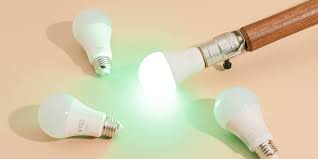
It can feel like magic when you just speak a command and your lights change. Smart bulbs make that happen. But finding the right ones for your home assistant can be a little tricky.
You want lights that work well and don’t cause a headache. We’ll break down what you need to know.
Choosing the best smart bulbs for your home assistant involves checking compatibility with Alexa or Google Home, deciding between Wi-Fi or Bluetooth, and considering features like color, dimming, and ease of setup. This guide helps you pick wisely for a smooth smart home experience.
What Are Smart Bulbs and How Do They Work?
Smart bulbs are light bulbs with a difference. They can connect to your home network. This lets you control them from your phone.
You can also link them to a home assistant like Alexa or Google Home. They use Wi-Fi or Bluetooth to talk to these devices. This lets you turn lights on and off with your voice.
You can even dim them or change their colors.
The basic idea is simple. The bulb has a small computer chip inside. This chip lets it get instructions.
These instructions come from an app on your phone or your voice assistant. For example, you might say, “Alexa, turn on the living room lights.” Your Echo device hears this. It sends a signal to the smart bulb.
The bulb then turns on. It’s like a tiny remote control for your lights.
Most smart bulbs fit into standard light sockets. You just screw them in like a regular bulb. The setup process then connects them to your home’s Wi-Fi.
Or, for some, it uses Bluetooth to pair with a hub or your phone. This connection is key. It’s how the smart commands reach the bulb.
Without it, they are just regular bulbs.
My First Smart Bulb Fiasco
I remember when I first decided to dive into smart home tech. It was a Tuesday night. I’d just bought my very first smart bulb.
It promised easy setup and full voice control with my new Echo Dot. I unscrewed my old bulb and popped in the shiny new smart one. The packaging made it sound like a breeze.
“Just download the app and connect,” it said.
Well, the app downloaded fine. But connecting to my Wi-Fi? That was a whole other story.
The app kept saying it couldn’t find the bulb. I tried resetting it. I tried moving closer to the router.
I even unplugged my router and plugged it back in. Nothing worked. After about an hour of frustration, I felt like giving up.
The glow of the bulb seemed to mock me. I just wanted to turn it on with my voice, not spend my evening troubleshooting.
Finally, I found a tiny note in the manual about needing a specific Wi-Fi band. My router was set to a newer, faster band. The bulb only liked the older one.
A quick setting change on my router, and poof! It connected. It was a small victory, but a victory nonetheless.
It taught me that compatibility and network settings are super important for these gadgets.
Smart Bulb Connections: Wi-Fi vs. Bluetooth
Wi-Fi Bulbs:
- Connect directly to your home Wi-Fi network.
- No extra hub needed for most brands.
- Good for controlling many bulbs at once.
- Can be controlled from anywhere with internet.
Bluetooth Bulbs:
- Connect directly to your phone or a Bluetooth hub.
- Often require a separate hub to work with a home assistant.
- Best for controlling a few bulbs in one room.
- Control is usually limited to when you’re near the bulb.
Why Are Smart Bulbs So Popular?
People love smart bulbs for a few key reasons. One big one is convenience. Imagine being snug in bed and realizing you left the porch light on.
You don’t have to get up. You just say, “Hey Google, turn off the porch light.” This kind of ease is hard to beat. It makes daily tasks simpler.
Another reason is atmosphere. Many smart bulbs can change colors. You can set a cozy warm light for movie nights.
Or a bright, cool light for working. Some can even sync with music or movies. This adds a fun, dynamic element to your home.
It’s like having a mini disco whenever you want.
Security is also a factor. You can set lights to turn on and off when you’re away. This makes it look like someone is home.
This can be a great deterrent for unwanted visitors. It gives you peace of mind when you travel. Knowing your home looks occupied is a big plus for many homeowners.
Energy saving is another benefit. You can schedule lights to turn off. Or dim them to use less power.
Many apps show you how much energy you’re using. This helps you be more mindful of your usage. Over time, this can lead to lower electricity bills.
It’s good for your wallet and the planet.
Key Features to Look For
Brightness (Lumens): How bright the light is. More lumens mean brighter light.
Color Options: Basic white, tunable white (warm to cool), or full color.
Dimmability: Ability to adjust the light’s brightness.
App Control: Easy-to-use mobile app for settings and control.
Voice Assistant Compatibility: Works with Alexa, Google Assistant, or Apple HomeKit.
Connectivity: Wi-Fi or Bluetooth.
Compatibility with Your Home Assistant
This is where things get really important. If you have an Amazon Echo device (like Alexa) or a Google Nest device (with Google Assistant), you need bulbs that play nice with them. Most popular smart bulb brands work with at least one of these.
Some even work with both.
When you’re shopping, check the product packaging or the online description. It will usually say something like “Works with Alexa” or “Works with Google Assistant.” Make sure this is clearly stated. If it’s not, it might not be compatible.
Or it might require a complicated workaround that isn’t worth the trouble.
Some bulbs connect directly to your home assistant. Others might need a separate “hub.” A hub is a small device that acts as a translator. It helps the bulbs communicate with your Wi-Fi network and your assistant.
Brands like Philips Hue use a hub. This can add to the cost and setup complexity. Many newer Wi-Fi bulbs skip the hub entirely, making them simpler for beginners.
If you use Apple devices, you might be looking for HomeKit compatibility. This is less common but still available. Always double-check the requirements.
You don’t want to buy bulbs that won’t work with the system you already have. It’s like buying a shoe for the wrong foot – it just won’t work.
Wi-Fi vs. Bluetooth: Which is Better for Your Home?
This is a common question. Both Wi-Fi and Bluetooth have their pros and cons when it comes to smart bulbs. The best choice often depends on your home setup and how you plan to use the bulbs.
Wi-Fi bulbs are often the easiest for most people. They connect directly to your home’s wireless internet. This means you don’t need any extra boxes or hubs.
You can control them from anywhere, even when you’re not home. This is great for security and convenience. If you have a strong Wi-Fi signal throughout your house, Wi-Fi bulbs are usually a solid choice.
However, too many Wi-Fi devices can sometimes strain your router. If you have a very old or basic router, adding a lot of Wi-Fi bulbs might cause issues. You might notice slower internet speeds.
Or the bulbs might become less reliable.
Bluetooth bulbs used to be more common. They connect to your phone or a Bluetooth hub. They don’t use your Wi-Fi network directly.
This can be good if your Wi-Fi is weak or you don’t want to add more devices to it. The main downside is that you usually can’t control Bluetooth bulbs when you’re away from home. You also often need a hub to connect them to your home assistant.
Some bulbs use a combination of both. Or they might start with Bluetooth and then use a bridge to connect to Wi-Fi. Always read the product specs carefully.
Look for what kind of connection it uses and if it needs a hub. For most users with a decent home network, Wi-Fi bulbs are generally simpler and more versatile.
Quick Scan: Wi-Fi vs. Bluetooth
| Feature | Wi-Fi Bulbs | Bluetooth Bulbs |
| Setup Simplicity | Often very simple, no hub needed. | May need a hub, slightly more steps. |
| Remote Access | Yes, from anywhere. | Usually no, limited to home. |
| Network Load | Adds devices to Wi-Fi. | Does not use Wi-Fi directly. |
| Home Assistant Integration | Direct or via app. | Often requires a hub. |
Popular Smart Bulb Brands and Their Home Assistant Support
There are many brands out there, each with its own strengths. Here are a few of the most popular ones and how they generally stack up with home assistant integration.
Philips Hue: This is often seen as the premium choice. Hue bulbs are known for their great color quality and reliability. They use a bridge (hub) that connects to your router.
This bridge allows them to work with Alexa, Google Assistant, and HomeKit. The downside is they are typically more expensive. And you need to buy the bridge.
Wyze: Wyze offers very affordable smart home products, including bulbs. Their Wi-Fi bulbs are generally compatible with Alexa and Google Assistant. They don’t usually require a hub.
This makes them a great budget-friendly option for getting started. The app is pretty straightforward to use.
Kasa Smart (TP-Link): TP-Link’s Kasa line offers a good balance of features and price. Their smart bulbs are Wi-Fi based and connect easily with Alexa and Google Assistant. You typically don’t need a separate hub.
They offer white bulbs, tunable white, and color bulbs. The app is well-regarded.
Govee: Govee is popular for its colorful LED strips and bulbs. Many of their Wi-Fi bulbs work with Alexa and Google Assistant. They often have a lot of creative lighting effects.
Some of their products might use Bluetooth primarily, so always check the model. But their Wi-Fi ones are good for assistant integration.
LIFX: LIFX bulbs are known for being very bright and having excellent color reproduction. They are Wi-Fi based and connect directly to your network without a hub. They work well with Alexa, Google Assistant, and HomeKit.
They tend to be on the pricier side, similar to Philips Hue.
When choosing, consider your budget. Do you want just white light, or are colors important? How many bulbs do you plan to use?
For a few bulbs, a simpler Wi-Fi option might be best. For a whole house system, something like Philips Hue might be worth the investment.
Setting Up Your Smart Bulbs with Alexa or Google Home
The setup process is usually quite similar for most brands. Once you’ve screwed in your new smart bulb and turned on the power, you’ll typically follow these steps:
1. Download the Brand’s App: Each smart bulb brand has its own app. You’ll need this first.
Find it in your phone’s app store (Apple App Store or Google Play Store). Open the app.
2. Create an Account: Most apps will ask you to create a user account. This is how they manage your devices.
3. Add a New Device: Look for an option to add a new device or a plus sign (+). The app will guide you through finding your new bulb.
4. Connect to Wi-Fi (for Wi-Fi bulbs): The app will ask you to connect the bulb to your home Wi-Fi network. You’ll need to select your network name and enter your Wi-Fi password.
Make sure your phone is connected to the same Wi-Fi network you want the bulb to use.
5. Pairing (for Bluetooth bulbs or hubs): If it’s a Bluetooth bulb, the app will scan for nearby devices. If it’s a hub-based system, you’ll connect the hub to your Wi-Fi first, then add the bulbs through the hub in the app.
6. Name Your Bulb: Give your bulb a clear name. Something like “Living Room Lamp” or “Bedroom Ceiling Light.” This is the name you’ll use with your home assistant.
Make it easy to say.
7. Link to Your Home Assistant: Now, open your Alexa app or Google Home app. You’ll need to link the bulb’s account to your assistant’s account.
In Alexa, this is often done through “Skills & Games.” Search for the bulb brand’s skill and enable it. Link your account. In Google Home, go to “Set up device” and select “Works with Google.” Search for the brand and link your account.
8. Discover Devices: Once linked, ask your assistant to “Discover devices.” They will then find your new smart bulb. It might take a minute or two.
9. Assign to Rooms: In your Alexa or Google Home app, assign the bulb to the correct room. This helps organize your devices.
You can then say, “Alexa, turn off the living room lights,” and all the lights in that room will respond.
It sounds like a lot, but each step is usually very simple and clearly explained in the apps. If you get stuck, most brands have a good support section on their website or in the app.
Setting Up Your Smart Bulb: Key Steps
1. Download Brand App: Get the manufacturer’s app.
2. Create Account: Sign up or log in.
3. Add Device: Use the app to find the bulb.
4. Connect to Network: Link to your Wi-Fi or pair via Bluetooth.
5. Name Your Bulb: Make it easy to say for voice commands.
6. Link to Assistant: Connect the brand account to Alexa or Google Home.
7. Discover Devices: Ask your assistant to find the new bulb.
Beyond Basic On/Off: Advanced Features
Smart bulbs can do more than just turn on and off. Many offer features that can really enhance your home.
Dimmability: Most smart bulbs can be dimmed. This is great for setting the mood. You can have bright light for reading.
Or a soft, low light for relaxing in the evening. You can control this through the app or with your voice.
Color Temperature: Tunable white bulbs let you change the “warmth” of the white light. A cool, bluish-white is good for focus and daytime. A warm, yellowish-white is relaxing and cozy for evenings.
This feature is excellent for adjusting the light to your daily needs.
Full Color: These bulbs can produce millions of colors. You can create vibrant lighting for parties. Or subtle color accents.
Some apps let you pick colors from a color wheel. Others let you use photos as inspiration for colors.
Scenes and Routines: This is where the real smarts come in. You can create custom “scenes.” A “Movie Night” scene might dim the lights and turn them a warm color. A “Wake Up” routine could slowly brighten your bedroom lights over a few minutes.
Your home assistant can trigger these scenes with a single voice command or on a schedule.
Scheduling: You can set lights to turn on or off at specific times. This is useful for waking up. Or for making it look like someone is home when you’re out.
Schedules can run daily, on certain days of the week, or even for sunrise/sunset.
Energy Monitoring: Some apps will show you how much power your smart bulbs are using. This can help you make more energy-efficient choices and potentially lower your bills.
Real-World Context: When Are Smart Bulbs Most Useful?
Think about your daily life. Where would smart bulbs make the biggest difference?
Entryways and Hallways: Coming home with arms full of groceries? You can say, “Hey Google, turn on the hallway light.” No fumbling for a switch. Lights can also be set to turn on automatically as you arrive home if your system supports geofencing.
Bedrooms: Instead of a harsh overhead light, set a soft, dim light to read by. Or use a gradual wake-up routine. This can be a much gentler way to start your day than a jarring alarm clock.
Living Rooms and Entertainment Areas: Create different moods for different activities. A bright, cool light for playing games. A warm, dim light for watching movies.
You can even get bulbs that sync with your TV or music for an immersive experience.
Outdoor Lights: Control your porch or patio lights from your phone. Turn them off if you forget. Or set them to turn on automatically at dusk.
This adds security and convenience.
Hard-to-Reach Lights: Think of high ceilings or lamps in awkward spots. Smart bulbs mean you don’t need a ladder or to awkwardly stretch to turn them on or off.
For People with Mobility Issues: Smart bulbs can be a game-changer for individuals who have difficulty moving around easily. Voice control offers a level of independence and ease that can be truly liberating.
Smart Bulb Use Cases
Entryways: Hands-free lighting when arriving home.
Bedrooms: Gentle wake-ups and mood lighting.
Living Rooms: Setting scenes for relaxation or entertainment.
Outdoors: Convenience and security for porch lights.
Difficult Spots: Lights that are hard to reach.
Accessibility: Enhanced independence for those with mobility challenges.
What This Means for Your Home: When to Worry and When Not To
Most of the time, smart bulbs are a fun and convenient addition to your home. But there are a few things to keep in mind.
When It’s Normal:
- Occasional connection drops: Like any tech, smart bulbs can sometimes lose connection. Usually, a quick reset of the bulb or your router fixes it.
- Slight delay in response: There might be a second or two delay between your command and the light turning on. This is normal for most systems.
- Bulbs not responding to older assistants: If your assistant is very old, it might not support the newest smart bulb features.
- Setup takes a little time: Especially the first few times, getting everything connected can be a process.
When You Might Want to Check Things:
- Frequent disconnections: If bulbs are constantly going offline, it could be a weak Wi-Fi signal. Or too many devices on your network.
- Voice commands not understood: If your assistant consistently misunderstands you, try renaming the bulb to a simpler, clearer name.
- App is sluggish or buggy: Make sure you have the latest version of the bulb’s app and your assistant’s app.
- Lights flickering or behaving erratically: This could indicate a faulty bulb or a power issue.
- If they stop working with your assistant after an update: Sometimes, app or assistant updates can cause temporary compatibility issues. Check the manufacturer’s support.
For the most part, smart bulbs are designed to be reliable. If you’re experiencing persistent problems, it’s usually a sign that something needs adjusting in your network or setup. Checking the manufacturer’s support pages or contacting their customer service is a good next step.
Quick Tips for Smart Bulb Success
Here are a few simple tips to make your smart bulb experience smoother:
- Use a strong Wi-Fi password. This is important for all your smart devices.
- Ensure good Wi-Fi coverage where the bulbs are. If a room has a weak signal, bulbs there might be unreliable. Consider a Wi-Fi extender if needed.
- Name your bulbs clearly and uniquely. Avoid names that sound too similar. This helps your home assistant understand you better.
- Keep the bulb’s firmware updated. Manufacturers often release updates to improve performance and fix bugs. Check the app for these updates.
- Don’t put smart bulbs on dimmer switches. Standard dimmer switches can interfere with smart bulb electronics. Set them to full brightness.
- Have a plan for power outages. Some smart bulbs will revert to “on” when power returns. Others might need to be reconnected. Know what to expect.
- Start small. If you’re new to this, try one or two bulbs first. See how you like them before buying for your whole house.
Frequently Asked Questions About Smart Bulbs for Home Assistants
Do I need a hub for all smart bulbs?
No, not all smart bulbs require a hub. Many newer Wi-Fi smart bulbs connect directly to your home’s Wi-Fi network. However, some brands, like Philips Hue, use a hub to manage their bulbs.
Always check the product description to see if a hub is needed.
Can I use smart bulbs in any lamp?
Yes, generally you can use smart bulbs in most standard lamps and fixtures. Just make sure the bulb base type (like E26 for standard US sockets) matches your fixture. Also, avoid using smart bulbs on traditional dimmer switches, as they can cause issues.
Set the dimmer to full power.
Will smart bulbs work if my internet is down?
It depends on the type of smart bulb and how it’s controlled. Wi-Fi bulbs that rely on cloud services for control will likely not work without internet. However, some bulbs can be controlled via Bluetooth or a local network connection even if the internet is down, often through their own app.
Voice assistant control will definitely require an internet connection.
How many smart bulbs can I connect to my home assistant?
The number of smart bulbs you can connect depends on your specific home assistant device (like an Amazon Echo or Google Nest) and your Wi-Fi router’s capacity. Most modern systems can handle dozens of devices. However, having too many connected devices might eventually impact your Wi-Fi performance.
Are smart bulbs safe to use?
Yes, smart bulbs are generally safe to use. They are designed to operate within safe electrical limits. As with any electronic device, ensure you purchase from reputable brands and follow installation instructions.
Avoid overloading circuits. Ensure they are properly screwed into their sockets.
Can I control smart bulbs without a smartphone?
Yes, if you have a compatible home assistant like Alexa or Google Assistant, you can control your smart bulbs using just your voice. You can also often control them with smart displays or dedicated remotes from the bulb manufacturer, if available.
Wrapping Up Your Smart Bulb Journey
Choosing the best smart bulbs for your home assistant can seem daunting at first. But by understanding the basics of Wi-Fi versus Bluetooth, checking compatibility, and knowing what features matter most to you, it becomes much simpler. Think about how you want to use them – for convenience, mood lighting, or security.
Then, pick a reliable brand that fits your budget. Enjoy the ease and magic of controlling your home with just your voice!