Category: Diy Home Labs

  • Home Lab Raspberry Pi Setup

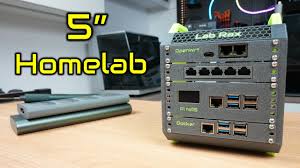
    Setting up a Raspberry Pi home lab involves choosing your Pi, getting the right accessories, installing an operating system, and then connecting it to your network. This allows you to experiment with various projects related to networking, coding, smart home tech, and more.

    What is a Raspberry Pi Home Lab?

    A home lab is a safe space for you to test and learn about technology. Think of it as your personal digital playground. You can try out new software, practice coding, or build smart devices.

    You don’t have to worry about breaking anything important.

    A Raspberry Pi is a small, affordable computer. It’s perfect for home labs because it’s cheap and uses very little power. You can plug it into a monitor, keyboard, and mouse, just like a regular computer.

    But it’s also small enough to hide away for projects.

    When you combine these, a Raspberry Pi home lab becomes a low-cost, low-power way to explore many tech topics. You can learn about servers, networks, coding, and even how to control lights with your Pi. It’s a hands-on learning tool.

    Why Set Up a Raspberry Pi Home Lab?

    Why bother with a home lab? Well, there are many great reasons. For starters, it’s a fantastic way to gain practical skills.

    Reading about tech is one thing, but actually doing it is another. You learn much faster by trying things yourself.

    Home labs are also super useful for learning specific skills. Want to understand how home networks work? You can set up a router or a firewall on your Pi.

    Interested in coding? You can build and run your own web servers or Python scripts. It’s a low-risk way to make mistakes and learn from them.

    Plus, Raspberry Pi labs are affordable. You don’t need to spend a fortune on equipment. This makes learning accessible to more people.

    It’s also a great way to build a portfolio of projects if you’re looking for a tech job.

    My First Raspberry Pi Home Lab Mishap

    I remember my very first attempt at setting up a Raspberry Pi home lab. I was so excited to build a network-attached storage (NAS) device. I had just bought my first Raspberry Pi 4.

    It seemed simple enough in the online tutorials. I carefully followed all the steps to format a USB drive and install the necessary software.

    Everything seemed to be going well. The Pi booted up, and I could access its desktop remotely. I plugged in my big external hard drive.

    Then, I started copying some files over to test it. Suddenly, the Pi just froze. No lights, no response, nothing.

    I panicked a little. Was it broken? Did I fry it?

    After a lot of head-scratching and unplugging/replugging, I realized the power supply I was using wasn’t strong enough for the Pi and the external hard drive. It was drawing too much power, and the system crashed. It was a simple fix—getting a better power supply—but at that moment, I felt like a total failure.

    It taught me a crucial lesson, though: always check your power needs!

    Choosing Your Raspberry Pi

    You might be wondering which Raspberry Pi model is best for your home lab. There are several options, and they all have their strengths. For most home lab beginners, a Raspberry Pi 4 Model B is a great choice.

    It’s powerful enough for many tasks.

    The Raspberry Pi 4 has more RAM options (2GB, 4GB, 8GB). More RAM is better if you plan to run multiple programs or services at once. For example, if you want to run a web server, a VPN, and some home automation software, more RAM helps keep things running smoothly.

    Other models, like the Raspberry Pi 3B+ or even the Zero 2 W, can also be used. They are less powerful but great for simpler tasks or when you need something tiny. For a general-purpose home lab, though, the Pi 4 offers the best balance of power and price.

    Essential Raspberry Pi Accessories

    What You Need:

    • Raspberry Pi Board: The computer itself.
    • Power Supply: A good quality one is key! Get the official one or a reputable brand.
    • MicroSD Card: This is your Pi’s hard drive. 16GB or 32GB is usually good to start.
    • Case: Protects your Pi. Some have fans for cooling.
    • Keyboard & Mouse: For initial setup, or if you don’t want to use it headless.
    • Monitor: With an HDMI input. You’ll need a micro-HDMI cable for Pi 4.
    • Ethernet Cable: For a stable network connection.
    • Optional: External Hard Drive, USB Drive, Camera Module, Sensors.

    Getting Your Operating System Ready

    Every computer needs an operating system (OS). For Raspberry Pi, the most common OS is Raspberry Pi OS. It’s based on Debian Linux.

    It’s designed to work well on the Pi and is easy to use.

    You can download Raspberry Pi OS from the official Raspberry Pi website. There are a few versions. The “Lite” version has no desktop environment.

    It’s great for servers because it uses fewer resources. The “Desktop” version is more like a regular computer. For a home lab, the Lite version is often preferred for its efficiency.

    To install the OS onto your microSD card, you’ll need an imager tool. The Raspberry Pi Imager is the easiest way to do this. You download it onto your main computer.

    Then, you select your Pi model, the OS you want, and the microSD card. The imager does the rest.

    Make sure to choose the correct OS for your needs. For a headless server setup (no monitor attached), the Lite version is best. You can enable SSH (secure shell) during the imaging process.

    This lets you connect to your Pi remotely from another computer.

    Using Raspberry Pi Imager

    Steps:

    1. Download and install Raspberry Pi Imager on your PC or Mac.
    2. Insert your microSD card into your computer.
    3. Open Raspberry Pi Imager.
    4. Click “Choose OS” and select your desired Raspberry Pi OS.
    5. Click “Choose Storage” and select your microSD card.
    6. Click the gear icon (Advanced Options). Here you can set:
      • Hostname (e.g., ‘my-lab-pi’)
      • Enable SSH (important for headless setup)
      • Set username and password
      • Configure Wi-Fi (if not using Ethernet)
    7. Click “Write.” Wait for the process to finish.

    First Boot and Network Connection

    Once you’ve written the OS to your microSD card, insert it into your Raspberry Pi. Connect your Ethernet cable to your router. If you’re not using Ethernet, make sure you configured Wi-Fi in the Imager.

    Now, plug in the power. Your Pi will boot up. If you have a monitor connected, you’ll see it start.

    If you’re going headless, you need to find its IP address. You can usually find this in your router’s connected devices list. Or, you can use a network scanner tool on your computer.

    Once you have the IP address, you can connect via SSH. Open a terminal or command prompt on your computer. Type: ssh your_username@your_pi_ip_address.

    For example: ssh pi@192.168.1.150. You’ll be asked for the password you set in the Imager. If it works, you’re in!

    It’s a good idea to update your Pi right away. Type: sudo apt update. Then, type: sudo apt upgrade -y.

    This fetches the latest software and security updates. This is a crucial first step for any new setup.

    Setting Up Your Network Services

    Now the fun begins! Your Raspberry Pi is a computer on your network. You can install all sorts of software on it.

    Many home lab projects involve running network services.

    One popular service is a DNS server. Services like Pi-hole or AdGuard Home can block ads across your entire network. They work by running a DNS server on the Pi.

    All your devices ask the Pi for website addresses instead of your ISP’s server. The Pi then filters out known ad servers.

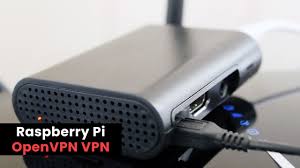
    Another common service is a VPN server. You can set up a VPN like WireGuard or OpenVPN on your Pi. This lets you connect securely to your home network from anywhere in the world.

    It’s great for accessing your files or browsing the web securely when you’re on public Wi-Fi.

    You can also run a web server. Apache or Nginx are popular choices. This lets you host your own websites or web applications.

    It’s a great way to learn about web development and server administration. You can even host simple internal tools for your home.

    Popular Raspberry Pi Home Lab Projects

    • Ad Blocker: Pi-hole or AdGuard Home for network-wide ad blocking.
    • VPN Server: WireGuard or OpenVPN to access your network remotely.
    • Network Attached Storage (NAS): Using Samba or Nextcloud to share files.
    • Home Automation Hub: Home Assistant or OpenHAB to control smart devices.
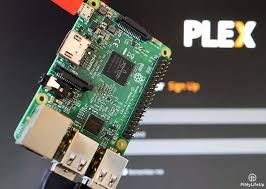
    • Media Server: Plex or Jellyfin to stream movies and music.
    • Web Server: Apache or Nginx to host websites or internal apps.
    • Home Security Camera System: Using MotionEye or ZoneMinder.
    • Game Server: Host Minecraft or other small game servers.

    My Network Discovery Nightmare

    I once tried to set up a local web server on my Raspberry Pi. I wanted to host a personal blog. I installed Apache and created a simple HTML page.

    It worked perfectly when I accessed it from the Pi itself using localhost.

    Then, I tried to access it from my main computer. I typed in the Pi’s IP address. Nothing.

    Just a connection error. I checked the firewall on my computer. I checked the router.

    Everything seemed okay. I spent hours troubleshooting. I was convinced the Pi was faulty or I had made a mistake in the Apache configuration.

    What was the problem? It turned out Apache wasn’t configured to listen on all network interfaces. By default, it was only listening on 127.0.0.1 (localhost).

    I had to edit a configuration file to make it listen on 0.0.0.0. After that simple change, it worked like a charm. It was another moment of frustration followed by a simple lesson learned: always check which network interfaces your services are listening on.

    Running Multiple Services

    A true home lab lets you run more than one thing. This is where the power of Linux and the Raspberry Pi shines. You can run many different services at the same time.

    Docker is a great tool for this. Docker lets you package applications and their dependencies into containers. These containers are isolated from each other and from the main operating system.

    This means you can run different versions of software without conflicts.

    For example, you could run Pi-hole in one Docker container, Home Assistant in another, and a web server in a third. Each container is like a mini-virtual machine. This makes managing complex setups much easier.

    You don’t have to worry about installing lots of software directly onto your Pi’s OS.

    Using Docker also makes it easy to back up and move your services. If you ever need to rebuild your Pi, you can just pull your Docker images and recreate your containers. It’s a big time-saver and reduces the risk of losing your setup.

    Docker Basics for Home Labs

    Key Concepts:

    • A template for a container. Contains the application and its settings.
    • Container: A running instance of an image. It’s an isolated environment.
    • Docker Compose: A tool to define and run multi-container Docker applications. It uses a YAML file to configure your services.

    Benefit: Simplifies running multiple applications on one device.

    Storage Solutions for Your Lab

    As you add more services, you’ll likely need more storage. Your microSD card is not ideal for storing large amounts of data or for frequent writes. It can wear out over time.

    External hard drives or SSDs are a great solution. You can connect them to your Raspberry Pi via USB. You can then use them to store data for your NAS, media server, or any other service that requires significant storage.

    Make sure your power supply can handle the extra load of the external drive. Some larger drives need more power than the Pi’s USB ports can provide directly. In such cases, you might need an externally powered USB hub or a drive with its own power adapter.

    Ensure the drive is formatted with a Linux-compatible file system like ext4 for best performance and stability.

    You can set up network file sharing using Samba. This makes your Raspberry Pi act like a network drive. You can access it from Windows, macOS, and Linux computers.

    This is very handy for backing up data or sharing files within your home network.

    Security Considerations

    Setting up a home lab means connecting devices to your network. Security is very important. You don’t want to create vulnerabilities that others could exploit.

    First, always use strong, unique passwords for your Raspberry Pi. Don’t use default usernames like ‘pi’ with a weak password. Change the default password immediately after installation.

    Consider using SSH keys for authentication instead of passwords, which is more secure.

    Keep your operating system and all installed software updated. Updates often contain critical security patches. Run sudo apt update && sudo apt upgrade -y regularly.

    If you expose any services to the internet (like a VPN or web server), be extra cautious. Use strong encryption, firewalls, and consider services like Fail2Ban to block brute-force login attempts. Never expose sensitive services directly without proper security measures.

    Security Best Practices

    Key Actions:

    • Strong Passwords: Change default passwords. Use a password manager.
    • SSH Keys: Use key-based authentication for remote access.
    • Regular Updates: Keep OS and software patched.
    • Firewall: Configure your router and Pi firewall (ufw).
    • Minimize Exposure: Only expose services if absolutely necessary.
    • VPN: Use a VPN for secure remote access.

    Real-World Home Lab Scenarios

    Let’s talk about where this all happens. Your home network is the environment. Your habits dictate what you’ll do.

    The design of your home might influence where you place your Pi. User behavior is key to testing.

    Imagine you’re a student learning programming. You can use your Pi to set up a small development server. You can practice coding Python scripts that interact with APIs.

    Or you can host a simple Flask or Django web application to show off your skills.

    For a homeowner, a Pi can manage smart home devices. You can connect sensors, control lights, and set up automated routines. This is much more flexible and private than many commercial smart home hubs.

    For someone interested in networking, you can set up a firewall with pfSense or OPNsense (though these are better on more powerful hardware, a Pi can simulate concepts). You can experiment with VPNs, proxy servers, and network monitoring tools. It’s a great way to understand the unseen world of data flow.

    What This Means for Your Learning

    So, what does having a Raspberry Pi home lab mean for you? It means you have a powerful learning tool at your fingertips. It’s a place where theory meets practice.

    When is it normal? It’s normal to experiment, break things, and learn. It’s normal to spend hours troubleshooting a small issue.

    That’s how you build deep understanding. When you successfully fix a problem, the sense of accomplishment is huge.

    When should you worry? You should worry if you expose sensitive data to the internet without protection. You should worry if you don’t keep your systems updated.

    If your Pi is constantly crashing or running very slowly, check your power supply and cooling. Simple checks can prevent big problems.

    It means you gain hands-on experience. This is invaluable. Employers look for practical skills.

    A home lab demonstrates your initiative and ability to learn independently. It’s a testament to your passion for technology.

    Quick Tips for Your Home Lab Journey

    Here are some quick tips to make your home lab journey smoother.

    • Start Small: Don’t try to build everything at once. Pick one project and master it. Then move to the next.
    • Document Everything: Keep notes on what you do, what works, and what doesn’t. This saves you from re-learning.
    • Use Version Control: For configuration files or code, use Git. It helps track changes and revert if needed.
    • Backup Regularly: Back up your configurations and important data.
    • Join Communities: Online forums and communities are great places to ask questions and get help.

    Frequently Asked Questions About Raspberry Pi Home Labs

    Is a Raspberry Pi powerful enough for a home lab?

    Yes, a Raspberry Pi 4 or newer is quite capable for many home lab tasks. It’s perfect for learning networking, coding, and running services like Pi-hole or a small web server. For very demanding tasks like running multiple heavy virtual machines or complex video transcoding, you might need more powerful hardware.

    But for learning and experimentation, it’s ideal.

    Do I need a monitor and keyboard for my Raspberry Pi home lab?

    Not necessarily. Many users set up their Raspberry Pi to run “headless,” meaning without a monitor, keyboard, or mouse. You access it remotely over the network using SSH.

    This is very common for server-like applications. You’ll need to configure SSH access during the OS installation using Raspberry Pi Imager.

    How much does a Raspberry Pi home lab cost?

    The cost can vary. A Raspberry Pi 4 board itself might cost between $35 to $75 depending on RAM. Adding essential accessories like a power supply, microSD card, and case can bring the total to around $70-$120 for a basic setup.

    More advanced projects with larger storage or more Pis will increase the cost.

    Can I access my Raspberry Pi home lab from outside my house?

    Yes, you can. The most secure way to do this is by setting up a Virtual Private Network (VPN) server on your Raspberry Pi, such as WireGuard or OpenVPN. This creates a secure tunnel back to your home network.

    You can then access your Pi and other devices on your network as if you were at home. Exposing services directly to the internet without a VPN is generally not recommended.

    What’s the difference between a Raspberry Pi home lab and a virtual machine?

    A Raspberry Pi home lab is a dedicated piece of physical hardware. It’s a small, low-power computer that you own and control. A virtual machine (VM) runs on top of an existing operating system on a more powerful computer.

    You can run multiple VMs on one machine. The Pi offers a distinct physical environment for learning hardware interaction and dedicated performance for its tasks. VMs offer flexibility and resource sharing.

    Is it safe to run services like Pi-hole on my home network?

    Yes, running services like Pi-hole is generally very safe and beneficial. Pi-hole is designed to block ads and malicious domains at the DNS level, improving your browsing experience and security. When set up correctly, it doesn’t pose a risk to your network.

    Just ensure you follow basic security practices for your Raspberry Pi itself.

    Conclusion

    Building a home lab with a Raspberry Pi is a rewarding journey. It opens up a world of learning and experimentation. Don’t be afraid to dive in.

    Start with a simple project. Learn from your mistakes. Every challenge is a chance to grow.

    Your personal tech playground awaits!

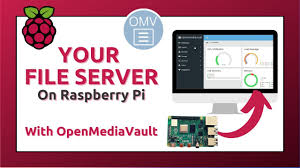
  • Raspberry Pi File Server

    Setting up a file server at home can feel like a big project. You want a place for all your photos, videos, and documents. Something easy to reach from any device.

    It needs to be reliable and not cost too much. This is where a Raspberry Pi shines. It’s small, uses little power, and is quite capable.

    Many people struggle with where to start. They worry about technical terms or if it’s too hard. You’re not alone if this sounds like you.

    We’ll break it all down into simple steps.

    A Raspberry Pi file server acts as a central storage hub. You can access your files from any computer, phone, or tablet on your home network. It’s a budget-friendly and energy-efficient way to manage your digital life.

    What is a Raspberry Pi File Server?

    Imagine having one spot for all your important files. Your family’s vacation photos. Your work documents.

    Your favorite music. A Raspberry Pi file server makes this happen. It’s a tiny computer.

    We put it on your home network. Then, we connect storage to it. This storage can be a USB hard drive or an SD card.

    Your other devices can then connect to the Raspberry Pi. They can read and write files. It’s like your own private cloud.

    The main idea is sharing files. Without needing to email them to yourself. Or putting them on a USB stick.

    It’s always there, ready for you. This saves space on your phones and laptops too. You can offload big files.

    Things like movies or backups. The Raspberry Pi just sits there, doing its job. It uses very little electricity.

    This makes it cheaper to run than a big computer.

    Why is this a good idea? For starters, cost. A Raspberry Pi is very cheap.

    A basic model can cost around $35. You’ll need a power supply and an SD card. Maybe a case.

    And a way to store your files. This could be a cheap external hard drive. Compared to buying a dedicated NAS (Network Attached Storage) device, it’s much less.

    NAS devices can cost hundreds of dollars.

    It’s also about control. You own your data. It’s not going to a company’s server somewhere.

    You know exactly where your files are. And who can access them. This is great for privacy.

    Especially with sensitive documents. Or personal photos. You set the rules.

    You decide who gets in.

    My First File Server Story

    I remember my first attempt at a home file server. I was drowning in photos. My laptop was always full.

    My wife kept asking where the latest family album was. I’d email files back and forth. It was a mess.

    I saw a Raspberry Pi online. It looked so small and cute. I thought, “Maybe this little thing can help?”

    I ordered a Raspberry Pi 4. It arrived in a small box. I felt a bit intimidated at first.

    All those pins and ports. But I found a great guide. It showed me how to put the operating system on an SD card.

    Then, I plugged in a USB hard drive. The guide walked me through setting up the sharing software. I was so nervous.

    What if I broke something?

    Then, it happened. I opened my laptop. Typed in the Pi’s address.

    And there it was. My drive. All my files.

    I could see them. I could open them. I copied a few photos over.

    They appeared instantly. It felt like magic. I ran to my wife.

    “Look!” I shouted. She was skeptical. Then she opened her tablet.

    And saw the same files. Her eyes lit up. “This is amazing!” she said.

    That feeling of solving a real problem with a simple, cheap gadget? Priceless. It took some trial and error, but the result was so worth it.

    Raspberry Pi File Server Essentials

    Core Hardware: Raspberry Pi board (Pi 3B+, 4, or newer recommended), reliable power supply, microSD card (16GB+), case for protection.

    Storage: External USB hard drive (HDD) or SSD is best for capacity. USB flash drives work for small needs.

    Network: Ethernet cable for a stable connection. Wi-Fi can work but might be slower.

    Software: Raspberry Pi OS (formerly Raspbian), Samba (for Windows compatibility), or NFS (for Linux/Mac).

    Setting Up Your Raspberry Pi for File Sharing

    Getting your Raspberry Pi ready is the first big step. Don’t worry, we’ll take it slow. First, you need to install the operating system.

    This is like putting Windows or macOS on your computer. The easiest way is using the Raspberry Pi Imager tool. You can download it from the official Raspberry Pi website.

    Plug your microSD card into your computer. Run the Imager. Choose Raspberry Pi OS Lite.

    This is a version without a desktop. It’s good for servers because it uses fewer resources. Select your microSD card.

    Click “Write.” This will erase everything on the card. So, make sure you don’t have anything important on it. It will take a few minutes.

    Once it’s done, put the SD card into your Raspberry Pi. Connect an Ethernet cable from the Pi to your router. Plug in the power supply.

    Your Pi will start up. You need to find its IP address. You can usually find this in your router’s settings.

    Look for a list of connected devices. Your Pi will likely be named “raspberrypi.”

    Now, you need to connect to it remotely. This is called SSH (Secure Shell). On Windows, you can use PuTTY.

    On Mac or Linux, use the Terminal. Type: ssh pi@YOUR_PI_IP_ADDRESS. The default password for the ‘pi’ user is ‘raspberry’.

    You’ll be prompted to change it. This is very important for security.

    First things first: update your system. This makes sure you have the latest software and security fixes. Type: sudo apt update.

    Then, type: sudo apt upgrade -y. This might take a while. It’s downloading and installing updates.

    Next, we need to prepare your storage. If you’re using a USB hard drive, plug it in. You need to format it.

    This wipes it clean and makes it ready. Make sure it’s the right format. For best compatibility, use `ext4`.

    You can format it using commands in SSH. Be very careful here. Formatting the wrong drive will erase data!

    To format a drive (let’s assume it’s `/dev/sda1`), you’d use commands like sudo mkfs.ext4 /dev/sda1. After formatting, you need to create a place for it to live. This is called mounting.

    You’ll create a folder, maybe named `myshare`. Then you’ll tell the Pi to always mount your drive there when it starts up.

    This involves editing a file called `fstab`. It looks scary but it’s just a list of drives and where they go. You’ll add a line like: `/dev/sda1 /mnt/myshare ext4 defaults,nofail 0 2`.

    The `nofail` option is important. It means if the drive isn’t there, the Pi will still boot up. After editing `fstab`, you’ll run sudo mount -a to make sure it works.

    Security First! Changing Your Password

    Why? The default password ‘raspberry’ is well-known. It’s a big security risk.

    How? In SSH, type: passwd. Follow the prompts to enter your new password twice.

    Tip: Use a strong password. Mix letters, numbers, and symbols. Don’t use easy-to-guess words.

    Installing and Configuring Samba

    Now that your Pi is updated and storage is ready, it’s time for the sharing software. For most home networks, especially if you use Windows computers, Samba is the way to go. Samba lets your Raspberry Pi talk to Windows machines.

    It makes your shared folder appear like a normal drive on your PC.

    First, install Samba. In SSH, type: sudo apt install samba samba-common-bin -y. This downloads and installs all the necessary parts.

    Once it’s done, you need to configure Samba. This is done by editing a file called `smb.conf`. You can edit this file using a text editor like `nano`.

    Type: sudo nano /etc/samba/smb.conf.

    You’ll see a lot of text. Most of it you can ignore for now. Scroll to the very bottom of the file.

    Here, you’ll add a new section for your share. It will look something like this:

    comment = Raspberry Pi File Share

    path = /mnt/myshare

    browseable = yes

    read only = no

    guest ok = no

    valid users = pi

    Let’s break down what these lines mean:

    : This is the name that will appear on your network. You can change this.

    comment: A short description. Helpful if you have many shares.

    path: This must match the folder where your drive is mounted. So, `/mnt/myshare` if that’s where you put it.

    browseable: If set to ‘yes’, other computers can see this share when they look for network devices.

    read only: If ‘no’, users can write files to this share. If ‘yes’, they can only read them.

    guest ok: If ‘no’, users must log in. If ‘yes’, anyone can access it without a password (not recommended for most users).

    valid users: This specifies which user accounts on your Raspberry Pi can access this share. Here, we’re allowing the ‘pi’ user.

    After you’ve added this section, save the file. In `nano`, press Ctrl+X, then Y, then Enter.

    Now, you need to set a Samba password for your user. This is separate from your SSH login password. Type: sudo smbpasswd -a pi.

    You’ll be asked to enter a password twice. This will be the password you use when connecting from your Windows PC.

    Finally, restart the Samba service for the changes to take effect. Type: sudo systemctl restart smbd nmbd. If everything is set up right, your share should now be visible on your network.

    Connecting from Windows

    Open File Explorer on your Windows PC.

    In the address bar, type: \\YOUR_PI_IP_ADDRESS or \\MyShare (if your Pi is visible by name).

    You’ll be asked for a username and password. Use the username ‘pi’ and the Samba password you just set.

    Once logged in, you should see your ‘MyShare’ folder. You can right-click it and choose “Map network drive.” to make it easier to access.

    Alternatives to Samba: NFS

    While Samba is great for Windows, other systems might prefer different methods. If you use Linux or macOS extensively, you might consider NFS (Network File System). NFS is the native way for Unix-like systems to share files.

    NFS is often seen as faster and more efficient than Samba, especially for heavy usage. However, it can be a bit trickier to set up if you’re not familiar with Linux command lines. It also doesn’t play as nicely with Windows out of the box.

    To set up NFS, you’d first install the NFS server package: sudo apt install nfs-kernel-server -y.

    Then, you need to export your shared directory. This is done by editing the `/etc/exports` file. Similar to `smb.conf`, you’ll add a line specifying which directory to share and which IP addresses can access it.

    A basic entry might look like: `/mnt/myshare YOUR_NETWORK_IP(rw,sync,no_subtree_check) 192.168.1.0/24(rw,sync,no_subtree_check)`.

    This line says to share `/mnt/myshare`. It allows read-write access (`rw`) with synchronization (`sync`). The `no_subtree_check` option can improve performance.

    The `192.168.1.0/24` part tells it to allow access from any device on your local network (assuming your network is 192.168.1.x).

    After saving the `/etc/exports` file, you need to export the shares and restart the NFS server: sudo exportfs -a, then sudo systemctl restart nfs-kernel-server.

    On another Linux or macOS machine, you would then mount this NFS share. The command on Linux might be: sudo mount YOUR_PI_IP_ADDRESS:/mnt/myshare /mnt/local_mount_point.

    For most home users, especially those with a mix of devices, Samba is the simpler and more versatile choice. But if you’re deep in the Linux/macOS ecosystem, NFS is a powerful alternative.

    NFS vs. Samba: Quick Comparison

    Samba:

    • Pros: Excellent Windows compatibility, easier setup for most.
    • Cons: Can be slightly slower, more overhead.

    NFS:

    • Pros: Faster, more efficient for Linux/macOS, lower overhead.
    • Cons: Weaker Windows support, can be more complex to set up.

    Optimizing Your File Server Performance

    A file server is only as good as its speed. You want to access files quickly. There are a few things you can do to make your Raspberry Pi file server run faster.

    Use a Fast SD Card: The operating system runs from the SD card. A slow card will slow down everything. Get a high-speed card (like Class 10 or U3).

    Use a Good Power Supply: An underpowered Pi can act strangely. It can lead to data corruption or slow performance. Use the official Raspberry Pi power supply or a high-quality equivalent.

    Use Ethernet, Not Wi-Fi: For a file server, a wired Ethernet connection is always best. It’s more stable and faster than Wi-Fi. If your Pi is far from your router, consider powerline adapters.

    They use your home’s electrical wiring to send network signals.

    Use a Fast USB Drive: The speed of your external drive matters. An SSD (Solid State Drive) will be much faster than a traditional HDD (Hard Disk Drive). For simply storing files, an HDD is usually fine.

    But for frequently accessed files or if you plan on running other services on the Pi, an SSD is a great upgrade.

    Format Your Drive Correctly: As mentioned, `ext4` is a good Linux-native format. It’s generally faster and more stable than NTFS or FAT32 for this purpose.

    Keep Your Pi Updated: Regular software updates often include performance improvements and bug fixes.

    Avoid Overloading: A Raspberry Pi is a small computer. If you try to run too many heavy services at once, it will slow down. For file sharing, it’s usually fine.

    But if you’re also trying to run a media server or a web server, performance might suffer.

    Speed Check: What to Expect

    Reading/Writing to an external HDD via Ethernet: Typically between 20-60 MB/s. This is fast enough for most everyday tasks.

    Reading/Writing to an SSD via Ethernet: Can reach 80-100+ MB/s, nearing Gigabit Ethernet limits.

    Using Wi-Fi: Highly variable, but expect slower and less consistent speeds, maybe 10-40 MB/s depending on your Wi-Fi setup.

    Real-World Contexts and Scenarios

    Where do people actually use Raspberry Pi file servers? Everywhere! Let’s look at a few common situations.

    The Family Photo Hub: Imagine Mom takes a hundred photos at the park. She uploads them directly to the Pi share. Dad can access them on his laptop.

    The kids can view them on their tablets. No more “Which phone has the pictures?” arguments. Everyone has access to the latest memories.

    The Home Office Backup: Small business owners or remote workers can use it. Save important client files. Or back up your work documents automatically.

    You can set up scripts to copy files regularly. This gives you an extra layer of safety for your data. It’s cheaper than cloud backup services for large amounts of data.

    The Media Server Companion: While not a full media server like Plex or Jellyfin itself, a Pi file server is the perfect storage backend. Store your movies, music, and TV shows on the drive. Then, your media server software can access them.

    This keeps your media library organized and accessible.

    The Student’s Digital Library: Students can store research papers, lecture notes, and project files. Access them from their laptop in the dorm or from their phone when on campus. It’s a central place for all their academic work.

    The Raspberry Pi Project Data Store: If you’re into DIY electronics and coding, you might have projects that generate data. Sensor readings, camera footage from a project, log files. Store all this on the Pi server.

    It’s easy to access and analyze.

    The beauty is its flexibility. It adapts to your needs. You can start simple and add more as you go.

    The core function is always the same: reliable, local file storage.

    What This Means for You: Normal vs. Concerning

    Understanding when your file server is working well and when something might be wrong is important.

    Normal Behavior:

    • Accessing files from your computer takes a few seconds. This is normal, especially if you’re on Wi-Fi or using an HDD.
    • The Raspberry Pi itself runs warm, but not alarmingly hot.
    • You can see the share when browsing your network.
    • File transfers are consistent, even if not lightning fast.
    • The Pi boots up reliably every time.

    Concerning Behavior:

    • Extremely slow file transfers: If it takes minutes to copy a small file, check your network connection, the Pi’s load, or the health of your storage drive.
    • Frequent disconnections: If the share disappears often, suspect a network issue (faulty cable, weak Wi-Fi) or a problem with the Pi’s power.
    • Data corruption: If files become unreadable or change unexpectedly, this is a serious sign. It could be a failing hard drive, a bad SD card, or power issues. Back up what you can immediately.
    • The Pi won’t boot: Check the power supply and the SD card. A corrupted SD card is a common culprit.
    • The Pi is constantly crashing or freezing: This could point to overheating, insufficient power, or a hardware failure.

    Simple Checks:

    • Check network cables: Make sure they are plugged in firmly.
    • Restart your router: Sometimes network glitches happen.
    • Check the Pi’s power adapter: Ensure it’s the correct one and securely connected.
    • Monitor disk space: If the drive fills up, performance will tank.
    • Check Pi’s temperature: You can do this via SSH with the command vcgencmd measure_temp. If it’s consistently over 70°C, consider better cooling.

    Most issues are minor and fixable. But data corruption is the big one to watch out for. Regularly backing up your important data from the Pi server is a good idea, just in case.

    DIY Data Backup Strategy

    Method 1: Another External Drive

    Periodically connect a second external drive to your Pi. Copy your shared data onto it. Then, store this backup drive safely offline.

    Method 2: Cloud Sync (Advanced)

    Use tools like `rclone` to sync your Pi’s shared data to a cloud storage service (Google Drive, Dropbox, etc.). This requires more setup but offers offsite protection.

    Method 3: Another Computer

    Map the network drive on a desktop PC and use its backup software to back up the files from the Pi.

    Quick Tips for a Better Experience

    Here are some simple tips to make your file server experience even better.

    • Automate Mounting: Make sure your external drive is set to mount automatically when the Pi boots up. This is done in the `/etc/fstab` file. If it doesn’t mount, Samba won’t work.
    • Use Static IP Addresses: To avoid issues where your Pi’s IP address changes, you can set a static IP for it in your router’s settings. This makes it easier to connect reliably.
    • Organize Your Folders: Don’t just dump everything in one folder. Create subfolders for different types of data (e.g., Photos, Documents, Movies, Backups). This makes finding things much easier.
    • Set Permissions Wisely: If you have multiple users or sensitive data, learn about Linux file permissions and Samba user permissions. This adds a layer of security and privacy.
    • Consider a UPS: A small Uninterruptible Power Supply (UPS) for your Pi and router can prevent data corruption during brief power outages.
    • Label Everything: Label your external drives and your Pi. It helps when you have multiple devices.
    • Keep It Simple: Don’t try to do too much at once. Master file sharing first. Then, if you’re adventurous, add other services.

    Frequently Asked Questions

    Can I access my files from outside my home network?

    Yes, you can. This is called remote access. It’s more complex and involves security risks.

    You’d typically set up a VPN (Virtual Private Network) on your router or Pi. Or use a service like DynDNS and port forwarding. For beginners, it’s best to stick to local network access first.

    Remote access requires careful setup to avoid security breaches.

    What’s the difference between a Raspberry Pi file server and a commercial NAS?

    A commercial NAS (Network Attached Storage) is a pre-built device specifically designed for file sharing. They often have more features, RAID for data redundancy, and user-friendly interfaces. A Raspberry Pi file server is a DIY solution.

    It’s cheaper, more customizable, and a great learning experience. But it requires more technical setup and may not have all the advanced features of a commercial NAS.

    How much storage can a Raspberry Pi file server handle?

    The Raspberry Pi itself doesn’t have much storage. It relies on external drives. You can connect USB hard drives of almost any size.

    Common sizes range from 1TB to 8TB or more. The limit is really the capacity of the external drive you buy and your budget.

    Is a Raspberry Pi file server secure?

    It can be, but it depends on how you set it up. Always change the default password. Use strong passwords.

    If you expose it to the internet (for remote access), security becomes much more critical. For local network use, with proper password setup, it’s generally safe for home users.

    What if I’m using a Mac primarily? Do I need NFS?

    No, you don’t strictly need NFS. Samba works very well with macOS. You can connect to a Samba share from Finder.

    Just go to Go > Connect to Server and type smb://YOUR_PI_IP_ADDRESS. NFS might offer slightly better performance for Macs, but Samba is perfectly adequate and often easier if you also have Windows machines.

    Can I run other services on the Raspberry Pi alongside the file server?

    Yes! This is one of the advantages of a Raspberry Pi. You can install other software.

    Like a Pi-hole for ad blocking, a media server (like Jellyfin or MiniDLNA), or a simple web server. Just be mindful of the Pi’s resources. Too many services might slow things down.

    Start with file sharing and add one service at a time.

    Conclusion

    Setting up a Raspberry Pi file server is a rewarding project. It gives you control over your data. It’s an affordable and energy-efficient way to manage your digital life.

    While it involves some technical steps, breaking it down makes it manageable. You’ll gain valuable skills and have a super useful home network device. Enjoy your new central storage hub!

  • Docker On Raspberry Pi

    This guide will walk you through everything. We’ll cover what Docker is for the Pi. We’ll explain why it’s so useful.

    You’ll learn how to set it up. We’ll also look at fun projects you can build. Don’t worry if you’re new to this.

    We’ll keep it simple and clear.

    Docker on Raspberry Pi allows you to run applications in isolated containers. This makes deploying and managing software easier. You can run many different apps efficiently on your Pi. It’s a powerful way to use your small computer.

    What is Docker and Why Use It on Raspberry Pi?

    So, what exactly is Docker? Think of it like a special box. This box holds an application.

    It also holds everything that app needs to run. This includes code and tools. It’s like a self-contained package.

    This package is called a container.

    Containers are great because they are isolated. This means one app in a container won’t mess with another app. It also won’t mess with your main system.

    This is super helpful for developers. It’s also good for people who just want to run different things.

    Now, why put Docker on a Raspberry Pi? The Pi is a small, low-power computer. It’s also very cheap.

    Docker lets you use this small device for bigger tasks. You can run many apps at once. You can update them easily.

    You can move them to other computers if you need to.

    Many Raspberry Pi projects involve running software. Maybe you want a media server. Or a smart home hub.

    Or a network ad blocker. Docker makes setting these up much simpler. You don’t have to install software directly on your Pi.

    You just run the Docker container.

    This keeps your Pi clean. It also makes sure your apps have everything they need. This avoids many common problems.

    You know, the kind where something works on your computer but not on the Pi. Docker makes it work the same everywhere.

    My First Docker Project on a Pi: A Simple Web Server

    I remember my first dive into Docker on a Raspberry Pi. I was excited but also a bit nervous. I’d heard Docker was tricky.

    My goal was simple: get a small web server running. Something to just show a basic webpage. I wanted to see how easy it could be.

    I grabbed my Raspberry Pi 4. It was sitting on my desk, running the standard operating system. I opened a terminal.

    I felt a little wave of panic. “What if I break it?” I thought. But I pushed that feeling away.

    I typed a few commands to install Docker. It was surprisingly smooth.

    Then came the web server. I found a simple Nginx container online. It was an image designed for ARM processors, like the one in the Pi.

    I typed one command: docker run -d -p 80:80 nginx. That was it. I opened my web browser and typed the Pi’s IP address.

    Boom! There was the default Nginx page. It was a “Welcome to Nginx!” message.

    I felt a huge rush of accomplishment. It was so much simpler than I expected. I realized then just how powerful Docker could be for projects like this.

    Setting Up Docker on Your Raspberry Pi

    Getting Docker ready on your Raspberry Pi is not too hard. You need a few things first. Make sure your Pi is updated.

    Use Raspberry Pi OS (or a similar Linux). You’ll need internet access.

    Quick Setup Steps

    1. Update Your Pi:
    Open a terminal. Type:
    sudo apt update
    sudo apt upgrade -y
    This makes sure your system is current.

    2. Install Docker:
    The easiest way is to use the official script. Type this command:
    curl -fsSL https://get.docker.com -o get-docker.sh
    Then, run the script:
    sudo sh get-docker.sh
    This installs Docker and its related tools.

    3. Add Your User to the Docker Group:
    This lets you run Docker commands without ‘sudo’ every time. Type:
    sudo usermod -aG docker $USER
    You’ll need to log out and log back in for this to work.

    Or, just restart your Pi.

    4. Test the Installation:
    After logging back in, type:
    docker --version
    You should see the Docker version number. Then, try running a test container:
    docker run hello-world
    If you see a “Hello from Docker!” message, you’re all set!

    This process installs the Docker engine. It also installs the Docker CLI. The CLI is what you use to talk to the engine.

    It’s how you tell Docker what to do. You’ll be using commands like docker run and docker ps a lot.

    It’s important to add your user to the docker group. Without this, you’d need sudo before every Docker command. This can be a bit annoying.

    After restarting, you can just type docker ps to see if it’s working. This command shows you all the running containers.

    Sometimes, you might have trouble after the install. This can be due to older versions of the OS. Or maybe a network issue during download.

    If the script fails, check the official Docker documentation. They have great troubleshooting tips.

    Understanding Docker Images and Containers

    Let’s talk more about what you’re actually running. You’ve heard about images and containers. They are the core ideas in Docker.

    Image vs. Container

    Docker
    This is like a blueprint. Or a template. It’s a read-only file.

    It contains instructions to create a container. An image has everything an application needs. This includes code, libraries, and tools.

    Docker Container:
    This is a running instance of an image. It’s the actual box running your app. You can start, stop, and delete containers.

    A container is a live, active process. You can have many containers running from the same image.

    When you use docker run , Docker first checks if you have that image. If you don’t, it downloads it from a registry. The most common registry is Docker Hub.

    It’s like an app store for Docker images.

    Once the image is downloaded, Docker uses it to create and start a container. The container runs your application. You can also build your own images.

    This is done using a Dockerfile. A Dockerfile is a text file with steps to build an image. It’s how you customize your applications for Docker.

    For Raspberry Pi, you need to be careful about image types. Most desktop computers use x86 processors. Raspberry Pis use ARM processors.

    So, you need Docker images built for ARM. Many popular images on Docker Hub have ARM versions available. You can often specify the architecture.

    Or Docker might pick the right one automatically.

    If you search for an image on Docker Hub, look for tags like arm64 or armv7. This tells you if it works on your Pi. Using the wrong image type will cause errors.

    Your container just won’t start.

    Popular Docker Uses on Raspberry Pi

    So, what can you actually do with Docker on your Pi? The possibilities are pretty wide. It’s great for home labs.

    It’s also good for smart home enthusiasts.

    Top Raspberry Pi Docker Projects

    • Home Media Server: Run Plex, Jellyfin, or Emby. Stream your movies and music.
    • Network-Wide Ad Blocker: Use Pi-hole or AdGuard Home. Block ads for all devices on your network.
    • Smart Home Hub: Deploy Home Assistant or openHAB. Control your lights, thermostats, and more.
    • Cloud Storage: Set up Nextcloud or Syncthing. Access your files from anywhere.
    • VPN Server: Run WireGuard or OpenVPN. Connect securely to your home network.
    • Development Environment: Test websites or code in isolated environments.
    • Data Logger: Collect sensor data from IoT devices.
    • Monitoring Tools: Deploy tools like Grafana or Prometheus. Track system performance.

    Think about Pi-hole. It’s a very popular project. It blocks ads across your entire home network.

    Instead of installing it directly, you run a Pi-hole Docker container. It’s clean and easy to update. You can even run multiple instances.

    Home Assistant is another big one. It’s for controlling smart devices. You can manage lights, cameras, and more.

    Running it in Docker means you can easily experiment. You can try out new integrations. If something goes wrong, you just remove the container.

    Your main Pi system stays safe.

    The beauty of Docker here is its isolation. Many of these applications require specific versions of software. They might need certain databases or libraries.

    Docker ensures these are all bundled. They don’t conflict with other things on your Pi. This saves a lot of troubleshooting headaches.

    I’ve seen people build complex home automation systems. They use Docker to manage all the different services. One Pi can host many applications.

    This is much more efficient than having a separate device for each task. It also means less power is used.

    Practical Considerations for Raspberry Pi Docker

    While Docker is powerful, there are things to keep in mind. Raspberry Pis are not super powerful computers. They have limited CPU and RAM.

    This means you can’t run dozens of heavy containers. You need to be smart about what you run.

    Performance Tips

    • Choose Lightweight Images: Look for “alpine” versions of software. These are small.
    • Monitor Resources: Use docker stats to see CPU and RAM usage.
    • Limit Containers: Don’t try to run too many at once.
    • Use Sufficient Storage: Docker images and volumes can take up space. Use a good SD card or an external SSD.
    • Optimize Networks: Some applications are network-heavy.

    RAM is often the biggest limitation on a Pi. A Pi Zero or Pi 3 might only have 1GB of RAM. A Pi 4 with 4GB or 8GB is much better for Docker.

    Even then, running a large database container alongside a media server might be too much.

    Storage is another factor. Docker images can be hundreds of megabytes. Some can be gigabytes.

    If you install many containers, your SD card will fill up fast. Using an external SSD with your Pi is a great upgrade. It’s faster and often more reliable for constant use.

    You also need to consider the ARM architecture. As mentioned before, you must use ARM-compatible Docker images. If you try to run an x86 image, it just won’t work.

    Always check the image details on Docker Hub. Look for ARM tags.

    Networking is also key. Some containers might need specific ports opened. Others might create their own networks.

    Docker handles much of this automatically. But for advanced setups, you might need to learn about Docker networking.

    When is Docker the Right Choice for Your Pi?

    So, when should you really consider using Docker on your Raspberry Pi? It’s not always the best answer for every single task.

    Is Docker Right for You?

    Use Docker If:

    • You want to run multiple complex applications.
    • You need easy updates and rollbacks for your apps.
    • You want to keep your main OS clean and stable.
    • You are experimenting with different software.
    • You plan to move your applications to another machine later.

    Maybe Skip Docker If:

    • You only need to run one or two simple apps.
    • You are very new to Linux and want to learn the basics first.
    • Your Pi has very limited resources (e.g., Pi Zero).
    • You don’t plan to change or update your software often.

    If you’re setting up a Pi-hole, for instance, Docker is fantastic. It keeps that one app contained. It makes updates a breeze.

    You can restart the container easily if needed. This is much simpler than manual installs.

    However, if you just want to run a simple Python script or a basic web server for a small personal project, installing it directly might be easier. You don’t always need the overhead of Docker. The learning curve for Docker itself is small, but understanding its ecosystem takes time.

    For projects where you need to run something like Home Assistant, Docker is almost essential. These platforms are complex. They have many dependencies.

    Docker manages all of that for you. It’s the difference between spending hours troubleshooting installation issues or spending minutes getting it running.

    Think about the future. Do you see yourself running more services on your Pi? Do you want to try new software without fear?

    If yes, then learning Docker now is a smart move. It’s a skill that grows with your projects.

    Common Challenges and How to Solve Them

    Even with clear instructions, you might run into bumps. This is normal. Let’s look at some common issues.

    Troubleshooting Tips

    Problem: Container won’t start.

    • Check Image Architecture: Is it built for ARM?
    • Check Logs: Run docker logs to see error messages.
    • Check Port Conflicts: Is the port already in use?

    Problem: Container exits immediately.

    • Check Dockerfile: If you built it, an error might be stopping it.
    • Check Logs: Again, logs are your best friend.
    • Resource Limits: The container might be crashing due to lack of RAM.

    Problem: Cannot connect to the container’s service.

    • Port Mapping: Did you map the host port to the container port correctly (e.g., -p 80:80)?
    • Firewall: Is your Pi’s firewall blocking the port?
    • Container IP: Sometimes you need the container’s internal IP address.

    Problem: Running out of disk space.

    • Clean Up Unused Images: Run docker image prune -a.
    • Clean Up Unused Containers: Run docker container prune.
    • Manage Volumes: Docker volumes store data. Remove old ones if not needed.

    The most frequent issue I see is using the wrong Docker image. People forget about the ARM architecture. They grab an image built for their laptop.

    It just won’t run. Always verify the image supports ARM.

    Another common one is port conflicts. If you run two containers that both try to use port 80, one will fail. You need to map them to different ports on your Pi.

    For example, one to 8080 and another to 80.

    Checking the container logs is key to fixing most problems. Use docker logs . The ID is shown when you run docker ps -a (which lists all containers, running or stopped).

    The logs often tell you exactly what went wrong.

    Don’t be afraid to search online. If you see an error message, copy it and paste it into a search engine. Chances are, someone else has had the same problem.

    Stack Overflow and Reddit are great resources for Docker users.

    Docker Compose for Multi-Container Projects

    As your projects get more complex, managing many containers can become tricky. You might have a web server, a database, and a caching layer. Each is a separate container.

    Running them one by one gets old fast. This is where Docker Compose comes in.

    What is Docker Compose?

    Docker Compose is a tool for defining and running multi-container Docker applications. You use a YAML file to configure your application’s services. Then, with a single command, you can create and start all your services from your configuration.

    Benefits:

    • Simplifies Management: Start, stop, and rebuild entire applications with one command.
    • Configuration as Code: Define your entire app setup in a single file.
    • Reproducibility: Easily recreate your environment on different machines.
    • Networking: Automatically sets up a network for your containers to communicate.

    You install Docker Compose separately, or it might come with your Docker Desktop installation (though on Pi, you might install it manually). You create a docker-compose.yml file. In this file, you list your services.

    For each service, you specify the image, ports, volumes, and environment variables.

    For example, a simple docker-compose.yml for a web app might look like this:

    version: '3.8'
    services:
     web:
     nginx:alpine
     ports:
     - "8080:80"
     db:
     postgres:alpine
     environment:
     POSTGRES_PASSWORD: mysecretpassword
    

    With this file, you just run docker-compose up -d in the same directory. Docker Compose will download the Nginx and PostgreSQL images (if you don’t have them). It will create and start two containers.

    It will also set up a network so they can talk to each other.

    This is a game-changer for managing multiple services on your Pi. It makes complex setups manageable. It’s also perfect for projects you share.

    Someone else can clone your project and spin up the whole application easily.

    Real-World Example: Setting up a Personal Cloud with Nextcloud

    Let’s walk through a popular project: setting up Nextcloud. Nextcloud is like your own private Dropbox. You can store files, sync them, and share them.

    Running it on a Raspberry Pi with Docker is very common.

    For this, you’ll need Docker and Docker Compose. You’ll also need a place to store your Nextcloud data. This is usually a directory on your SD card or an external drive.

    Here’s a simplified docker-compose.yml for Nextcloud. It often includes a database (like MariaDB or PostgreSQL) and Redis for caching.

    version: '3'
    
    services:
     db:
     mariadb:10.5
     volumes:
     - db_data:/var/lib/mysql
     environment:
     MYSQL_ROOT_PASSWORD: your_strong_root_password
     MYSQL_PASSWORD: your_strong_nextcloud_db_password
     MYSQL_DATABASE: nextcloud
     MYSQL_USER: nextcloud
     restart: unless-stopped
    
     redis:
     redis:alpine
     restart: unless-stopped
    
     app:
     nextcloud:latest
     ports:
     - "8080:80"
     volumes:
     - nextcloud_data:/var/www/html
     environment:
     MYSQL_HOST: db
     MYSQL_PASSWORD: your_strong_nextcloud_db_password
     MYSQL_DATABASE: nextcloud
     MYSQL_USER: nextcloud
     REDIS_HOST: redis
     depends_on:
     - db
     - redis
     restart: unless-stopped
    
    volumes:
     db_data:
     nextcloud_data:
    

    In this setup:

    • db service runs MariaDB. It stores its data in a Docker volume called db_data.
    • redis service runs Redis for faster operations.
    • app service runs Nextcloud itself. It exposes port 8080 on your Pi to port 80 inside the container. Its data is stored in the nextcloud_data volume.

    You would save this as docker-compose.yml. Then, in the same folder, run:

    docker-compose up -d

    This will download and start all the containers. After a few minutes, you can go to your Pi’s IP address followed by :8080 in your web browser (e.g., http://192.168.1.100:8080). You’ll see the Nextcloud setup screen.

    You’ll create an admin username and password there.

    This example shows how Docker Compose bundles everything. It makes a complex application easy to deploy. It also makes it easy to manage updates.

    You just pull the new image and run docker-compose pull app then docker-compose up -d again.

    Conclusion: Unlock Your Raspberry Pi’s Potential with Docker

    Exploring Docker on Raspberry Pi opens up a new world of possibilities. It’s a powerful way to run apps. It simplifies complex setups.

    It keeps your system clean. It’s an essential skill for any Pi enthusiast.

    Don’t let the technical terms scare you. Start with a simple project. See how easy it is to run things like Pi-hole.

    Then, grow from there. You’ll be amazed at what your little Pi can do.

    Frequently Asked Questions about Docker on Raspberry Pi

    What kind of Raspberry Pi do I need for Docker?

    You can run Docker on most Raspberry Pi models, but performance varies. A Raspberry Pi 4 with 4GB or 8GB of RAM is highly recommended for a smoother experience. Older models like the Pi 3B+ can work for lighter tasks.

    Pi Zero models might struggle with multiple containers.

    Are Docker images for Raspberry Pi different from desktop computer images?

    Yes, they are. Raspberry Pis use ARM processors, while most desktop computers use x86/x64 processors. You must use Docker images that are specifically built for ARM architecture (often tagged with ‘arm64’, ‘armv7’, or similar).

    These are readily available on Docker Hub for most popular applications.

    How much storage does Docker take up on a Raspberry Pi?

    Docker itself doesn’t take up a huge amount of space. However, the Docker images you download for your applications can range from tens of megabytes to several gigabytes. If you run many containers, the storage used by these images and their associated data volumes can grow quite large.

    Using a larger SD card or an external SSD is advisable.

    Can I run Docker containers without internet access?

    Once you have downloaded the Docker images for your containers, you can run them locally without an internet connection. However, to initially download images from Docker Hub or to update them, you will need internet access.

    How do I update a Docker container on my Raspberry Pi?

    To update a container, you typically pull the latest version of the Docker image (e.g., docker pull ). Then, you stop and remove the old container and start a new one using the updated image. If you are using Docker Compose, the process is often simplified to pulling the new image and running docker-compose up -d.

    Is it hard to learn Docker Compose for multiple containers?

    Docker Compose uses a YAML file to define your services. While YAML has its own syntax, for common setups, the structure is quite logical and easy to grasp. Many popular applications provide example docker-compose.yml files, making it easier to get started.

    It is generally considered much easier than manually managing multiple individual containers.

  • Raspberry Pi Web Server

    Setting up a Raspberry Pi web server allows you to host websites, files, or applications from a small, low-power computer in your home. It’s a great way to learn about networking and web hosting with a hands-on project. This guide will walk you through the essentials.

    What is a Raspberry Pi Web Server?

    A Raspberry Pi is a tiny, affordable computer. It’s about the size of a credit card. You can plug it into a monitor and keyboard, just like a regular computer.

    A web server is software that listens for requests from web browsers. When you type a web address, your browser asks a web server for the page. The server then sends that page back to your browser.

    So, a Raspberry Pi web server means you’re using this small computer to run that web server software. This lets you host things that people can access online. Think of it like your own mini-internet hub.

    You can put a website on it for your family to see. Or, you could run a private cloud storage for your files.

    The main idea is giving your Raspberry Pi the job of serving web content. This content can be anything from simple text pages to complex applications. It’s a fantastic way to learn about how the internet works behind the scenes.

    You get to build something real that others can interact with.

    Why Use a Raspberry Pi for a Web Server?

    Low Power Use: Raspberry Pis use very little electricity. This means they can run 24/7 without costing a lot on your power bill. It’s much cheaper than a full desktop computer.

    Small Size: They are tiny! You can easily tuck a Raspberry Pi away somewhere discreet. It doesn’t take up much space at all.

    Affordable: The Pi itself is inexpensive. This makes it a low-risk way to start experimenting with web hosting and servers.

    Great for Learning: It’s a perfect platform for learning about Linux, networking, and web development. You can break things and fix them without much worry.

    Many people start with a Raspberry Pi for specific projects. They might want to host a blog. Others use it for home automation.

    Some just want to learn coding. The flexibility is a huge draw. You’re not limited to just one thing.

    You can change what it does as you learn more.

    Getting Started: The Basic Setup

    To get a Raspberry Pi web server running, you’ll need a few things. First, a Raspberry Pi board itself. The Raspberry Pi 4 is a good choice for a web server.

    It’s powerful enough for many tasks. You’ll also need a microSD card. This acts as the Pi’s hard drive.

    Make sure it’s at least 16GB, or 32GB for more space.

    You will need a power supply for the Pi. A case is also a good idea to protect it. An internet connection is crucial.

    This is usually via an Ethernet cable. Wi-Fi works too, but Ethernet is often more stable for servers. A keyboard, mouse, and monitor are needed for the initial setup.

    But once it’s running, you can often control it remotely.

    The first step is to install an operating system on the microSD card. The most common OS for Raspberry Pi is Raspberry Pi OS (formerly Raspbian). You can download it for free.

    Use a tool like Raspberry Pi Imager to write the OS to your microSD card. This tool is very user-friendly.

    Once the OS is on the card, insert it into your Raspberry Pi. Connect your keyboard, mouse, and monitor. Plug in the power.

    Your Pi will boot up. Follow the on-screen instructions to set up your country, language, and Wi-Fi password if you’re using that. You should also change the default password for security.

    After the initial setup, you’ll have a desktop environment. It looks like a regular computer. Now, you need to make it a web server.

    This involves installing web server software. The most popular choice is Apache. Another is Nginx.

    Both are free and widely used. Let’s focus on Apache for simplicity.

    Open the terminal application on your Raspberry Pi. This is where you type commands. First, update your system’s software.

    Type: sudo apt update and then sudo apt upgrade. This makes sure you have the latest software versions.

    Essential Gear for Your Pi Web Server

    Raspberry Pi Board: Raspberry Pi 4 or newer recommended.

    MicroSD Card: 16GB or larger, Class 10 or faster.

    Power Supply: Official Raspberry Pi power adapter for stability.

    Case: Protects the board. Consider one with a fan for cooling.

    Ethernet Cable: For a reliable internet connection.

    (Optional) Keyboard, Mouse, Monitor: Needed for initial setup.

    Next, install the Apache web server. Type: sudo apt install apache2 -y. The -y flag automatically says “yes” to any prompts.

    Once installed, Apache starts running automatically. You can test it!

    Find your Raspberry Pi’s IP address. You can do this by typing hostname -I in the terminal. It will show you one or more IP addresses.

    Usually, it’s a string of numbers like 192.168.1.100. Open a web browser on another computer on the same network. Type your Pi’s IP address into the address bar.

    If you see the default Apache Debian page, congratulations! Your Raspberry Pi is now a web server. It’s serving a basic page.

    This is the foundation for everything else you’ll build. This step is often the most exciting for beginners.

    Choosing Your Web Server Software

    We talked about Apache. It’s a solid choice. It’s very well-documented.

    Many tutorials are available. Apache is known for being robust and flexible. It handles many different types of websites and applications.

    Another popular option is Nginx (pronounced “engine-x”). Nginx is often praised for its speed and efficiency. It’s great at handling many connections at once.

    This makes it a good choice for busy websites. Nginx is also known for using fewer resources than Apache.

    For a beginner, Apache is often easier to get started with. The configuration files are a bit more straightforward for simple tasks. However, if you plan to run a very high-traffic site or an application that needs to be super-fast, Nginx might be worth exploring later.

    There are other options too. Lighttpd is another lightweight web server. It’s good for low-power devices like the Pi.

    Caddy is a newer server that boasts automatic HTTPS setup, which is a big deal for security. But for most home users starting out, Apache or Nginx are the main contenders.

    Let’s stick with Apache for now. It’s a great starting point. You can always switch later if you have specific needs.

    The core concepts of setting up a web server remain similar across different software. You’re still telling the computer what files to show and how to respond to requests.

    Apache vs. Nginx: A Quick Look

    Apache:

    • Very popular and widely used.
    • Flexible and feature-rich.
    • Easier for beginners to configure for simple sites.
    • Runs as separate processes for each connection (can use more memory).

    Nginx:

    • Known for speed and efficiency.
    • Excellent for high traffic and static content.
    • Uses less memory.
    • Can be slightly more complex for initial setup of dynamic sites.

    The choice between them often comes down to what you want to achieve. For simple personal projects, either will work fine. As you grow and learn, you might find yourself drawn to one over the other based on performance needs.

    Don’t stress too much about this choice early on.

    Putting Your Website Files On It

    Now that Apache is installed, you need to put your own files where Apache can find them. The default location for Apache’s web files is in a folder called /var/www/html/. This is where Apache looks for the files to serve when someone visits your server’s IP address.

    You can use the file manager on your Raspberry Pi to navigate to this folder. Or, you can use commands in the terminal. To create a simple HTML file, you can use a text editor.

    The nano editor is easy to use in the terminal.

    First, make sure you are in the correct directory. Type: cd /var/www/html/. Then, create a new file.

    Type: sudo nano index.html. This will open a blank file in nano. Type some simple HTML code in it.

    Here’s an example of basic HTML:

    
    <!DOCTYPE html>
    <html>
    <head>
     <title>My Pi Server</title>
    </head>
    <body>
     <h1>Hello from my Raspberry Pi!</h1>
     <p>This page is being served by my awesome Pi web server.</p>
    </body>
    </html>
    

    When you’re done typing, press Ctrl + X to exit. Then press Y to save, and press Enter to confirm the filename. Now, if you visit your Pi’s IP address in a browser again, you should see this new page instead of the default Apache one.

    This is how you

    I remember the first time I put a custom page on my Pi server. It was just a simple “Under Construction” sign. But seeing it appear in my browser, from my own little computer, felt like magic.

    It made the whole concept feel real. It showed me that I was really building something.

    Website Files Location

    Default Directory: /var/www/html/

    Main File: Apache looks for index.html or index.htm first. If it doesn’t find that, it might show a directory listing or an error.

    Creating Files: Use text editors like nano in the terminal, or transfer files using methods like SCP or SFTP.

    Transferring files can be done using tools like scp from another computer. For example, on your main computer’s terminal (if it has SSH access enabled on the Pi), you could type: scp /path/to/your/local/file pi@YOUR_PI_IP_ADDRESS:/var/www/html/. This copies your local file to the Pi’s web directory.

    Remember to manage permissions correctly. Sometimes, the web server might not be able to read your files if permissions are set too strictly. Use sudo chown -R www-data:www-data /var/www/html/ to give ownership to the web server user.

    This is a common fix if you see permission errors.

    Making Your Server Accessible from Outside

    Right now, your web server only works on your home network. If you try to access it from a friend’s house, it won’t work. To make it accessible to the world, you need to do a few more things.

    First, your home internet connection has a public IP address assigned by your Internet Service Provider (ISP). This address can change, which is called a dynamic IP. To handle this, you’ll want to use a Dynamic DNS (DDNS) service.

    Services like No-IP or DynDNS give you a fixed hostname (like mycoolpiserver.ddns.net).

    You set up an account with a DDNS provider. You then install a small client program on your Raspberry Pi or configure your router to tell the DDNS service when your public IP address changes. This way, your hostname always points to your current home IP address.

    The next step is port forwarding on your router. Routers act as a gatekeeper for your home network. They block incoming connections by default.

    You need to tell your router to send traffic on a specific port to your Raspberry Pi’s IP address. The standard port for web traffic is port 80 (for HTTP) and port 443 (for HTTPS).

    You’ll need to log into your router’s settings. This is usually done by typing a special IP address (like 192.168.1.1 or 192.168.0.1) into a web browser. Look for a section named “Port Forwarding,” “NAT,” or “Firewall.” You’ll create a rule that says: “When traffic comes to my router on port 80, send it to my Raspberry Pi’s IP address on port 80.”

    I spent hours trying to get port forwarding right the first time. My router’s interface was confusing. I kept typing the wrong IP address for my Pi.

    Eventually, after much trial and error, I saw my website load from my phone while I was at a coffee shop. It was a huge relief and a great feeling of accomplishment.

    Accessing Your Server Remotely

    Dynamic DNS (DDNS): Use services like No-IP or DynDNS to get a consistent hostname.

    Port Forwarding: Configure your router to direct traffic on port 80 (HTTP) and 443 (HTTPS) to your Raspberry Pi’s local IP address.

    Static IP for Pi: It’s good practice to assign a static IP address to your Raspberry Pi within your home network. This prevents its local IP from changing, which would break your port forwarding rule.

    You can usually set a static IP for your Pi within your router’s settings as well. Look for “DHCP Reservation” or “Static Leases.” This tells the router to always give your Pi the same local IP address. This is much more reliable than relying on the Pi getting the same IP from the DHCP server each time it boots.

    Security Warning: Making your server accessible to the internet opens it up to potential threats. It’s crucial to keep your Raspberry Pi’s operating system updated. Use strong passwords.

    Consider installing a firewall like ufw (Uncomplicated Firewall) on your Pi. Limit access to only what’s necessary.

    If you plan to host sensitive data, you absolutely must set up HTTPS. This encrypts the connection between the browser and your server. Let’s Encrypt offers free SSL certificates.

    You can automate the process of getting and renewing them. Tools like Certbot can help with this on your Raspberry Pi.

    Common Challenges and How to Solve Them

    Running a web server, especially from home, can come with its own set of headaches. One of the most common issues is network connectivity. Sometimes, your Pi might lose its connection to your router, or your home internet might go down.

    If your website is suddenly unreachable, the first thing to check is your home internet connection. Is your router working? Can other devices access the internet?

    If not, the problem is with your ISP. If your internet is fine, check the Ethernet cable connection to your Pi. Make sure it’s securely plugged in.

    Another frequent problem is forgetting to update your DDNS service. If your ISP changes your public IP address, and your DDNS client on the Pi (or your router) doesn’t update it, your hostname will point to the wrong place. Log into your DDNS provider’s website to see if your IP address is current.

    I once had a DDNS problem where my IP changed overnight, and my client failed to update. For a whole day, my personal website was unreachable, and I had no idea why. I was convinced my Pi had died.

    It turned out to be a simple credential issue with the DDNS service. Double-checking those settings saved the day.

    Performance can also be a challenge. Raspberry Pis are small computers. They aren’t as powerful as dedicated servers or cloud hosting.

    If you try to run a very complex website or serve many users at once, your Pi might slow down. You might see slow loading times.

    To improve performance:

    • Use optimized images for your website.
    • Minimize the use of heavy scripts or plugins.
    • Consider using a more efficient web server like Nginx.
    • Upgrade to a more powerful Raspberry Pi model if needed.
    • Ensure your Pi has good cooling. Overheating can slow it down.

    One of the trickiest areas for beginners is understanding IP addresses. You have your local IP address (like 192.168.1.x) which is used within your home network. Then you have your public IP address (assigned by your ISP) which is what the outside world sees.

    DDNS and port forwarding bridge these two worlds.

    Troubleshooting Quick Tips

    Website Not Loading:

    • Check your home internet connection.
    • Verify the Raspberry Pi is powered on and connected to the network.
    • Restart the Apache service: sudo systemctl restart apache2
    • Check Apache error logs: /var/log/apache2/error.log

    Can’t Access from Outside:

    • Confirm your DDNS hostname is updated to your current public IP.
    • Double-check your router’s port forwarding settings for ports 80 and 443.
    • Make sure your ISP isn’t blocking these ports (some do for residential connections).

    Another common issue is file permissions. When you upload files, the web server process (often running as the user www-data) needs permission to read them. If you get a “Forbidden” or “Access Denied” error, it’s often a permission problem.

    Running sudo chown -R www-data:www-data /var/www/html/ can fix many of these.

    Don’t get discouraged by these issues. Every system administrator faces them. The key is to be patient, work through them step-by-step, and learn from each problem.

    There are vast online communities for Raspberry Pi and web hosting that can help.

    What Else Can You Host?

    Once you have a basic web server running, the possibilities expand quickly. Beyond just static HTML pages, you can host dynamic websites and applications.

    WordPress: This is a very popular choice. You can install WordPress to create a blog or a full website. You’ll need to install PHP and a database server like MariaDB or MySQL first.

    The Raspberry Pi 4 can handle a single-user WordPress site quite well.

    Private Cloud Storage: Use software like Nextcloud or ownCloud. These apps allow you to sync files between your devices and store them privately on your Pi. It’s like your own Dropbox, but under your control.

    Media Server: Install Plex or Jellyfin to stream your movies, TV shows, and music to any device in your home or even remotely. This turns your Pi into a home entertainment hub.

    Home Automation Dashboard: If you use smart home devices, you can create a central dashboard to control them. Software like Home Assistant can run on a Raspberry Pi and connect to many different smart home platforms.

    Personal Notes/Wiki: Tools like DokuWiki or Obsidian can be hosted on your Pi for personal notes, project documentation, or a private wiki. They offer a structured way to organize information.

    I set up a Nextcloud instance on my Pi, and it was a game-changer for my photos. I could upload them from my phone directly. I didn’t have to rely on third-party cloud services.

    It felt so much more secure. Plus, I learned a lot about setting up databases and PHP.

    Popular Applications to Host

    Blogs/Websites: WordPress, Ghost, Static Site Generators

    File Sync & Share: Nextcloud, ownCloud

    Media Streaming: Plex, Jellyfin, Emby

    Home Automation: Home Assistant, OpenHAB

    Note Taking: DokuWiki, Wiki.js, Obsidian Publish (indirectly)

    Password Managers: Bitwarden (requires Docker)

    Running multiple applications on the same Raspberry Pi can be resource-intensive. You might need to use techniques like Docker to containerize your applications. Docker allows you to run applications in isolated environments, which can help manage dependencies and resources more efficiently.

    For example, if you want to run WordPress, Nextcloud, and Plex, it’s often best to install Docker and then run each of those as separate Docker containers. This makes management easier and prevents conflicts between different applications. Many guides are available for setting up Docker on a Raspberry Pi.

    Security Considerations for Your Pi Server

    This is super important. Whenever you open a device to the internet, you must think about security. A compromised web server can be used to launch attacks on others or to steal your data.

    Here’s what you need to keep in mind:

    Keep Software Updated: Regularly update your Raspberry Pi OS and all installed software. Use sudo apt update and sudo apt upgrade often. This patches security holes.

    Strong Passwords: Use unique, strong passwords for your Pi user account, SSH access, and any web applications you install (like WordPress). Avoid default passwords!

    SSH Security: Secure your SSH access. Consider disabling password authentication and using SSH keys instead. You can also change the default SSH port (22) to something else, though this is more of a security through obscurity measure.

    Firewall: Install and configure a firewall like ufw. This controls which ports are open to the outside world. Only open the ports you absolutely need (like 80 and 443).

    Deny all other incoming traffic.

    HTTPS/SSL: Always use HTTPS for any sensitive data. Let’s Encrypt provides free SSL certificates. Tools like Certbot make it easy to automate this.

    Browsers will show a padlock symbol, indicating a secure connection.

    I once found out my Pi server had been targeted by a bot trying to brute-force my SSH password. Thankfully, I had disabled password login and was using SSH keys. It was a stark reminder that even small home servers are scanned by automated systems.

    Staying vigilant is key.

    Key Security Practices

    Regular Updates: Keep OS and software patched.

    Strong, Unique Passwords: For all accounts and services.

    SSH Key Authentication: Disable password login for SSH.

    Firewall Setup: Use ufw to restrict access.

    HTTPS Everywhere: Use Let’s Encrypt for SSL certificates.

    Limit Services: Only run what you need.

    Disable Unused Services: If you install something and then decide not to use it, disable or uninstall it. Every running service is a potential attack vector.

    Backups: Regularly back up your important data and your Raspberry Pi’s SD card image. If something goes wrong, you can restore your system. There are many backup scripts and tools available for Raspberry Pi.

    Monitor Logs: Periodically check your server’s log files. They can reveal suspicious activity or errors. The Apache logs are usually found in /var/log/apache2/.

    Is a Raspberry Pi Web Server Right for You?

    A Raspberry Pi web server is an amazing project for learning and for creating personal digital services. It’s perfect if you’re curious about how the internet works, want to host your own small website, or need a private place for your files. The low cost and low power usage make it incredibly accessible.

    However, it might not be the best solution for everyone. If you need to host a large, high-traffic commercial website, a Raspberry Pi will likely struggle. Dedicated hosting or cloud services are designed for that kind of load.

    They offer better performance, reliability, and support.

    Also, if you’re not comfortable with some basic command-line work or troubleshooting technical issues, it can be frustrating. While it’s a great learning platform, it does require some patience and a willingness to learn.

    But if you’re up for the challenge, the rewards are immense. You gain a deep understanding of networking, server administration, and web technologies. You’ll have a device that does exactly what you want it to do, right in your own home.

    It’s a very empowering experience.

    Think about what you want to achieve. Do you want to experiment with a few personal projects? Want to host a family photo album?

    Learn how to code? If the answer is yes, then a Raspberry Pi web server is likely an excellent choice for you. It’s a journey of discovery.

    Frequently Asked Questions About Raspberry Pi Web Servers

    Can I host a real website for my business on a Raspberry Pi?

    For a small business with very low traffic, it might be possible. However, for most professional businesses, it’s not recommended. Reliability, uptime, and security are critical.

    Dedicated hosting or cloud servers offer much better guarantees for these factors. A Raspberry Pi is better suited for personal projects or learning.

    How fast is a Raspberry Pi web server compared to professional hosting?

    A Raspberry Pi web server is generally much slower than professional hosting. It has less processing power, less RAM, and often a slower internet connection (especially upload speed from home). It’s suitable for low-traffic personal sites but will struggle with high demand.

    Do I need a static public IP address to run a Raspberry Pi web server?

    Not necessarily. Most home internet connections have dynamic IP addresses. You can use a Dynamic DNS (DDNS) service.

    This service links a hostname (like yourname.ddns.net) to your ever-changing public IP address, making your server accessible even if your IP changes.

    What is the best web server software for a Raspberry Pi?

    For beginners, Apache is a great choice due to its ease of use and extensive documentation. Nginx is an excellent alternative if you need more performance and efficiency, especially for serving static content or handling many connections. Lighttpd is also a good lightweight option.

    How do I access my Raspberry Pi server from anywhere on the internet?

    You need to configure port forwarding on your home router to direct incoming web traffic (ports 80 and 443) to your Raspberry Pi’s local IP address. You also need a Dynamic DNS (DDNS) service to manage your home’s changing public IP address.

    Is it safe to expose my Raspberry Pi server to the internet?

    It can be, if done carefully. You must prioritize security by keeping software updated, using strong passwords, securing SSH, setting up a firewall, and enabling HTTPS. Regularly monitoring logs is also important.

    If security is not a priority, exposing it is risky.

    Conclusion

    Setting up a Raspberry Pi web server is a rewarding project. It opens up a world of possibilities for learning and personal projects. You’ve learned about the basic setup, software choices, file management, remote access, and crucial security steps.

    Remember, it’s a learning process. Embrace the challenges, celebrate the successes, and enjoy building your own corner of the web.

  • Self Hosted Apps Raspberry Pi

    It can feel a bit overwhelming when you first think about running your own apps from home. You might be worried about privacy, or maybe you just want more control over your digital life. That’s totally normal! The good news is, with a small, powerful device like a Raspberry Pi, this dream is totally within reach. You don’t need to be a tech wizard.

    You can host your own applications on a Raspberry Pi to gain more control over your data, save money on subscriptions, and learn valuable technical skills. This guide will show you the basics of setting up your Pi and what apps you can run.

    What Is Self-Hosting Apps?

    Self-hosting apps means you run software on your own computer or server. Instead of using a cloud service, you are the host. Think of it like having your own small data center at home.

    Your Raspberry Pi can be that mini data center.

    This gives you direct control. You decide who sees your data and how it’s used. It’s a big step toward digital independence.

    You become the keeper of your own information.

    Why Host Apps on a Raspberry Pi?

    Raspberry Pi devices are small, cheap, and use very little electricity. They are perfect for running tasks 24/7 without a big power bill. They are also quiet and can fit anywhere.

    Many people choose the Raspberry Pi for self-hosting because it’s an excellent learning tool. You get hands-on experience with Linux, networking, and software management. It’s a budget-friendly way to explore advanced tech.

    Raspberry Pi for Self-Hosting: Key Benefits

    • Low Cost: Affordable hardware to start.
    • Energy Efficient: Uses minimal electricity.
    • Small Footprint: Fits easily in any space.
    • Learning Opportunity: Great for gaining tech skills.
    • Privacy Control: Your data stays with you.
    • No Subscriptions: Avoid monthly fees for many services.

    Getting Started: Your Raspberry Pi Setup

    Setting up a Raspberry Pi for hosting is not as hard as it sounds. You need a few things to begin. First, get a Raspberry Pi board.

    The Raspberry Pi 4 or 5 is recommended for better performance.

    You’ll also need a microSD card for the operating system. A good power supply is crucial. And don’t forget a case to protect your Pi.

    Connecting it to your home network via Ethernet cable is best for stability.

    Essential Raspberry Pi Hardware

    • Raspberry Pi (Model 4 or 5 recommended)
    • MicroSD card (16GB or larger, Class 10)
    • Power supply unit
    • Case for protection
    • Ethernet cable (for network connection)
    • Optional: External SSD for more storage

    The first step is installing an operating system. Most people use Raspberry Pi OS (formerly Raspbian). It’s based on Debian Linux and is very user-friendly.

    You can download it using the Raspberry Pi Imager tool.

    This tool helps you write the OS onto your microSD card. Once it’s ready, insert the card into your Pi, connect power, and turn it on. Follow the on-screen setup instructions.

    It’s much like setting up a new computer.

    Installing Raspberry Pi OS

    The Raspberry Pi Imager makes installing the OS very simple. You select your Pi model, choose the OS (Raspberry Pi OS Lite is good for servers, as it has no desktop), and select your SD card. It does the rest.

    After the OS is installed, you boot up your Pi. You’ll want to configure some basic settings. This includes setting a strong password for the ‘pi’ user.

    It’s also wise to enable SSH. This lets you connect to your Pi remotely from another computer.

    Quick Setup Steps

    Step 1: Download Imager

    Get the Raspberry Pi Imager from the official website.

    Step 2: Choose OS & Storage

    Select Raspberry Pi OS and your microSD card.

    Step 3: Write OS

    The Imager writes the OS. This takes a few minutes.

    Step 4: Boot Up

    Insert card, connect power, and follow setup prompts.

    For remote access, SSH is your best friend. It allows you to control your Raspberry Pi from your laptop or desktop. You just need an SSH client (like PuTTY on Windows, or the built-in terminal on Mac/Linux).

    You’ll need your Pi’s IP address.

    Finding your Pi’s IP address is usually done through your router’s admin page. Once you have it, you can connect. This makes managing your Pi much easier than attaching a monitor and keyboard directly.

    Essential Tools for Self-Hosting

    To manage your self-hosted apps effectively, you’ll use a few key tools. The most important is the command line interface (CLI). This is how you give commands to your Raspberry Pi.

    You will also use a package manager like `apt` on Raspberry Pi OS. This helps you install, update, and remove software easily. Learning basic Linux commands will be very helpful.

    Top Self-Hosting Tools

    • SSH: For remote command-line access.
    • Terminal: Your window to the Pi’s command line.
    • apt: Package manager for installing software.
    • Docker: For containerizing apps (more advanced).
    • Web Browser: To access most web-based apps.

    For more complex setups, containerization with Docker is a game-changer. Docker packages applications and their dependencies into isolated containers. This makes them easy to deploy and manage.

    It also prevents conflicts between different apps.

    Many self-hosted apps are now available as Docker images. This greatly simplifies installation. You can run multiple apps without them interfering with each other.

    It’s a powerful tool for any self-hoster.

    Popular Self-Hosted Apps for Your Pi

    The possibilities are vast! You can host many popular services that you might currently pay for. Here are some of the most common and useful apps for a Raspberry Pi.

    1. Pi-hole: Network-Wide Ad Blocker

    This is a fantastic starting point. Pi-hole blocks ads and trackers for all devices on your network. It works at the DNS level.

    So, any device connected to your Wi-Fi gets protected automatically. It’s easy to set up and incredibly effective.

    I remember setting up Pi-hole for the first time. My home network felt so much cleaner immediately. Suddenly, annoying pop-ups vanished from my kids’ tablets and my own laptop.

    It was a simple change with a huge impact.

    Pi-hole: Quick Overview

    What it does:

    Blocks ads and trackers for your whole network.

    How it works:

    Acts as a DNS server, filtering out ad domains.

    Benefits:

    Faster browsing, better privacy, protects all devices.

    2. Nextcloud: Your Personal Cloud Storage

    Tired of Dropbox, Google Drive, or OneDrive subscriptions? Nextcloud is a powerful alternative. It lets you store, sync, and share files from any device.

    You can also use it for calendars, contacts, and more. It’s like your own private Google Drive.

    Setting up Nextcloud on a Raspberry Pi can take a bit more effort. But the payoff is immense. You have complete control over your files.

    No third party can access them. This is a huge win for privacy-conscious users.

    3. Plex or Jellyfin: Media Server

    Do you have a large collection of movies, TV shows, or music? Plex and Jellyfin let you organize and stream your media to any device. You can watch your content on your smart TV, phone, or tablet, inside or outside your home.

    Jellyfin is a popular open-source option. It offers similar features to Plex. Both are great for taking control of your media library.

    Imagine accessing your entire movie collection from anywhere without ads or fees.

    Media Server Choice: Plex vs. Jellyfin

    Feature Plex Jellyfin
    Open Source No (core is proprietary) Yes
    Ease of Use Very easy for beginners Slightly more involved, but user-friendly
    Client Apps Wide range, polished Good range, community-driven
    Cost Free tier, optional paid Plex Pass Completely free

    4. Home Assistant: Smart Home Hub

    If you’re into smart home gadgets, Home Assistant is a must. It lets you connect and automate devices from different brands. You can control lights, thermostats, cameras, and more, all from one place.

    It works locally, meaning your data stays on your network.

    I’ve seen homes transform with Home Assistant. Lights turn on when you arrive. Thermostats adjust based on your schedule.

    It makes your home smarter and more convenient. Plus, you don’t rely on cloud services that could be shut down.

    5. Bitwarden or Vaultwarden: Password Manager

    Keeping track of strong, unique passwords for every online account is tough. A password manager helps. Bitwarden is a popular open-source option.

    You can self-host its backend (Vaultwarden is a compatible, lighter server) on your Pi. This keeps your sensitive password data private.

    This is a critical app for security. You generate strong passwords and the manager remembers them. You only need to remember one master password.

    Self-hosting it means your password vault is entirely under your control.

    Password Security on Your Pi

    The Problem:

    Using weak or reused passwords is a major security risk.

    The Solution:

    A password manager stores and generates strong, unique passwords.

    Self-Hosting Benefit:

    Your password vault is private and controlled by you, not a third party.

    6. Gitea or GitLab: Code Repository

    For developers or hobbyists, hosting your own code repository is very useful. Gitea is a lightweight option perfect for the Raspberry Pi. It’s a self-hosted Git service.

    You can manage your projects, track changes, and collaborate with others.

    This brings Git capabilities, often associated with large platforms, right to your home. You have full ownership of your code. This is ideal for personal projects or small teams who want complete privacy.

    7. PhotoPrism or Immich: Photo Management

    If you have thousands of photos, managing them can be a chore. PhotoPrism and Immich are powerful self-hosted photo libraries. They use AI to help you tag, search, and organize your images.

    They offer a great alternative to Google Photos.

    These apps are great for preserving memories. They allow you to store your photos securely. You can access them from anywhere.

    It’s a wonderful way to ensure your precious pictures are safe and well-organized.

    Docker: Simplifying App Management

    I mentioned Docker earlier, and it’s worth talking about more. When you install apps directly on Raspberry Pi OS, they can sometimes conflict. Docker solves this by running each app in its own “container.”

    A container is like a mini-computer for your app. It has all the files and settings it needs to run. This keeps apps isolated from each other and from the main operating system.

    It makes installing and updating apps much cleaner.

    Why Use Docker for Self-Hosting?

    • Isolation: Apps don’t interfere with each other.
    • Portability: Containers run the same everywhere.
    • Easy Deployment: Install apps with simple commands.
    • Clean Updates: Update apps without breaking others.
    • Resource Efficiency: Uses fewer resources than virtual machines.

    Many popular self-hosted apps have official Docker images. This means you can often install them using just a few commands. Websites like Docker Hub list millions of available images.

    You can search for your desired app there.

    For a Raspberry Pi, you’ll use Docker and often Docker Compose. Docker Compose lets you define and run multi-container applications. You write a simple YAML file describing your apps and their connections.

    Then, Docker Compose sets it all up for you.

    Making Your Services Accessible (Remotely)

    So far, we’ve talked about running apps on your home network. What if you want to access them when you’re away from home? This is where things can get a little technical, but it’s achievable.

    The most common way is to set up a VPN (Virtual Private Network). You can run a VPN server on your Raspberry Pi. Then, connect to it from your phone or laptop when you’re outside.

    It makes your device appear as if it’s on your home network. Your apps are then accessible.

    Remote Access Options

    VPN Server:

    Install WireGuard or OpenVPN on your Pi. Connect from any device. Very secure.

    Reverse Proxy:

    Use Nginx Proxy Manager or Traefik. Routes external traffic to internal apps. Needs port forwarding.

    Dynamic DNS (DDNS):

    If your home IP changes, DDNS updates a hostname for you.

    Another popular method is using a reverse proxy. Tools like Nginx Proxy Manager or Traefik can expose your self-hosted apps to the internet. They act as a gateway.

    You still need to configure your router to forward specific ports to your Raspberry Pi.

    For security, you absolutely want to use HTTPS for any services exposed to the internet. Let’s Encrypt provides free SSL certificates. Most reverse proxy solutions integrate well with Let’s Encrypt.

    Security Considerations for Self-Hosting

    When you open up your services to the outside world, security becomes very important. You must take steps to protect your Raspberry Pi and your data. A compromised server can lead to serious issues.

    First, always keep your Raspberry Pi OS and all installed applications updated. Updates often include security patches. Regularly check for and apply them.

    This is non-negotiable for a secure setup.

    Key Security Practices

    • Strong Passwords: Use unique, complex passwords for everything.
    • Regular Updates: Keep OS and apps patched.
    • Firewall: Configure your router’s firewall and the Pi’s firewall (ufw).
    • SSH Security: Disable password login, use SSH keys. Consider changing the default SSH port.
    • Limit Exposure: Only expose services that absolutely need to be public.
    • Backups: Regularly back up your data and configurations.

    For SSH access, I strongly recommend disabling password authentication. Instead, use SSH keys. This is much more secure.

    It means only you, with your private key, can log in. It prevents brute-force attacks.

    Also, consider using a firewall on your Raspberry Pi itself. Tools like `ufw` (Uncomplicated Firewall) make this easy. You can specify which ports are open to traffic.

    This adds another layer of defense.

    Backup Strategies for Your Self-Hosted Apps

    Even with the best security, things can go wrong. Hard drives can fail. SD cards can corrupt.

    Power outages can happen. That’s why regular backups are essential for any self-hosted setup.

    You need to back up two main things: your application data and your configurations. For apps like Nextcloud, the data is your files. For Home Assistant, it’s your smart home configurations and history.

    For Docker, it’s the data stored in your volumes.

    What to Back Up

    Application Data:

    Your files in Nextcloud, photos in PhotoPrism, media in Plex, etc.

    System Configurations:

    Docker Compose files, Nginx configs, OS settings.

    Databases:

    If your apps use databases (like MariaDB or PostgreSQL), back them up too.

    You can automate backups. Use tools like `rsync` to copy important files to an external drive or another computer. For Docker, you can back up the persistent volume data.

    Many apps also have their own built-in backup features.

    Store your backups in multiple locations if possible. An external hard drive connected to your Pi is a good start. Even better is a second copy off-site or in cloud storage.

    This ensures you can recover even if your home has a disaster.

    When to Worry: Red Flags in Self-Hosting

    While self-hosting offers great benefits, it’s important to know when something might be wrong. Most of the time, your Raspberry Pi will run smoothly. But there are signs to watch out for.

    One common issue is performance degradation. If your apps start to feel slow, or the Pi becomes unresponsive, it might be overloaded. Check system resource usage (CPU, RAM, disk I/O).

    Signs Your Pi Needs Attention

    Slow Performance:

    Apps are laggy. System takes long to respond.

    Unusual Network Traffic:

    Sudden spikes in upload/download can indicate compromise.

    Frequent Crashes:

    Apps or the entire system restart unexpectedly.

    Unusual network traffic is another red flag. If you see high outbound data usage when you’re not actively using your services, it could mean your Pi has been compromised. Someone might be using your resources for illicit activities.

    If your Raspberry Pi starts crashing or rebooting randomly, investigate immediately. This could be a power supply issue, an overheating problem, or a failing SD card. Address these issues promptly to prevent data loss.

    The Learning Journey of Self-Hosting

    Self-hosting apps on a Raspberry Pi is a continuous learning process. You’ll encounter challenges, but each one is an opportunity to learn. The satisfaction of running your own services is immense.

    Don’t be afraid to experiment. Start with simple apps like Pi-hole. Then, move on to more complex ones like Nextcloud or Home Assistant.

    The community support for Raspberry Pi and self-hosting is huge. Online forums and guides are plentiful.

    Embrace the Learning Curve

    Start Small:

    Begin with easy-to-install apps to build confidence.

    Use Resources:

    Online guides, forums, and communities are your best friends.

    Be Patient:

    Some setups take time and troubleshooting. It’s part of the process.

    The journey of self-hosting is empowering. It gives you a deeper understanding of how technology works. You gain control over your digital footprint.

    It’s a rewarding endeavor for anyone curious about tech and privacy.

    Ultimately, running your own apps on a Raspberry Pi is about more than just saving money or getting rid of ads. It’s about taking ownership of your digital life. It’s about building something yourself and having pride in it.

    Frequently Asked Questions About Raspberry Pi Self-Hosting

    Can a Raspberry Pi really replace cloud services?

    Yes, for many common tasks. Services like cloud storage (Nextcloud), media streaming (Plex/Jellyfin), and ad blocking (Pi-hole) can be effectively hosted. For very high-demand services or large-scale operations, a more powerful server might be needed.

    But for personal use, a Raspberry Pi is often more than capable.

    Is it difficult to set up applications on a Raspberry Pi?

    It ranges from easy to moderately difficult, depending on the app. Simple apps like Pi-hole can be set up in minutes. More complex ones like Nextcloud might take an hour or two, especially if you’re new to Linux.

    Using Docker and tools like Docker Compose significantly simplifies the process for many apps.

    Do I need a static IP address to self-host?

    Not necessarily. Most internet service providers (ISPs) assign dynamic IP addresses. For remote access, you’ll likely need a Dynamic DNS (DDNS) service.

    DDNS services keep a hostname updated with your current IP address. This allows you to connect to your home network using a memorable domain name.

    How much storage do I need on my Raspberry Pi?

    This depends on the apps you run. For the operating system and basic apps, a 16GB or 32GB microSD card is usually fine. For storing media (Plex), files (Nextcloud), or photos (PhotoPrism), you’ll need much more space.

    Consider using an external USB SSD or hard drive for significant storage needs.

    Is self-hosting secure enough for sensitive data?

    Yes, if done correctly. Self-hosting can be more secure than many commercial services, as you control the data and security measures. However, it requires diligence in keeping software updated, using strong passwords, and securing remote access.

    Misconfigurations are the biggest risk. Always prioritize security best practices.

    Can I run multiple applications on one Raspberry Pi?

    Absolutely! This is one of the main benefits of self-hosting. Using Docker and Docker Compose is the most efficient way to run multiple applications side-by-side.

    You can host a media server, a password manager, a smart home controller, and more, all on a single Raspberry Pi.

    Conclusion

    Taking the leap to self-host apps on your Raspberry Pi is a fantastic idea. It’s a journey of learning, control, and digital independence. You can create your own private cloud, block ads, manage your smart home, and much more, all from a small, affordable device.

    Start with a goal in mind, be patient with the process, and enjoy building your own robust, private digital environment right in your home. The power is truly in your hands.

  • Raspberry Pi Vpn Server

    This guide will walk you through the process. We’ll break it down into simple steps. You’ll learn why it’s useful and how to make it happen.

    Get ready to boost your privacy and control your network.

    A Raspberry Pi VPN server lets you encrypt your internet traffic. It also lets you securely access your home network from anywhere. This is great for privacy and for getting to your files when you’re away from home.

    What Is a Raspberry Pi VPN Server?

    Think of a VPN as a private tunnel for your internet data. Normally, when you go online, your data travels openly. Anyone watching might see what you’re doing.

    A VPN scrambles this data. It makes it hard to read.

    A VPN server is the central point for this tunnel. When you connect to a VPN, you’re connecting to a server. This server then sends your internet requests out to the web.

    The responses come back through the server, too. It hides your real location and makes your connection private.

    A Raspberry Pi VPN server is simply using a small, low-cost computer called a Raspberry Pi to act as that VPN server. Instead of paying for a VPN service, you build your own. This gives you more control and can save money.

    Why would you want to do this? There are a few big reasons.

    • Privacy at Home: When you’re on your home Wi-Fi, your internet traffic can still be seen by your Internet Service Provider (ISP). A VPN tunnel hides this activity from them.
    • Secure Public Wi-Fi: When you use Wi-Fi at a coffee shop or airport, it’s often not very secure. A VPN protects your data from hackers on these public networks.
    • Remote Access: You can connect back to your home network from anywhere. This means you can access files on your home computers or devices as if you were there.
    • Bypass Geo-Restrictions: Sometimes content is blocked in certain countries. By connecting through a VPN server in a different location, you might be able to access it.
    • Cost Savings: Once you set it up, it’s free to use. You don’t have recurring monthly fees like with commercial VPN services.

    How Does a Raspberry Pi VPN Server Work?

    Your Raspberry Pi acts like a gatekeeper for your internet traffic. When you’re away from home and connect to your Raspberry Pi VPN server, two main things happen.

    First, it creates a secure, encrypted connection. This is like building that private tunnel we talked about. All data going between your device (like your laptop or phone) and the Raspberry Pi is scrambled.

    Second, your internet traffic is routed through your home network. When you ask for a website, the request goes to your Raspberry Pi. The Pi then sends that request out to the internet using your home’s IP address.

    The website sends the information back to your Pi, which then sends it back to you securely.

    This means that websites and services see your home’s IP address, not the IP address of the public Wi-Fi you’re using. Your ISP at home also sees encrypted traffic going to your Pi, but not the content of your browsing.

    There are a few popular ways to set up a VPN server on a Raspberry Pi. The most common ones are OpenVPN and WireGuard. Both are strong and reliable.

    OpenVPN has been around for a long time. It’s very stable and widely supported. WireGuard is newer.

    It’s known for being faster and simpler to set up for many users.

    For this guide, we’ll focus on a popular and user-friendly method. It uses a script that automates much of the setup for you. This script often installs either OpenVPN or WireGuard.

    It makes the process much less intimidating. We’ll explain the core ideas, so you understand what’s happening under the hood.

    The Raspberry Pi itself is perfect for this job. It uses very little electricity. This means you can leave it running 24/7 without a big impact on your power bill.

    It’s also small and quiet. You can tuck it away easily.

    Understanding Your Network Basics

    Before we dive deeper, let’s touch on a couple of terms.

    • IP Address: This is like a unique address for your device or network on the internet.
    • Router: This is the box that connects your home network to the internet. It assigns local IP addresses to your devices.
    • Port Forwarding: This is a setting on your router. It tells the router to send specific internet traffic to a specific device on your home network. This is crucial for your VPN server to be reachable from outside.

    Getting these concepts clear helps a lot when setting up services like a VPN.

    My First VPN Server Fiasco (And What I Learned)

    I remember my first attempt to set up a home VPN server. It was years ago, and I was determined to have private browsing everywhere. I had read about setting up servers, but the actual commands looked like a foreign language.

    I was using a powerful desktop computer back then, not a tiny Pi.

    I spent an entire weekend staring at my screen. I typed commands into the terminal. Errors popped up constantly.

    One minute I thought I had it. The next, my entire internet connection at home was broken. My family was not happy.

    I felt completely defeated. It felt like I had broken everything.

    The worst part was the feeling of being overwhelmed. I didn’t understand why it wasn’t working. I didn’t have a clear path forward.

    I was missing fundamental knowledge about how networks talk to each other.

    That experience taught me two huge lessons. First, simplicity is key, especially when you’re learning. I jumped into the most complex setup I could find.

    Second, sometimes automated tools are your best friend. They handle the tricky parts so you can focus on understanding the bigger picture.

    This is why focusing on user-friendly scripts for the Raspberry Pi is so valuable. They abstract away the raw complexity. You still learn what’s happening, but without the constant frustration of command-line errors.

    What You’ll Need for Your Raspberry Pi VPN Server

    Gathering your supplies is the first step to success. You don’t need a lot of fancy gear. Most of these items you might already have.

    • Raspberry Pi: A Raspberry Pi 3B, 3B+, 4, or even a Pi Zero W will work. Newer models will be faster.
    • MicroSD Card: At least 16GB is recommended. Make sure it’s a good quality one (Class 10 or U1/U3).
    • Power Supply: The correct power adapter for your Raspberry Pi model.
    • Internet Connection: Your home’s stable internet.
    • Router Access: You’ll need to log into your home router’s settings.
    • Computer: To flash the operating system onto the SD card and for initial setup.
    • Optional: Ethernet Cable: For a more stable connection between the Pi and your router, especially during setup.

    Having these ready makes the whole process smoother. It’s like packing for a trip – you don’t want to forget essentials.

    Choosing Your Raspberry Pi Model

    While older Pis can work, a Raspberry Pi 4 offers a significant speed boost. This means faster VPN connections. The Pi 4 can handle more simultaneous connections if you plan to have multiple people use your VPN.

    A Pi Zero W is very low power. It’s great for basic VPN tasks but will be slower. For most home users, a Pi 3B+ or a Pi 4 is a good balance of cost and performance.

    Getting Your Raspberry Pi Ready

    Before we install VPN software, your Raspberry Pi needs an operating system. The most common and recommended OS for Raspberry Pi is Raspberry Pi OS (formerly Raspbian). It’s based on Debian Linux.

    You’ll need to flash this OS onto your MicroSD card. The easiest way to do this is using Raspberry Pi Imager. It’s a free tool from the Raspberry Pi Foundation.

    Here are the basic steps:

    1. Download Raspberry Pi Imager: Get it from the official Raspberry Pi website.
    2. Insert MicroSD Card: Put your MicroSD card into your computer.
    3. Launch Imager: Open the Raspberry Pi Imager application.
    4. Choose OS: Click “Choose OS” and select “Raspberry Pi OS (32-bit)” or “(64-bit)”. For most VPN uses, 32-bit is fine.
    5. Choose Storage: Click “Choose Storage” and select your MicroSD card.
    6. Advanced Options (Important!): Before writing, click the gear icon (Advanced Options). Here you can:
      • Set a hostname (e.g., `raspberrypi-vpn`).
      • Enable SSH. This lets you connect remotely later. Use “Password authentication.”
      • Set a username and password. Do not use the default `pi` username and `raspberry` password! Create a strong, unique password.
      • Configure Wi-Fi if you’re not using Ethernet.
    7. Write the Image: Click “Write”. This will erase everything on the SD card and install the OS.

    Once this is done, you can eject the SD card. Put it into your Raspberry Pi. Connect your Pi to your router using an Ethernet cable.

    Plug in the power. Your Pi will boot up for the first time.

    Now, you need to connect to your Raspberry Pi from your computer. If you enabled SSH, you can do this. You’ll need an SSH client.

    For Windows, PuTTY is popular. macOS and Linux have SSH built into their terminals.

    You’ll need to find your Raspberry Pi’s IP address on your home network. You can often find this in your router’s admin page under connected devices. Or, you can use a network scanner app.

    Once you have the IP address, open your SSH client. Connect to the IP address using the username and password you set in Raspberry Pi Imager.

    When you first connect, it’s a good idea to update your Pi’s software. Type these commands:

    sudo apt update

    sudo apt upgrade -y

    This makes sure you have the latest software and security patches. It’s a good habit for any Linux system.

    Why SSH is Your Best Friend

    Secure Shell (SSH) lets you control your Raspberry Pi from your computer. It’s like having the Pi’s keyboard and screen right in front of you, but over the network. This is essential for installing and managing software without needing a monitor and keyboard attached to the Pi itself.

    Always use strong passwords for SSH. If you’re more advanced, you can set up key-based authentication for even better security.

    Installing the VPN Server Software (The Easy Way!)

    Now for the fun part! Instead of manually typing dozens of commands, we’ll use a script. Many scripts are designed to make installing OpenVPN or WireGuard very simple.

    One of the most popular and well-maintained scripts for this is PiVPN. It’s designed specifically for Raspberry Pi and simplifies the setup process immensely. It supports both WireGuard and OpenVPN.

    Here’s how to use PiVPN:

    1. Connect to your Raspberry Pi via SSH. You should have done this in the previous step.

    2. Run the PiVPN installer script. Copy and paste this command into your SSH terminal and press Enter:

    curl -L https://install.pivpn.io | bash

    This command downloads the PiVPN installation script and then runs it. The script will guide you through the setup process with a series of questions and prompts. You’ll mainly just need to read the screens and press Enter or select options.

    Here’s a rundown of what PiVPN will ask:

    • Static IP Address: It will want to ensure your Raspberry Pi has a static IP address on your local network. This is important so your router always knows where to send VPN traffic. The script usually handles setting this up correctly.
    • Choose a VPN Server: You’ll be asked to choose between WireGuard and OpenVPN. WireGuard is generally faster and recommended for new setups if your devices support it.
    • Default Port: The script will suggest a default port. You can usually accept this.
    • DNS Provider: You’ll be asked to select a DNS provider. These are services that translate website names (like google.com) into IP addresses. You can choose a public one like Cloudflare or Google, or use your router’s DNS. Using a privacy-focused DNS like Cloudflare (1.1.1.1) is a good choice.
    • Public IP or DNS Name: This is a critical step. You need to tell your VPN server how it will be reached from the internet.
      • Public IP Address: If your home’s public IP address rarely changes (static IP), you can use this. Most home internet plans have a dynamic IP that changes occasionally.
      • DNS Entry: This is usually the better option for most people. You’ll need a Dynamic DNS (DDNS) service. This service gives you a hostname (like `myhomevpn.duckdns.org`). When your IP address changes, the DDNS service updates the record so your hostname always points to your current IP.

      If you don’t have a DDNS set up yet, don’t worry. PiVPN will prompt you to create one. Services like DuckDNS are free and easy to set up. You’ll need to create an account on their website and set up your hostname.

    • Unattended Upgrades: It’s recommended to enable this. It allows the Pi to automatically install security updates, keeping your server more secure.

    Follow the prompts carefully. The script will download and configure everything. Once it’s finished, it will tell you to reboot your Raspberry Pi.

    sudo reboot

    After the Pi restarts, your VPN server software should be running!

    WireGuard vs. OpenVPN: A Quick Look

    WireGuard is modern, fast, and uses less processing power. It’s simpler to audit and often easier to set up. Many newer devices and apps have built-in support for it.

    OpenVPN is a veteran. It’s robust, highly configurable, and has a vast ecosystem of clients. It can sometimes be more complex to configure manually but is very reliable.

    For most users, WireGuard is the way to go with PiVPN.

    Setting Up Dynamic DNS (DDNS)

    This is a crucial step for most home users. Your home’s public IP address likely changes every few days or weeks. This is called a dynamic IP.

    If it changes, your VPN client won’t know how to find your home network anymore.

    Dynamic DNS (DDNS) solves this. You get a hostname (like `yourname.ddns.net`). You install a small program on your Raspberry Pi (or configure your router) that tells the DDNS service your current IP address whenever it changes.

    Steps to set up a free DDNS service (using DuckDNS as an example):

    1. Go to DuckDNS.org.
    2. Sign up: You can sign up using a Google, Twitter, or GitHub account.
    3. Create a subdomain: Choose a name for your hostname (e.g., `mycoolrpivpn`). The full name will be `mycoolrpivpn.duckdns.org`.
    4. Set up the updater: DuckDNS provides instructions for setting up an updater script. You can usually run this script on your Raspberry Pi. It will check your IP address every few minutes and update DuckDNS if it changes. PiVPN often helps with this during its setup process.

    If you chose the DDNS option during PiVPN setup, it will have guided you through this. You should have a hostname that always points to your home’s current internet address.

    What if my router doesn’t support DDNS?

    If your router doesn’t have a built-in DDNS client, you can run the DDNS updater software directly on your Raspberry Pi. PiVPN typically includes an option to set this up. It’s a small program that runs in the background and checks your IP.

    It then tells the DDNS service about any changes.

    Configuring Your Router (Port Forwarding)

    This is often the trickiest part for beginners. Your router acts as a firewall. It protects your home network from the internet.

    For your VPN server to be accessible from the outside world, you need to tell your router to send the VPN traffic to your Raspberry Pi.

    This is done using a feature called Port Forwarding.

    Here’s the general process:

    1. Find your Router’s IP Address: This is usually something like `192.168.1.1` or `192.168.0.1`. You can find it in your computer’s network settings or by typing `ipconfig` (Windows) or `ifconfig` (macOS/Linux) in the terminal and looking for the “Default Gateway”.
    2. Log into your Router’s Admin Panel: Open a web browser and go to your router’s IP address. You’ll need to enter your router’s username and password. If you don’t know these, they might be on a sticker on your router, or you might need to look them up for your specific router model.
    3. Find Port Forwarding Settings: This is usually in an “Advanced,” “NAT,” “Firewall,” or “Port Forwarding” section. The exact location varies greatly between router brands.
    4. Create a New Port Forwarding Rule: You’ll need to enter the following information:
      • Service Name: Give it a name, like “PiVPN-WireGuard” or “OpenVPN”.
      • Protocol: Select the correct protocol. WireGuard typically uses UDP. OpenVPN can use UDP or TCP. PiVPN will tell you which protocol and port to use.
      • External Port (or WAN Port): This is the port the internet will connect to. For WireGuard, PiVPN defaults to 51820. For OpenVPN, it’s often 1194. Make sure this matches the port PiVPN configured!
      • Internal Port (or LAN Port): This is the port on your Raspberry Pi that the traffic should go to. It’s usually the same as the external port.
      • Internal IP Address: This is the static IP address of your Raspberry Pi on your home network. You set this up during the PiVPN installation.
    5. Save the Rule: Apply or save the changes on your router.

    Important Notes:

    • Static IP for Pi: It’s crucial that your Raspberry Pi has a static IP address on your local network. If its IP changes, the port forwarding rule will point to the wrong device. PiVPN usually helps you set this up. If not, you can often set a “static lease” or “DHCP reservation” in your router settings for your Pi’s MAC address.
    • Router Variations: Router interfaces are very different. If you’re having trouble finding the port forwarding section, search online for ” port forwarding”.

    Once you’ve set up port forwarding, your Raspberry Pi VPN server should be accessible from the internet.

    Checking Your Port Forwarding

    There are websites that can test if your ports are open. Search for “online port checker”. Enter the port number (e.g., 51820 for WireGuard) and your public IP address.

    If it shows as open, your router configuration is likely correct.

    Remember, the port checker needs to see the port open from the outside. So, run this test from a network outside your home, like using your phone’s mobile data.

    Creating VPN Client Profiles

    Now that your server is set up, you need to create configuration files for your devices (laptop, phone, tablet) to connect to it. PiVPN makes this easy too.

    Connect to your Raspberry Pi via SSH again.

    To create a new client profile:

    pivpn add

    The script will ask for a name for the client (e.g., “my-laptop”, “my-phone”). Enter a descriptive name. It will then generate a configuration file.

    This file will have a .conf extension (for WireGuard) or a .ovpn extension (for OpenVPN).

    The script will show you where this file is saved. It’s usually in a folder like `/home/your_username/configs/`.

    How to get the file onto your device:

    • WireGuard:
      • Mobile (iOS/Android): The PiVPN script can often directly generate a QR code that you can scan with the WireGuard app on your phone. Type pivpn -qr client_name and it will display the QR code.
      • Desktop (Windows/macOS/Linux): You can use `scp` (secure copy) over SSH to transfer the file. For example, from your computer’s terminal: scp your_username@your_raspberry_pi_ip:/home/your_username/configs/client_name.conf . (The dot at the end means copy to the current directory). Then, import this `.conf` file into the WireGuard client application on your computer.
    • OpenVPN:
      • The `.ovpn` file contains all the configuration. You can transfer this file to your device using `scp` or even by downloading it via a web interface if you set one up (though PiVPN doesn’t include this by default).
      • Install the OpenVPN client application on your device. Then, import the `.ovpn` file into the client.

    Once you have the configuration file on your device, open the WireGuard or OpenVPN app. Import the configuration file. You should then be able to connect!

    Testing your connection:

    Turn off your Wi-Fi on your phone (use mobile data) or connect your laptop to a different network (like a mobile hotspot). Open the VPN app, select your new profile, and connect. Once connected, try visiting a “What’s my IP” website.

    It should show your home’s IP address, not the IP address of the network you’re currently on.

    Managing Clients with PiVPN

    PiVPN has commands to help manage your VPN clients:

    • pivpn add: Create a new client profile.
    • pivpn revoke client_name: Revoke (disable) a client’s access. This is useful if a device is lost or if you want to remove access for someone.
    • pivpn list: Show all active and revoked clients.
    • pivpn help: See all available commands.

    Keeping track of who has access is important for security.

    What This Means for You: When to Worry, When Not To

    Having a Raspberry Pi VPN server is a powerful tool. But like any tool, it’s important to understand its limits and potential issues.

    When it’s normal and working great:

    • You can connect to your home network from anywhere.
    • Websites show your home’s IP address when you’re on public Wi-Fi.
    • Your internet speed is decent, though it might be slightly slower than your direct home connection due to encryption and routing.
    • You can access shared files or devices on your home network remotely.

    When to potentially worry or troubleshoot:

    • Connection Fails Often: This could be an issue with your home internet stability, your router configuration (port forwarding might be blocked or incorrect), or a problem with your DDNS setup.
    • Extremely Slow Speeds: If your VPN connection is drastically slower than your home internet speed, check:
      • Your Raspberry Pi’s load. Is it struggling? (Use htop in SSH to check).
      • Your home’s upload speed. VPNs rely heavily on upload speed for remote access.
      • The type of encryption. Newer protocols like WireGuard are generally faster.
    • You Can’t Connect After Your IP Address Changes: This almost always points to a DDNS issue. Make sure your DDNS updater is running correctly and pointing to your current public IP address.
    • Security Concerns: If you are sharing access with many people, or if you suspect a device has been compromised, revoke that client’s access immediately using `pivpn revoke`.
    • Router Reboots: If your router reboots, sometimes port forwarding rules can be lost. You might need to re-apply them.

    Understanding these points will help you manage your VPN server effectively. It’s not usually a “set it and forget it” device, but it requires minimal ongoing attention.

    Quick Fixes and Tips for Your VPN Server

    Here are a few extra tips to keep your Raspberry Pi VPN server running smoothly:

    • Keep Software Updated: Regularly run sudo apt update && sudo apt upgrade -y on your Raspberry Pi to keep the operating system and its packages up to date. PiVPN also has its own update command if you run pivpn -h.
    • Monitor Your Pi: If you’re concerned about performance, you can install monitoring tools. htop is a great command-line tool to see CPU and memory usage.
    • Static IP Address on Router: Even though PiVPN sets a static IP, it’s best practice to also configure a DHCP reservation on your router for your Raspberry Pi’s MAC address. This ensures your router always assigns the same IP to your Pi, preventing conflicts.
    • Use Strong Passwords: For your Raspberry Pi, your router, and your DDNS account.
    • Document Everything: Keep notes on your DDNS hostname, your router’s IP address, your login credentials, and the ports you’ve forwarded. This makes troubleshooting much easier.
    • Test Regularly: Periodically test your VPN connection from an external network to ensure it’s still working.

    A Note on Security Best Practices

    While setting up your own VPN server offers great control, it also means you are responsible for its security. Always follow the advice from the PiVPN documentation and keep your Raspberry Pi updated. Do not share client profiles unnecessarily.

    Frequently Asked Questions About Raspberry Pi VPN Servers

    Can I use my Raspberry Pi VPN server for torrenting?

    You can use your Raspberry Pi VPN server to help protect your privacy while torrenting. However, your home’s upload speed can be a bottleneck. Also, your ISP can still see the traffic going to your Pi, even if it’s encrypted. For full anonymity, many people use commercial VPNs for torrenting.

    Is a Raspberry Pi VPN server secure?

    Yes, a properly set up Raspberry Pi VPN server using protocols like WireGuard or OpenVPN can be very secure. Security depends heavily on using strong passwords, keeping software updated, and correctly configuring your router. It offers more privacy than many free commercial VPNs.

    How fast will my VPN connection be?

    The speed depends on several factors:

    • Your Raspberry Pi model (newer is faster).
    • Your home’s internet upload speed (this is the biggest factor for remote access).
    • The VPN protocol used (WireGuard is generally faster than OpenVPN).
    • The speed of the network you are connecting from.

    Expect speeds to be lower than your direct home internet connection.

    What happens if my internet goes down at home?

    If your home internet connection is down, your Raspberry Pi VPN server will be unreachable from the outside. You won’t be able to connect to it until your home internet is back up and running.

    Do I need a static public IP address from my ISP?

    Not necessarily. While a static public IP makes things simpler, most home users have dynamic IPs. By using a Dynamic DNS (DDNS) service, your hostname will always point to your current IP address, making your VPN server accessible even if your IP changes.

    How do I block ads using my VPN server?

    Some VPN setups, like Pi-hole, can be installed alongside your VPN server on the Raspberry Pi. Pi-hole acts as a DNS sinkhole, blocking ads for all devices on your network, including those connected via VPN. This is a separate but complementary project.

    Can I access my Plex server or other home media through the VPN?

    Absolutely! Once connected to your Raspberry Pi VPN server, your device acts as if it’s on your home network. This allows you to access any local servers, like Plex, NAS drives, or smart home devices, just as if you were sitting at home.

    Conclusion

    Setting up a Raspberry Pi VPN server is a rewarding project. It enhances your online privacy and gives you powerful remote access. While it involves several steps, tools like PiVPN make it much more manageable.

    You’ve learned about what a VPN server is, why you’d want one, and how to install the software. You’ve also touched on crucial steps like DDNS and port forwarding. With a little patience, you can have a secure, personal VPN up and running.

  • Pi Hole Setup Guide

    Pi-hole is a network-wide ad blocker. It acts as a DNS sinkhole. It blocks ads and trackers for all devices connected to your network. Setting it up involves installing software on a device like a Raspberry Pi and configuring your router.

    What Is a Pi-hole?

    So, what exactly is a pi hole? Think of it like a smart filter for your internet. Every device you use online needs to find websites.

    It uses something called DNS. DNS is like a phone book for the internet. When you type a website name, your device asks DNS for the website’s address.

    A pi hole sits between your devices and the DNS. It checks every request. If a website address looks like an ad or a tracker, the pi hole blocks it.

    It tells your device the address isn’t there. This stops the ad from loading. It works for all your devices.

    Your computer, phone, smart TV, and even game consoles can benefit.

    Why is this useful? Ads slow down your browsing. They use up your data.

    Some ads can even be harmful, showing fake links. Trackers watch what you do online. They collect your data.

    A pi hole stops most of this. It makes your internet faster and safer. It’s like giving your whole home a shield against online junk.

    You don’t need to install anything on each device. Just set up the pi hole once. All your devices then use it.

    It’s a smart way to protect your online life.

    My First Pi-hole Setup Story

    I remember the first time I heard about Pi-hole. It was a few years ago. My home internet felt so slow.

    Ads were everywhere. It was frustrating. I was trying to find a way to make things better.

    I stumbled upon a forum post about Pi-hole. It sounded like magic. A network-wide ad blocker?

    I was intrigued. But I also felt a bit intimidated. The post mentioned Raspberry Pi.

    I had never even seen one before. I worried it would be too technical for me.

    I decided to give it a shot. I bought a Raspberry Pi. It’s a small, inexpensive computer.

    The setup guide looked long. My first attempt didn’t go well. I typed a command wrong.

    The screen went blank. I felt a wave of panic. Was I going to break something?

    I almost gave up. But I remembered why I started. I wanted a cleaner internet.

    So, I took a deep breath. I went back to the beginning. I read each instruction very carefully.

    I double-checked every letter I typed.

    Slowly, it started to work. The little green light on the Raspberry Pi blinked. The terminal showed progress.

    Then, it was done. I changed my router settings. I pointed it to my new pi hole.

    I opened a website. And wow. So many fewer ads.

    My browser loaded pages much faster. It felt like a huge win. That feeling of accomplishment was amazing.

    It taught me that even complex tech can be manageable with patience and clear steps.

    Pi-hole Quick Facts

    What it is: A DNS sinkhole for ad blocking.

    Where it runs: On a device like a Raspberry Pi, old computer, or even a virtual machine.

    How it works: Blocks requests to known ad and tracker domains.

    Benefits: Faster browsing, less data use, better privacy.

    Setup: Requires basic command-line knowledge.

    How Does Pi-hole Work, Exactly?

    Let’s break down how this clever system works. When you want to visit a website, your device needs its IP address. Think of an IP address like a street address.

    But we don’t usually remember IP addresses. We remember names like google.com. Your device asks a DNS server, “What is the IP address for google.com?” The DNS server looks it up and tells your device.

    This process happens many times a second.

    A pi hole steps in here. You set your router to use the pi hole as its DNS server. When any device on your network asks for an IP address, it asks the pi hole.

    The pi hole has a list. This list contains millions of domain names that serve ads or trackers. If your device asks for, say, ads.doubleclick.net, the pi hole checks its list.

    It sees that ads.doubleclick.net is an ad server. Instead of giving your device an IP address, it gives it a fake one. Or it just says “nothing here.”

    This means your browser never gets the address for the ad. It can’t load. It’s like telling the mailman a house number doesn’t exist.

    The junk mail (ads) never arrives. For normal websites, like google.com, the pi hole checks its list. It doesn’t find google.com on the bad list.

    So, it forwards your request to a real DNS server. That server gives the IP address, and your pi hole passes it back to your device. You get to google.com, but without the ads.

    The block lists are key. They are updated regularly. New ad servers pop up all the time.

    The Pi-hole community and maintainers keep these lists fresh. You can even add your own lists or specific domains you want to block. This gives you a lot of control over your network’s internet experience.

    Contrast: Normal DNS vs. Pi-hole DNS

    Normal DNS:

    • Device asks DNS server for website address.
    • DNS server gives the real address.
    • Website loads, including ads and trackers.

    Pi-hole DNS:

    • Device asks Pi-hole for website address.
    • Pi-hole checks its block list.
    • If it’s an ad/tracker, Pi-hole blocks it.
    • If it’s safe, Pi-hole asks a real DNS server.
    • Real DNS server gives address.
    • Pi-hole passes address to device.
    • Website loads, but without ads.

    Choosing the Right Hardware for Your Pi-hole

    Now, where do you put this clever pi hole software? The most popular choice is a Raspberry Pi. These are small, low-power computers.

    They are perfect for running Pi-hole 24/7 without using much electricity. A Raspberry Pi Zero W is very cheap. A Raspberry Pi 3 or 4 is more powerful.

    It can handle more requests if you have a very busy network.

    But you don’t have to use a Raspberry Pi. If you have an old computer or laptop lying around, you can use that. Install a lightweight Linux operating system on it.

    Then install Pi-hole. This might use more power than a Pi. But it’s a great way to reuse old hardware.

    Some people even run Pi-hole on a network-attached storage (NAS) device. Others use virtual machines on a server. The key is that the device needs to be on all the time.

    It needs a stable internet connection.

    When picking hardware, think about your network size. For a typical home with 10-20 devices, a Raspberry Pi Zero W or a basic Pi 3 is usually fine. If you have a lot of smart home gadgets, many phones, computers, and gaming consoles, you might want a Pi 4.

    It has more processing power. This helps Pi-hole respond quickly. Don’t forget you’ll also need a microSD card for the Raspberry Pi.

    A decent power supply is important too. Reliability is key. You want your Pi-hole running smoothly all the time.

    Hardware Options at a Glance

    Raspberry Pi:

    • Zero W: Small, cheap, great for smaller networks.
    • 3 / 4: More power, good for larger or busier networks.

    Old Computer/Laptop:

    • Requires installing Linux.
    • Can be more power-hungry.

    Other:

    • NAS devices
    • Virtual machines

    Key considerations: Power consumption, network size, reliability.

    Installing Pi-hole on Raspberry Pi OS

    This is where we get hands-on. The most common way to install Pi-hole is on a Raspberry Pi running Raspberry Pi OS (formerly Raspbian). You’ll need to connect to your Raspberry Pi.

    You can do this with a monitor and keyboard directly. Or you can use SSH. SSH is a way to control the Pi remotely over your network.

    Many people prefer SSH. It’s cleaner and lets you use your main computer.

    First, make sure your Raspberry Pi OS is up to date. Open the terminal on your Pi. Type these commands:

    sudo apt update

    sudo apt upgrade -y

    This fetches the latest software lists and then installs updates. It’s good practice to do this before installing anything new. It prevents conflicts.

    Now, the main event. Pi-hole has a super simple automated installer. You just run one command.

    You can find this command on the official Pi-hole website. It usually looks something like this:

    curl -sSL https://install.pi-hole.net | bash

    This command downloads the installer script from Pi-hole’s website. Then, it runs it using `bash`. The script is smart.

    It will guide you through the whole process with on-screen menus.

    Follow the prompts carefully. The installer will ask you some questions. It will ask you to confirm your network interface.

    It will ask you to choose a DNS provider. You can use Google’s DNS, Cloudflare’s, or even your ISP’s. Many people choose Cloudflare (1.1.1.1) for privacy.

    It will also ask you to set up a static IP address for your pi hole. This is very important. Your router needs to know the Pi-hole’s address always.

    You don’t want it to change.

    The installer will finish by showing you a summary. It will include your Pi-hole’s IP address and a web interface password. Write this password down! You will need it to access the Pi-hole admin dashboard.

    It’s a crucial step. Once the installation is done, your Pi-hole is ready to go.

    Installation Steps Summary

    1. Update Raspberry Pi OS:

    • sudo apt update
    • sudo apt upgrade -y

    2. Run the Pi-hole Installer:

    • curl -sSL https://install.pi-hole.net | bash

    3. Follow On-Screen Prompts:

    • Choose network interface.
    • Select upstream DNS provider.
    • Set a static IP address for your Pi-hole.
    • Note down the web admin password.

    4. Reboot (if prompted).

    Configuring Your Router to Use Pi-hole

    You have Pi-hole installed. Great job! But it’s not blocking ads yet.

    You need to tell your home network to use it. This is done by changing your router’s settings. Every router is a little different.

    But the general idea is the same. You need to find the DHCP settings or DNS settings in your router’s admin panel.

    First, you need your Pi-hole’s IP address. You should have written this down during installation. It might be something like 192.168.1.2.

    Next, log in to your router’s web interface. You usually do this by typing your router’s IP address into a web browser. Common router IPs are 192.168.1.1 or 192.168.0.1.

    You’ll need your router’s username and password. If you don’t know them, check the sticker on your router or your router’s manual.

    Once you are in the router settings, look for a section called “DHCP Server” or “LAN settings.” Within these settings, you should find a place to enter DNS server addresses. There are usually two boxes for DNS servers: “Primary DNS” and “Secondary DNS.”

    In the “Primary DNS” box, enter the IP address of your pi hole. For the “Secondary DNS,” you have a few options. You can enter the IP address of your Pi-hole again.

    Or, you can enter the IP address of a public DNS server like Cloudflare (1.1.1.1) or Google (8.8.8.8). Using a public DNS server as a backup is good. If your Pi-hole goes offline for some reason, your internet will still work.

    Save the changes on your router. Your router might reboot. Now, for the magic to happen, your devices need to get new network settings.

    You can either reboot each device. Or, you can disconnect and reconnect them from the Wi-Fi or Ethernet. This forces them to ask the router for new IP and DNS settings.

    Once they get the new settings, they will start using your Pi-hole.

    You can check if it’s working by visiting the Pi-hole admin dashboard. You should see a surge in queries being processed. Ads should start disappearing from websites.

    It’s a very satisfying moment. This step is crucial. It’s how you make your entire network benefit from the pi hole.

    Router DNS Settings Cheat Sheet

    1. Find Pi-hole IP Address:

    • Note it down from the installer. Example: 192.168.1.2

    2. Log in to Router:

    • Open web browser.
    • Type router IP (e.g., 192.168.1.1).
    • Enter router username/password.

    3. Locate DNS Settings:

    • Look for DHCP Server, LAN, or Network settings.

    4. Enter DNS Server IPs:

    • Primary DNS: Your Pi-hole IP address (e.g., 192.168.1.2)
    • Secondary DNS: Pi-hole IP again, or a public DNS (e.g., 1.1.1.1)

    5. Save Changes.

    6. Renew Device Network Settings:

    • Reboot devices or reconnect to network.

    The Pi-hole Web Interface: Your Control Center

    Once your Pi-hole is set up and routing traffic, you’ll want to explore its admin dashboard. This is your command center. It’s where you see what’s happening.

    To access it, open a web browser on any device on your network. Type your Pi-hole’s IP address into the address bar. You will be prompted for the password you saved during installation.

    Enter it, and you’re in.

    The dashboard is packed with useful information. The first page shows you a summary. You can see the total number of DNS queries your Pi-hole has handled.

    You can see how many of those were blocked. This gives you an immediate idea of how effective it is. It shows the percentage of blocked queries.

    You’ll see graphs showing query activity over time. This is neat for tracking usage patterns.

    On the left side menu, you’ll find other important sections. “Query Log” is fascinating. It shows you every single DNS request made by your devices.

    You can see which device made the request. You can see the domain it tried to reach. And you can see if Pi-hole blocked it or allowed it.

    This is great for troubleshooting. If a website isn’t loading, you can check the Query Log to see if Pi-hole is blocking something it shouldn’t.

    The “Whitelist” and “Blacklist” sections are also very useful. If Pi-hole blocks a website or service you need (like a printer or a specific app feature), you can add its domain to the Whitelist. This tells Pi-hole to never block it again.

    Conversely, if you see ads sneaking through, you can add those ad domains to the Blacklist. This makes your Pi-hole more powerful over time.

    There are also sections for managing “Adlists.” These are the lists of domains Pi-hole uses to know what to block. You can add more lists from the community. You can update your existing lists.

    And there are settings for basic network configurations and updates. The web interface makes managing your network’s ad blocking surprisingly simple and intuitive. It empowers you to fine-tune your internet experience.

    Key Web Interface Features

    Dashboard Overview:

    • Total Queries
    • Queries Blocked (percentage and count)
    • Graphs of activity

    Query Log:

    • See all DNS requests.
    • Identify blocked/allowed domains.
    • Troubleshoot website issues.

    Whitelist / Blacklist:

    • Add domains to allow (Whitelist).
    • Add domains to always block (Blacklist).

    Adlists:

    • Manage lists of ad servers.
    • Add new block lists.
    • Update existing lists.

    Settings:

    • Network settings, API access, updates.

    Troubleshooting Common Pi-hole Issues

    Even with the best setup, things can sometimes go wrong. Don’t worry, most Pi-hole problems are pretty common. And usually, they have simple fixes.

    One of the first things people notice is that some websites or apps don’t work correctly. This often happens if Pi-hole is blocking a domain that the website needs to function. For example, a streaming service might use a specific domain for its ads or even its core functions.

    If a site is broken, the first place to look is the Pi-hole’s “Query Log.” Open the admin dashboard. Go to Query Log. Refresh the page that’s not working on another device.

    Then, check the log on your Pi-hole. You’ll see recent requests. Look for domains that seem suspicious or that your device tried to reach but got blocked.

    If you find one, you can click on it. You’ll usually see an option to add it to the Whitelist.

    Another common issue is that Pi-hole isn’t blocking anything. If your dashboard shows zero queries blocked, it probably means your router isn’t using Pi-hole as its DNS server. Double-check your router’s DHCP/LAN settings.

    Make sure the Pi-hole IP address is entered correctly in both Primary and Secondary DNS fields. Also, ensure your devices have renewed their network settings after you changed the router. Rebooting the devices or toggling their Wi-Fi/Ethernet connection usually does the trick.

    Sometimes, your Pi-hole itself might become unresponsive. If you can’t access the web interface, first check if the Raspberry Pi (or your chosen hardware) is powered on. Make sure its network cable is plugged in.

    You might need to connect a monitor and keyboard to see if it’s frozen or showing error messages. A simple reboot of the Pi-hole device can often solve temporary glitches. You can usually do this by unplugging its power for 10 seconds and plugging it back in.

    If you’re still stuck, the Pi-hole community is incredibly helpful. Their forums and Reddit community are full of people who have faced similar issues. Searching there can often lead you to a solution.

    Remember, patience is key when troubleshooting. Most problems are just a matter of finding the right setting or the correct domain to block or unblock.

    Troubleshooting Checklist

    Website Not Loading / App Broken:

    • Check Query Log on Pi-hole dashboard.
    • Identify blocked domain.
    • Add domain to Whitelist if it’s a necessary service.

    No Ads Blocked:

    • Verify router DNS settings.
    • Ensure Pi-hole IP is correct.
    • Confirm devices renewed network settings.

    Pi-hole Unresponsive:

    • Check hardware power and network connection.
    • Reboot the Pi-hole device.
    • Check for error messages on screen (if using monitor).

    General Help:

    • Search Pi-hole forums or Reddit.

    Beyond Basic Ad Blocking: Advanced Pi-hole Features

    Once you’re comfortable with the basics, Pi-hole offers more. You can actually use it to monitor your network traffic in a deeper way. The Query Log, as mentioned, is very detailed.

    You can see which devices are making the most requests. You can see which domains are queried most often. This can be super insightful.

    You might discover that a particular smart TV is constantly phoning home to a dozen different servers.

    You can also use Pi-hole for more targeted blocking. Instead of just relying on pre-made ad lists, you can create your own. This is useful for blocking specific annoying ads or trackers that the community lists might miss.

    You can also use Regular Expressions (regex) for powerful pattern matching. This allows you to block a whole class of domains with one rule.

    Pi-hole can also work with other tools. For example, some people set up a VPN (Virtual Private Network) on their network. Pi-hole can then filter the traffic going through the VPN.

    This means your VPN traffic is also ad-free. You can also integrate Pi-hole with home automation systems. For instance, you could create scripts that take action based on Pi-hole’s statistics.

    This is getting into more advanced territory, but it shows the flexibility of the system.

    Another feature is its ability to use different upstream DNS providers. You’re not limited to Cloudflare or Google. You could use a privacy-focused provider like Quad9.

    Or you could even set up your own recursive DNS server if you’re very technically inclined. The Pi-hole API is also a powerful tool. Developers can use it to pull data from Pi-hole.

    They can then display it in custom dashboards or use it in other applications. This extensibility makes Pi-hole more than just an ad blocker. It’s a network management tool.

    Advanced Use Cases

    Network Monitoring:

    • Identify heavy data users.
    • See most queried domains per device.

    Custom Blocking:

    • Create personal blocklists.
    • Use Regular Expressions (Regex) for broad blocking.

    Integration with Other Tools:

    • Use with VPNs for ad-free secure browsing.
    • Connect with home automation systems.

    Custom DNS Providers:

    • Choose from many privacy-focused providers (e.g., Quad9).

    API Access:

    • Retrieve Pi-hole data for custom dashboards or apps.

    Is Pi-hole Safe to Use?

    The question of safety comes up often. Is it safe to reroute all your internet traffic through a device you set up yourself? In general, yes, Pi-hole is considered very safe, and even enhances your online safety.

    By blocking ad and tracker domains, it reduces your exposure to malicious websites and scripts. Many ads link to phishing scams or malware. Pi-hole helps stop these links from even appearing.

    However, like any technology, there are things to be aware of. The most important safety measure is to keep your Pi-hole software updated. The developers regularly release security patches.

    Keeping it updated protects it from potential vulnerabilities. Also, make sure you are using a strong password for the web interface. Don’t use “admin” or “password123.” Use something unique and hard to guess.

    When choosing upstream DNS servers, many people opt for privacy-conscious providers like Cloudflare or Quad9. These companies have strong privacy policies. They don’t log your DNS queries for long periods.

    If you use your ISP’s DNS servers, your ISP can see every website you visit. So, using a third-party DNS provider with Pi-hole can actually improve your privacy.

    The hardware itself, like a Raspberry Pi, is generally very secure. It’s a simple system. As long as you follow standard security practices (like not opening up unnecessary ports on your router), your Pi-hole setup should be robust.

    Remember, Pi-hole blocks domains. It doesn’t scan files for viruses or encrypt your internet traffic like a VPN. Its strength is in preventing you from reaching harmful sites in the first place by filtering DNS requests.

    Pi-hole Safety: Key Points

    Enhanced Safety:

    • Blocks access to known malicious websites and trackers.
    • Reduces exposure to phishing and malware links.

    User Responsibilities:

    • Keep software updated: Install Pi-hole updates regularly.
    • Strong password: Use a unique, strong password for the web interface.
    • Secure Hardware: Ensure your Pi-hole device itself is secure.

    Upstream DNS:

    • Use privacy-focused DNS providers (Cloudflare, Quad9).
    • Avoid potentially less secure ISP DNS.

    Limitations:

    • Pi-hole is not a VPN; it does not encrypt traffic.
    • It does not scan files for viruses.

    When Is Pi-hole Not the Right Choice?

    While Pi-hole is fantastic for many people, it’s not a perfect solution for everyone. Sometimes, the effort involved might outweigh the benefits for certain users. If you’re not comfortable with basic command-line interfaces or making changes in your router settings, setting up Pi-hole could be a frustrating experience.

    It requires a willingness to learn and a bit of patience.

    Also, if your network is very small and you only have one or two devices, the impact might be less noticeable. For example, if you only use one smartphone and one computer, and you’re already using browser extensions to block ads, the gain from a Pi-hole might not be huge. The setup effort might not feel worth it for such a limited scope.

    Some specific applications or services are known to have issues with Pi-hole. This is often because they use domains that are also on ad or tracker lists. While you can whitelist these domains, it might sometimes be difficult to pinpoint exactly which domain is causing the problem.

    Some businesses or corporate networks might also have policies against running custom DNS servers, or they may use advanced network filtering that Pi-hole doesn’t interact well with.

    Finally, if you’re looking for something that encrypts your internet traffic and hides your IP address from websites, Pi-hole alone won’t do that. For that kind of protection, you need a VPN. Pi-hole works best as a complement to other security and privacy tools, rather than a standalone solution for all online needs.

    If your primary goal is anonymity or bypassing geo-restrictions, a VPN is what you should look into.

    Who Might Not Need Pi-hole?

    Non-Technical Users:

    • Users uncomfortable with command line or router settings.

    Very Small Networks:

    • Networks with only 1-2 devices where ad blockers are already used.

    Specific App/Service Conflicts:

    • When essential services rely on domains that are hard to whitelist.

    Primary Goal is Anonymity/Geo-Unblocking:

    • Users who need VPN-like features (encryption, IP masking).

    Frequently Asked Questions about Pi-hole Setup

    Do I need a Raspberry Pi to run Pi-hole?

    No, you do not strictly need a Raspberry Pi. While it’s a popular and cost-effective choice, Pi-hole can be installed on any Linux machine, such as an old computer, a virtual machine, or even some NAS devices. The key requirement is that the device runs 24/7 and has a stable network connection.

    Will Pi-hole block ads on my phone when I’m not on my home Wi-Fi?

    No, Pi-hole only blocks ads for devices connected to your home network. When your phone or laptop connects to public Wi-Fi or uses its cellular data, it’s not using your home network’s DNS server. To block ads on the go, you would need a mobile VPN app or ad-blocking apps specific to your phone.

    How often should I update Pi-hole and its blocklists?

    It’s a good practice to update Pi-hole software regularly, perhaps once a month, by running pihole -up in the terminal. The blocklists are updated automatically by Pi-hole on a daily basis, but you can also force an update from the web interface if you suspect they are out of date.

    Can Pi-hole block YouTube ads?

    Blocking YouTube ads with Pi-hole is complex and often unreliable. YouTube uses dynamic ad serving and embeds ads within the video stream itself, making it hard for DNS-level blocking to catch them effectively. While Pi-hole might block some related domains, it generally doesn’t provide a comprehensive solution for YouTube ads.

    You might need browser extensions or specific apps for that.

    What happens if my Pi-hole device goes offline?

    If your Pi-hole device goes offline, your network devices will attempt to use the secondary DNS server you configured in your router. If you set a public DNS server (like 1.1.1.1) as your secondary, your internet will likely continue to work, but without ad blocking. Once your Pi-hole is back online, your network should automatically start using it again.

    Can Pi-hole improve my internet speed?

    Yes, Pi-hole can improve your perceived internet speed. By blocking ads and trackers, it stops your browser from downloading unnecessary content. This means pages load faster, and your internet connection isn’t bogged down by numerous ad requests.

    However, it doesn’t increase your actual internet bandwidth from your ISP.

    Conclusion: Take Control of Your Network

    Setting up a pi hole is a rewarding project. It’s a step towards a cleaner, faster, and more private internet. You’ve learned what it is, how it works, and how to install and configure it.

    You’ve also seen how to use its dashboard and tackle common problems. It might seem like a big undertaking at first. But with this guide, you have a clear path forward.

    It’s a powerful tool for any home network.

  • Raspberry Pi Nas Build

    A Raspberry Pi NAS is a custom-built network attached storage device using a Raspberry Pi computer. It allows you to store files centrally and access them from any device on your home network. This guide covers the key steps and components needed for a successful build.

    What Exactly Is a Raspberry Pi NAS?

    At its heart, a Raspberry Pi NAS is just that: a Raspberry Pi computer turned into a storage hub. Think of it as a mini-server for your home. Instead of one big external hard drive that plugs into just one computer, a NAS connects to your home network.

    This means everyone in your house can reach the same files. You can save photos, videos, documents, and music there. You can also back up your computers automatically.

    It’s a way to manage your digital life more easily.

    Why choose a Raspberry Pi for this? Well, they are small. They don’t use much electricity.

    And they are quite affordable. This makes them a great starting point for a DIY project like a NAS. You get a lot of control over how it works.

    You can tailor it to your exact needs. This is different from buying a pre-made NAS. Those are often more expensive and might have features you don’t need.

    Building your own also gives you a chance to learn. You’ll get hands-on experience with operating systems, storage setups, and basic networking. It’s a project that’s both practical and educational.

    You’re not just buying a gadget; you’re building one. This is a huge part of the appeal for many DIY enthusiasts.

    My Own NAS Journey: A Little Scare and a Big Win

    I remember my first attempt at building a Raspberry Pi NAS vividly. It was a few years ago. I had just gotten a new Raspberry Pi 4.

    I’d read all about how it could be a NAS. So, I bought some hard drives and a case. The goal was to finally get all my family photos off multiple phones and laptops and into one safe place.

    I felt pretty confident. I’d tinkered with Pis before, running retro game consoles and simple home automation. This seemed like the next logical step.

    I spent a whole weekend on it. Following online guides, I installed the operating system. I formatted the drives.

    I set up the network sharing. Everything seemed to be working! I copied a few files over.

    They were there. Success! I went to bed feeling really proud.

    The next morning, I woke up excited to show my partner. I tried to access the shared folder. Nothing.

    The drive wasn’t showing up. Panic set in. All my precious photos!

    What if they were gone? My heart sank. I spent hours retracing my steps.

    I checked all the cables. I rebooted everything. Still nothing.

    It turned out I had accidentally unplugged one of the power cables for the hard drive enclosure in my haste the night before. It was a simple mistake, but in that moment, it felt like a disaster. Once I plugged it back in, everything worked perfectly.

    That scare taught me to be more careful with connections. But the relief of seeing all my files safe and sound was incredible. It was worth all the effort.

    Your Raspberry Pi NAS Shopping List

    The Brains: A Raspberry Pi board. A Raspberry Pi 4 is ideal for speed and USB 3.0 ports. A Pi 3B+ can work but will be slower.

    Storage: One or more USB hard drives (HDDs) or solid-state drives (SSDs). The capacity depends on your needs. For best performance, use powered USB drives or a powered USB hub.

    This ensures the Pi isn’t trying to power the drives itself, which can cause issues.

    Power: A reliable power supply for your Raspberry Pi. Use the official one or a high-quality alternative. Also, a powered USB hub if your drives need extra juice.

    Case: A case for your Raspberry Pi. Some cases even have bays for hard drives, which can make for a neat build.

    SD Card: A good quality microSD card for the operating system. 16GB or 32GB is usually enough.

    Cables: USB cables to connect your drives. Ethernet cable for a wired network connection (highly recommended for NAS performance).

    Optional: A small fan for cooling, especially if you’re running multiple drives or your Pi is in a warm spot.

    Setting Up the Operating System

    The first technical step is getting the operating system onto your Raspberry Pi. For a NAS, the most popular choice is Raspberry Pi OS Lite. This version doesn’t have a desktop environment.

    It’s leaner and uses fewer resources. This is perfect for a server-like task. You’ll need to download this image file.

    Then, you’ll use a tool like Raspberry Pi Imager or Etcher to write the image to your microSD card.

    When you write the image, you can actually pre-configure some settings. This is super handy. You can set up your Wi-Fi details if you plan to use wireless.

    More importantly, you can set up SSH (Secure Shell). This lets you connect to your Pi remotely from another computer. You won’t need a keyboard or monitor attached to the Pi itself after the initial setup.

    This is called “headless” setup.

    Once the OS is on the card, put it in your Pi. Connect your Ethernet cable to your router and your power supply. Turn it on.

    Give it a few minutes to boot up. Then, you’ll need to find its IP address on your network. You can usually find this in your router’s settings.

    Or, you can use a network scanning app on your phone or computer.

    Now, you can SSH into your Pi. The default username is usually ‘pi’, and the password is ‘raspberry’. It’s very important to change this password right away for security!

    You’ll then run a few commands to update the system. This makes sure you have the latest software and security patches. You’ll type `sudo apt update` and then `sudo apt upgrade`.

    These commands download and install updates.

    Headless Setup: Your Pi Without a Screen

    Why do it? It means you don’t need to keep a monitor, keyboard, and mouse attached to your Pi. This saves space and makes your NAS setup cleaner.

    How? Use Raspberry Pi Imager. Before writing the OS, click the gear icon. You can set a hostname, enable SSH, and set a username/password.

    You can also configure Wi-Fi.

    Connect: After booting, find your Pi’s IP address. Use an SSH client (like PuTTY on Windows or Terminal on Mac/Linux) to connect using the IP address and your chosen username/password.

    Connecting Your Storage Drives

    This is where your NAS starts to become a storage device. You’ll connect your USB hard drives to the Raspberry Pi. If you are using a Raspberry Pi 4, use the blue USB 3.0 ports.

    These offer much faster speeds. If your drives are not self-powered, you’ll need a powered USB hub. Connect the hub to the Pi, and then connect your drives to the hub.

    Then, power up the hub and the Pi.

    On your SSH session, you need to identify the drives. You can use the command `lsblk`. This command lists block devices.

    You’ll see your SD card and your USB drives. They might be named something like `sda`, `sdb`, etc. It’s important to know which is which.

    You don’t want to accidentally format the wrong drive!

    Before you can use a drive, it needs to be formatted. Most people use the ext4 file system. This is common for Linux systems and works well.

    If your drive is brand new, it might not have any partitions. If it already has data, you might want to back it up first before formatting. Formatting erases everything on the drive.

    To format a drive, you’ll use commands like `sudo fdisk /dev/sda` (

    Once formatted, you need to mount the drive. Mounting makes the drive accessible in the Pi’s file system. You’ll create a directory where you want to access the drive.

    For example, `sudo mkdir /mnt/mydrive`. Then, you mount it: `sudo mount /dev/sda1 /mnt/mydrive`. To make it permanent, so it mounts every time the Pi starts, you’ll edit the `/etc/fstab` file.

    This file tells the system what to mount and where.

    Adding multiple drives is similar. You’ll identify each one, format it, and mount it to a separate directory (e.g., `/mnt/mydrive2`, `/mnt/mydrive3`). Having them mounted this way makes them available for sharing.

    Quick Drive Check and Mount

    Command: lsblk

    Purpose: Shows connected drives and their partitions. Example: sda, sdb.

    Command: sudo mkfs.ext4 /dev/sdX1

    Purpose: Formats partition 1 of drive X as ext4. (Caution: ERASES DATA!)

    Command: sudo mkdir /mnt/mynasdrive

    Purpose: Creates a folder to access the drive.

    Command: sudo mount /dev/sdX1 /mnt/mynasdrive

    Purpose: Makes the formatted drive available in the new folder.

    Setting Up Network Sharing

    Now that your drives are connected and mounted, you need to make them available on your network. The most common way to do this is using Samba. Samba is software that lets Linux systems share files with Windows, macOS, and Linux computers.

    It makes your Raspberry Pi act like a Windows file share.

    First, you need to install Samba. You do this with the command: `sudo apt install samba samba-common-bin`. Once installed, you’ll configure Samba by editing its main configuration file: `sudo nano /etc/samba/smb.conf`.

    This file can look a bit intimidating, but we only need to change a few things.

    You’ll add new sections to the end of this file. Each section defines a shared folder. A simple share might look like this:

    comment = Raspberry Pi NAS Share

    path = /mnt/mydrive

    browseable = yes

    writeable = yes

    guest ok = no

    create mask = 0775

    directory mask = 0775

    Let’s break that down:

    • “ is the name of the share you’ll see on your network.
    • `comment` is a description.
    • `path` is the location on your Pi where the drive is mounted.
    • `browseable = yes` means it will show up when you browse the network.
    • `writeable = yes` allows you to add and change files.
    • `guest ok = no` means users need to log in.
    • `create mask` and `directory mask` control permissions for new files and folders.

    After editing the file, you need to save it (Ctrl+X, then Y, then Enter in nano). Then, you need to restart the Samba service for the changes to take effect: `sudo systemctl restart smbd nmbd`.

    To access the share, you’ll need to create a Samba user. This user needs to be a Linux user on your Pi as well. You can add a new user with `sudo adduser username`.

    Then, set a password for Samba access with `sudo smbpasswd -a username`. This password can be different from your Linux login password.

    Now, on another computer on your network (Windows, Mac, or Linux), you should be able to find your Raspberry Pi NAS. In Windows File Explorer, you can type `\\RASPBERRYPI` (if you set the hostname to RaspberryPi) or `\\IP_ADDRESS` in the address bar. You’ll be prompted for the username and password you created with `smbpasswd`.

    Samba Share Settings Explained

    : How the share appears on the network.

    path: The exact folder on your Pi where the drive is mounted.

    browseable: Makes the share visible in network browsing.

    writeable: Allows users to add/edit files. Set to no for read-only access.

    guest ok: Controls if anonymous access is allowed. no requires a username/password.

    valid users: You can list specific users who can access the share.

    Improving Performance and Reliability

    A basic Raspberry Pi NAS is great, but you can make it better. Performance is often the first thing people want to improve. For a NAS, speed matters.

    This means ensuring your storage is as fast as possible.

    Use USB 3.0 Ports: If you have a Raspberry Pi 4, always use the blue USB 3.0 ports for your drives. These are much faster than USB 2.0. This makes a huge difference when copying large files.

    Wired Network Connection: Wi-Fi is convenient, but it’s usually slower and less reliable for a NAS. Connect your Raspberry Pi directly to your router using an Ethernet cable. This provides a stable, fast connection.

    Powered Drives: Raspberry Pis don’t have a lot of power to spare. Trying to power one or more external hard drives directly from the Pi’s USB ports can lead to instability. Drives might disconnect randomly.

    Using drives that have their own power supply is best. If not, a good quality powered USB hub is essential.

    SSD vs. HDD: Solid-state drives (SSDs) are much faster than traditional hard disk drives (HDDs). If your budget allows, using SSDs for your NAS storage will make file transfers significantly quicker.

    However, HDDs offer more storage space for the money, making them a popular choice for large media libraries.

    RAID (Redundant Array of Independent Disks): For reliability, you might consider RAID. There are different levels. RAID 1, for example, mirrors data across two drives.

    If one drive fails, your data is still safe on the other. Software RAID can be set up on the Raspberry Pi. This adds complexity and requires at least two drives.

    It’s a more advanced topic but offers excellent protection against drive failure.

    Cooling: Raspberry Pis can get warm, especially when working hard. If your Pi is in a warm room or you’re running it 24/7, consider a case with a fan or add a small heatsink. Overheating can cause performance issues and shorten the life of your components.

    Regular Backups: Even with RAID, it’s wise to have a separate backup. The 3-2-1 backup rule is a good principle: 3 copies of your data, on 2 different types of media, with 1 copy off-site. Your NAS is one copy.

    Consider an external drive you plug in weekly, or a cloud backup service.

    Performance Boosters

    Use USB 3.0: Crucial for speed on Pi 4.

    Wired Ethernet: Always better than Wi-Fi for NAS.

    Powered Drives/Hub: Ensures stable power for drives.

    SSDs: Offer the fastest file access.

    RAID 1: For drive failure protection (requires 2+ drives).

    Good Cooling: Keeps the Pi running smoothly.

    Real-World NAS Use Cases

    What can you actually do with your Raspberry Pi NAS? The possibilities are quite broad, fitting many home needs. It’s more than just a place to dump files.

    It becomes a central hub for your digital life.

    Centralized File Storage: This is the main point. All your important documents, photos, music, and videos can live in one place. Your kids can save their school projects there.

    You can put your movie collection there. Everyone in the house can access it easily from their computer, tablet, or phone.

    Media Server: You can install software like Plex Media Server or Jellyfin on your Raspberry Pi. This turns your NAS into a media server. You can then stream your movies, TV shows, and music to smart TVs, phones, or other devices throughout your home.

    It organizes your media with artwork and descriptions, making it look professional.

    Automatic Backups: You can set up automatic backups from your computers to the NAS. For Windows users, you can use built-in backup tools or free software. Mac users can use Time Machine, pointing it to your network share.

    This ensures your important data is protected without you having to remember to do it manually.

    Download Station: Some people use their NAS to download files directly. You can set up clients like Transmission or qBittorrent. These can run on the Pi, downloading content directly to your NAS storage.

    This is often more efficient than downloading to a laptop and then moving files.

    Cloud Sync Alternative: If you use services like Dropbox or Google Drive, you can often set up your NAS to sync with these services. This gives you a local copy of your cloud files, and also acts as a backup for your cloud storage. Services like `rclone` are excellent for this.

    Home Automation Hub Storage: If you’re into smart home tech, your NAS can store logs, camera footage, or configuration files for your home automation systems like Home Assistant. This keeps all your smart home data in one secure, accessible location.

    What’s in it for You? (Real-World Scenarios)

    Scenario 1: Family Photos

    Everyone uploads photos from their phones. The NAS organizes them. You can easily view them on any TV.

    No more “Where did that picture go?” moments.

    Scenario 2: Movie Buff

    Rip your DVDs or download movies. Store them on the NAS. Stream them to any device in the house.

    Your own personal Netflix.

    Scenario 3: Remote Worker

    Keep all your work documents on the NAS. Set up automatic backups from your work laptop. Peace of mind that your projects are safe.

    What This Means for You: Normal vs. Concerning Behavior

    Your Raspberry Pi NAS is a tool, and like any tool, it needs to be understood. Knowing what’s normal helps you spot when something might be wrong. This is key to preventing data loss.

    Normal Behavior:

    • Slow transfers occasionally: If you’re copying a very large file or many small files, it can take time. Network traffic on your home can also affect speed.
    • Pi gets warm: Raspberry Pis often run warm to the touch. This is usually fine if it’s not overly hot.
    • LED lights blinking: Drive activity lights blinking is a good sign. It means the drives are being accessed.
    • Slight fan noise: If you added a fan, a gentle hum is normal.
    • Accessing from different devices: Being able to connect from Windows, Mac, or phone is exactly what a NAS should do.

    Concerning Behavior:

    • Drives not showing up: If your NAS share disappears or the drives are not visible after a reboot, check connections and power.
    • Clicking or grinding noises from drives: This is a serious warning sign. It usually means a hard drive is failing. Back up data immediately.
    • Frequent disconnects: If your NAS share keeps dropping, it could be a power issue, a bad USB cable, or overheating.
    • Raspberry Pi crashing or freezing: This might indicate a power supply problem, overheating, or a software issue.
    • Data corruption: If files you saved are suddenly unreadable or changed, it’s a major concern. This can point to a failing drive or a bad filesystem.
    • Pi is extremely hot to the touch: If it’s too hot to comfortably hold, it needs better cooling.

    If you notice concerning behavior, acting quickly is important. First, try restarting the Pi and your router. Check all power and data cables.

    If a drive makes odd noises, stop using it and plan to replace it. For software issues, checking system logs (`sudo journalctl -xe`) can sometimes provide clues.

    Quick Tips for a Smoother Experience

    Here are some practical tips that make running your Raspberry Pi NAS easier and more reliable:

    • Label Everything: Label your drives, power supplies, and cables. This saves confusion later, especially if you need to swap something out.
    • Use Static IP Addresses: Set a static IP address for your Raspberry Pi in your router settings. This way, its IP address never changes. This makes connecting to it more reliable.
    • Regularly Update Your System: Keep Raspberry Pi OS and Samba updated. These updates often include bug fixes and security improvements. Run `sudo apt update && sudo apt upgrade` regularly.
    • Monitor Drive Health: You can use tools like `smartmontools` to check the health of your hard drives. This can give you advance warning of a drive failure.
    • Organize Your Shares: Create separate Samba shares for different types of data (e.g., “Photos”, “Movies”, “Documents”). This keeps things tidy.
    • Set Permissions Wisely: Think about who needs access to what. Use Samba’s `valid users` option to restrict access to specific users if needed.
    • Don’t Overload Your Pi: While powerful, a Raspberry Pi has limits. Running too many services at once (like a media server, download client, and Samba) can slow it down.
    • Have a Plan for Drive Failure: If you’re using single drives, accept that a drive can fail. Have a plan for replacing it and restoring data from your backup.

    Essential Maintenance

    Update OS: sudo apt update && sudo apt upgrade -y

    Check Logs: sudo journalctl -xe

    Check Disk Usage: df -h

    Reboot Regularly: A weekly reboot can help clear temporary issues.

    Frequently Asked Questions

    How much data can a Raspberry Pi NAS store?

    The storage capacity is limited only by the size of the USB hard drives you connect. You can use one large drive or multiple smaller drives. Some setups can even use large external enclosures with multiple bays.

    Is a Raspberry Pi NAS fast enough for my needs?

    For basic file storage and light media streaming, yes. Using a Raspberry Pi 4 with USB 3.0 and a wired Ethernet connection provides good speeds. For very heavy usage, like streaming multiple high-definition video streams simultaneously or very large file transfers constantly, a more powerful dedicated NAS might be better.

    But for most home users, it’s plenty fast.

    Is it secure to use a Raspberry Pi as a NAS?

    Yes, if set up correctly. Always change the default password, use strong passwords for Samba users, and keep your system updated. Consider setting up a firewall if you expose it to the internet, but for a home network, these steps are usually sufficient.

    Can I access my Raspberry Pi NAS from outside my home?

    Yes, but it requires more advanced setup and security considerations. You’d typically use a VPN (Virtual Private Network) or a service like Tailscale. Exposing your NAS directly to the internet without proper security measures is not recommended.

    What’s the difference between a Raspberry Pi NAS and a commercial NAS?

    Commercial NAS devices are pre-built with dedicated hardware and software. They are usually easier to set up and manage out-of-the-box. A Raspberry Pi NAS is a DIY project that offers more customization, lower cost, and a great learning experience.

    Performance and features can vary greatly depending on your build.

    Do I need to know Linux to build a Raspberry Pi NAS?

    Some basic Linux command-line knowledge is very helpful. You’ll need to be comfortable with commands for installing software, editing configuration files, and managing files. However, many excellent online guides and tutorials make it achievable even for beginners by carefully following instructions.

    Conclusion

    Building a Raspberry Pi NAS is a rewarding project. It transforms a small, affordable computer into a powerful storage solution for your home. You get control over your data and a deeper understanding of how your network works.

    While it requires some technical steps, the payoff is a custom-tailored system that meets your exact needs. From organizing photos to streaming media, your Pi NAS can become the central hub for your digital life. Enjoy your new setup!

  • Raspberry Pi Media Server Plex

    A Raspberry Pi Plex media server lets you stream your movies, music, and photos to any device on your network. It’s a budget-friendly way to organize and enjoy your digital library. This guide covers setup, benefits, and common questions for a great home media experience.

    What is a Raspberry Pi Plex Media Server?

    A raspberry pi media server plex is a small, low-power computer. It’s called a Raspberry Pi. You use it to store all your digital media files.

    Think of movies, TV shows, music, and even photos.

    Then, you install Plex software on it. Plex is a program that organizes your media. It adds artwork and details.

    It makes it look nice and easy to browse.

    Your Raspberry Pi server shares these files. It shares them with other devices in your home. This can be your smart TV, phone, tablet, or another computer.

    You can watch your content on any screen.

    This is super handy. You don’t need to copy files to each device. Everything is in one place.

    It’s like your own Netflix, but with your own stuff. It’s a neat project for tech fans.

    Why Build a Raspberry Pi Plex Media Server?

    There are many good reasons to set this up. It’s a very popular project. Let’s look at why people love it.

    First, it’s cost-effective. Raspberry Pis are cheap to buy. They use very little electricity.

    This saves you money on your power bill. Buying a big, fancy server computer would cost much more. And it would use a lot more power.

    Second, it’s easy to use. Once set up, Plex makes managing media simple. The interface is clean and friendly.

    Finding what you want to watch is quick.

    Third, it’s accessible anywhere in your home. As long as your Pi is on and connected to your home network, you can stream. Your smart TV in the living room?

    Yes. Your tablet in bed? Yes.

    Your computer in the office? Yes.

    Fourth, it offers great control. You decide what media goes on your server. You own the files.

    You don’t rely on streaming services. This is great for privacy too.

    Finally, it’s a fun learning experience. Many people enjoy the process of setting it up. You learn about small computers, networking, and software.

    It’s a rewarding DIY project.

    Benefits at a Glance

    Lower Cost: Raspberry Pi is affordable.

    Energy Efficient: Uses little power, saves money.

    Simple Management: Plex interface is user-friendly.

    Home Access: Stream to any device in your house.

    Media Ownership: You control your files.

    Educational Value: Learn new tech skills.

    Getting Started: What You Need

    To build your raspberry pi media server plex, you’ll need a few things. Don’t worry, it’s not a long list. Most items are easy to find.

    First, you need the Raspberry Pi board itself. The Raspberry Pi 4 Model B is a great choice. It’s fast enough for Plex.

    It has good connectivity.

    Next, you need a power supply. Make sure it’s the right one for your Pi model. A weak power supply can cause problems.

    You’ll also need a microSD card. This is like the Pi’s hard drive. A 32GB or 64GB card is usually enough.

    Class 10 or faster is best.

    An Ethernet cable is highly recommended. While Wi-Fi works, a wired connection is more stable. This is important for smooth streaming.

    Buffering is no fun!

    You will need a case for your Raspberry Pi. This protects the board. Some cases have fans to keep it cool.

    For the initial setup, a USB keyboard and USB mouse are helpful. You’ll also need a monitor or TV with an HDMI input. And an HDMI cable.

    Finally, you need storage for your media. The microSD card is small. You’ll want an external hard drive or a USB flash drive.

    Larger is better if you have many movies.

    Oh, and you need a computer to download the operating system and Plex software. This can be any Windows, Mac, or Linux machine.

    Essential Gear List

    • Raspberry Pi (Pi 4 Model B recommended)
    • Official Raspberry Pi power supply
    • MicroSD card (32GB or larger, Class 10)
    • Ethernet cable (for stable connection)
    • Raspberry Pi case
    • USB keyboard and mouse (for setup)
    • Monitor with HDMI input and cable
    • External USB storage for media
    • A separate computer for setup

    Step-by-Step: Installing Raspberry Pi OS

    The first major step is getting the operating system onto your microSD card. We’ll use Raspberry Pi OS. It’s user-friendly and works well.

    First, download the Raspberry Pi Imager tool. You can find this on the official Raspberry Pi website. Install it on your main computer.

    Next, insert your microSD card into your computer. If you have an adapter, use that. Open the Raspberry Pi Imager.

    In the Imager, click “Choose OS”. Select “Raspberry Pi OS (32-bit)” or “Raspberry Pi OS (64-bit)”. The 64-bit version is generally better if your Pi supports it.

    Pick the “Lite” version if you don’t plan to use the desktop interface. It saves space and resources.

    Then, click “Choose Storage”. Select your microSD card from the list. Be very careful here!

    Choosing the wrong drive will erase it.

    Before you write, click the gear icon for advanced options. Here, you can set a hostname (like “plexserver”). You can also enable SSH.

    This lets you connect remotely later. Set a username and a strong password. Also, pre-configure your Wi-Fi if you aren’t using Ethernet.

    Once all settings are correct, click “Write”. This process will take some time. It downloads the OS and writes it to the card.

    It will verify the write afterwards.

    When it’s done, safely eject the microSD card from your computer. It’s now ready for your Raspberry Pi.

    Raspberry Pi OS Installation Flow

    1. Download Raspberry Pi Imager.
    2. Insert microSD card into computer.
    3. Open Imager, choose OS (e.g., Raspberry Pi OS Lite 64-bit).
    4. Choose storage (your microSD card).
    5. Set hostname, enable SSH, set password in advanced settings.
    6. Click “Write” and wait for completion.
    7. Safely eject the microSD card.

    Setting Up Your Raspberry Pi

    Now it’s time to power up your Raspberry Pi. Insert the prepared microSD card into the slot on the Pi. Connect your Ethernet cable to the Pi and your router.

    Connect the keyboard, mouse, and monitor. Then, plug in the power supply. The Pi will boot up.

    If you chose the Lite version, you will see a text-based login prompt.

    Log in using the username and password you set in the Imager. If you didn’t set them up, the default is usually “pi” and “raspberry”. You’ll be prompted to change the password.

    The first thing to do is update your system. This ensures you have the latest software and security patches. Open the terminal and type:

    sudo apt update

    Press Enter. This fetches lists of available updates. Then, run:

    sudo apt upgrade -y

    Press Enter. The -y flag means it will automatically say “yes” to prompts. This process can take a while.

    Be patient.

    You should also set a static IP address for your Raspberry Pi. This ensures its IP address doesn’t change. Plex relies on a consistent address.

    You can do this through your router’s settings. Find your Pi in the list of connected devices and reserve its current IP address. Or, you can configure it on the Pi itself.

    To do this on the Pi, you’d edit network configuration files. This can be a bit more technical. For most users, setting it via the router is easier.

    Look for “DHCP reservation” or “static lease” in your router’s manual.

    If you enabled SSH, you can now disconnect your keyboard, mouse, and monitor. You can manage the Pi remotely from your main computer. Find the Pi’s IP address.

    Then use an SSH client like PuTTY (on Windows) or the built-in terminal (on Mac/Linux).

    To connect via SSH, type: ssh your_username@your_pi_ip_address. For example: ssh pi@192.168.1.150.

    Initial Pi Setup Checklist

    • Insert microSD card and boot up.
    • Log in with your credentials.
    • Run sudo apt update.
    • Run sudo apt upgrade -y.
    • Set a static IP address for the Pi (via router recommended).
    • Test SSH connection if enabled.

    Installing Plex Media Server on Raspberry Pi

    Now for the exciting part: installing Plex Media Server! There are a few ways to do this. The easiest and most common way is to add the Plex repository.

    First, we need to download and install the Plex package signing key. This helps ensure you’re getting software from a trusted source.

    In your Pi’s terminal, run these commands:

    curl https://downloads.plex.tv/plex-keys/PlexSign.key | gpg --dearmor | sudo tee /usr/share/keyrings/plex-archive-keyring.gpg >/dev/null

    This command downloads a key and saves it. It’s a bit technical, but it’s important for security.

    Next, we add the Plex repository to your system’s sources list. This tells your Pi where to find Plex updates.

    echo deb https://downloads.plex.tv/repo/deb public main | sudo tee /etc/apt/sources.list.d/plexmediaserver.list

    Now, you need to update your package list again so it knows about the new Plex repository.

    sudo apt update

    Finally, install Plex Media Server:

    sudo apt install plexmediaserver -y

    This command downloads and installs the Plex server software. It should run automatically in the background.

    To check if it’s running, you can use:

    sudo systemctl status plexmediaserver

    You should see output indicating it’s active and running.

    Press q to exit the status view.

    You might need to add the user running Plex (often “plex”) to your user group or vice versa. This helps with file permissions, especially for your media storage.

    sudo usermod -aG pi plex (

    And sometimes, the other way around:

    sudo usermod -aG plex pi

    These commands help Plex access your files. After running them, restart the Plex service:

    sudo systemctl restart plexmediaserver

    Plex Installation Steps Summary

    • Import Plex GPG key.
    • Add Plex repository to sources list.
    • Run sudo apt update.
    • Install Plex Media Server with sudo apt install plexmediaserver -y.
    • Check status with sudo systemctl status plexmediaserver.
    • Adjust user group permissions if needed (e.g., sudo usermod -aG pi plex).
    • Restart Plex service: sudo systemctl restart plexmediaserver.

    Configuring Your Plex Media Server

    With Plex installed, it’s time to set it up. You’ll do this through a web browser on your main computer. Make sure your computer is on the same home network as your Raspberry Pi.

    Open a web browser and go to:

    http://Your_Pi_IP_Address:32400/web

    For example, if your Pi’s IP is 192.168.1.150, you’d type: http://192.168.1.150:32400/web.

    You’ll see the Plex setup wizard. You’ll need to sign in or create a Plex account. This account is free and used to manage your server.

    The wizard will ask you to name your server. Something like “My Raspberry Pi Plex”. Make sure the “Allow me to access my media outside my home” box is checked if you want to stream remotely.

    Next, you’ll add your media libraries. Click “Add Library”. Choose the type of media (Movies, TV Shows, Music, Photos, etc.).

    Then, click “Browse for Media Folder”. You’ll see folders on your Raspberry Pi. This is where you need to connect your external storage.

    Connecting External Storage:

    Your external hard drive needs to be connected to the Raspberry Pi. Plug it into a USB port. It might show up automatically.

    If not, you may need to mount it manually.

    Using SSH, you can find your drive. Use the command lsblk. This lists block devices.

    Your external drive will likely be something like /dev/sda1.

    You need to create a mount point for it. For example:

    sudo mkdir /mnt/mydrive

    Then, mount the drive:

    sudo mount /dev/sda1 /mnt/mydrive

    To make it permanent (so it mounts after a reboot), edit the fstab file.

    sudo nano /etc/fstab

    Add a line like this (

    /dev/sda1 /mnt/mydrive auto defaults,nofail 0 0

    Save the file (Ctrl+X, Y, Enter). Then test it:

    sudo mount -a

    Now, back in the Plex web interface, when you browse for media, you can select the folder you mounted (e.g., /mnt/mydrive/Movies).

    Add all your media folders (Movies, TV Shows, Music). Plex will start scanning your files. It will download metadata like cover art and plot summaries.

    This can take a long time, especially for large libraries.

    Go through the settings. You can adjust video quality for streaming, subtitle settings, and more. It’s good to explore these options.

    Plex Configuration Flow

    • Access Plex Web App: http://Your_Pi_IP_Address:32400/web.
    • Sign in with your Plex account.
    • Name your server.
    • Add Media Libraries (Movies, TV Shows, etc.).
    • Connect and mount external storage for media files.
    • Browse and select your media folders within Plex.
    • Let Plex scan and download metadata.
    • Explore server settings for customization.

    Optimizing Performance for Your Raspberry Pi Plex Server

    Raspberry Pis are small but mighty. However, they have limits. To get the best streaming experience for your raspberry pi media server plex, some optimization helps.

    Use Ethernet: I’ve said it before, but it’s crucial. Wi-Fi can be less stable and slower. A wired connection means fewer interruptions and better quality streams.

    Use a Fast MicroSD Card: A speedy microSD card helps the OS run faster. This means quicker boot times and a more responsive system.

    External Hard Drive: Don’t store your media library on the microSD card. Use a USB-powered external hard drive. This keeps the SD card for the OS and programs.

    It also gives you more storage space.

    Cooling: Raspberry Pis can get warm, especially when working hard. A case with a fan or heatsinks can keep the Pi from overheating. Overheating can slow down performance or cause crashes.

    Disable Transcoding (When Possible): Plex can transcode media. This means it changes the file format on the fly so your device can play it. Raspberry Pis aren’t powerful enough for much transcoding.

    Ideally, your media files are in a format that your playback devices can handle directly.

    Use tools to check your media files. Make sure they are compatible with your TV or streaming device. If they are, Plex can “Direct Play” or “Direct Stream” them.

    This uses very little power from the Pi.

    Avoid Too Many Streams: A Raspberry Pi 4 can handle 1-2 direct streams well. If multiple people are trying to watch simultaneously, and transcoding is involved, it will struggle. If you have many users, you might need a more powerful server.

    Keep Raspberry Pi OS Updated: Regular updates often include performance improvements. So, don’t skip the sudo apt update && sudo apt upgrade -y steps.

    Monitor Resource Usage: Use the htop command in the terminal to see how much CPU and memory Plex is using. If it’s constantly maxed out, you know you need to optimize further.

    Performance Tips Table

    Area Recommendation Why It Matters
    Connection Use Ethernet cable Stable, faster streams, less buffering.
    Storage External USB drive for media Keeps OS fast, more space, cooler Pi.
    Cooling Use a case with fan/heatsinks Prevents overheating and slowdowns.
    Transcoding Ensure media is compatible with devices Uses less Pi CPU power.
    Simultaneous Streams Limit to 1-2 direct streams Pi has limited processing power for multiple tasks.

    Real-World Scenarios and Plex

    Let’s imagine some common situations. How does a raspberry pi media server plex fit in?

    Scenario 1: Movie Night at Home

    You and your family want to watch a movie. You grab your smart TV remote. You open the Plex app.

    Your Raspberry Pi server is running in the background. You select the movie from your library. It starts playing almost instantly.

    The video is clear. No buffering. This is the ideal experience.

    Scenario 2: Remote Viewing While Traveling

    You’re on vacation. You want to show a friend a funny video you have. Or maybe you just miss watching your favorite show.

    As long as your Raspberry Pi is on at home and connected to the internet, you can log into your Plex account from your phone or laptop. You can stream your media from anywhere in the world.

    Scenario 3: Large Media Library Management

    You’ve collected many movies and TV shows over the years. They’re scattered across different hard drives. Setting up your Plex server helps bring order.

    You can copy all your media to a large external drive connected to the Pi. Plex then catalogs it all, making it easy to find and watch.

    Scenario 4: Music Streaming in the House

    It’s not just for videos. You can add your entire music collection to Plex. Then, you can play music through Plex apps on your phone or smart speaker.

    Imagine having all your music available on any device in your home. Great for parties or just relaxing.

    Scenario 5: Sharing with Friends (Carefully)

    Plex allows you to share your libraries with friends or family who also have Plex accounts. You can grant them access to specific libraries. This is a neat way to share content.

    However, be mindful of your internet upload speed. Too many shared streams can slow down your home network.

    I remember setting up my first Pi Plex server. I had a whole folder of old home videos. They were on a dusty external drive.

    Getting them onto the Pi and organized by Plex felt like magic. Seeing my kids’ faces light up watching old clips on the big screen was the best part. It made all the setup worth it.

    What This Means for Your Home Entertainment

    Having a raspberry pi media server plex changes how you think about your digital content. It puts you in charge.

    Your Media, Your Rules: You are the curator. You decide what’s stored and how it’s organized. No more worrying about streaming services removing content or changing their offerings.

    Consolidated Library: All your movies, shows, music, and photos can live in one accessible place. This eliminates the hunt for files spread across multiple devices.

    Cost Savings: Compared to expensive NAS (Network Attached Storage) devices or dedicated media servers, the Raspberry Pi is a very budget-friendly option. Plus, its low power consumption means ongoing savings.

    Flexibility: Whether you’re on the couch or on vacation, your media is usually available. The Plex apps are available on almost every modern device.

    Simplicity: While the initial setup has steps, the day-to-day use of Plex is very straightforward. It’s designed for ease of use.

    When it’s Normal: It’s normal for your Pi to hum quietly in the corner. It’s normal for your media to be ready when you want it. It’s normal for your server to be accessible from your phone.

    These are the goals!

    When to Worry: You might worry if your Pi is constantly overheating. Or if streams are always buffering even with direct play. Or if Plex becomes unresponsive.

    These could point to an issue with the Pi, the storage, the network, or the media itself.

    Simple Checks: Always check your network connection first. Is the Pi plugged in with Ethernet? Is your router working?

    Is the Pi powered on? Then check the Plex server status. Is it running?

    Is your external drive connected and mounted?

    Understanding Your Server’s Role

    Normal Use:

    • Quiet operation.
    • Quick media playback.
    • Remote access to your files.
    • Organized media library.

    Potential Concerns:

    • Frequent overheating.
    • Constant buffering.
    • Unresponsive Plex server.
    • Network connectivity issues.

    Quick Checks:

    • Is the Pi powered on?
    • Is the network cable connected?
    • Is Plex server running?
    • Is external storage mounted?

    Quick Fixes and Tips for Your Plex Server

    Sometimes things don’t work perfectly. Here are a few common issues and tips for your raspberry pi media server plex.

    Plex Server Not Found:

    Make sure your Raspberry Pi is powered on and connected to your network. Double-check the IP address you are using in your browser. Try restarting the Plex service on the Pi: sudo systemctl restart plexmediaserver.

    Media Not Showing Up:

    Verify that your media files are in the folders you added to your Plex libraries. Ensure your external storage is properly mounted. Permissions can be tricky; make sure the plex user can read the files.

    Try refreshing your library in Plex (Settings > Libraries > Scan Library Files). Sometimes, Plex needs a nudge.

    Buffering Issues:

    This is often a network problem or a transcoding issue. Ensure you are using an Ethernet connection for the Pi. If you are trying to play files that need transcoding, and they are playing slowly, try to convert those files to a more compatible format for your playback devices.

    Check your internet upload speed if streaming remotely.

    Remote Access Problems:

    In Plex settings, under Remote Access, check if it’s enabled and connected. Sometimes, your router’s firewall can block this. You might need to manually configure port forwarding on your router.

    The default port is 32400. Consult your router’s manual.

    Slow Performance Overall:

    Ensure your Raspberry Pi has adequate cooling. Close any unnecessary programs running on the Pi. Limit the number of simultaneous streams.

    Try to have media in direct-play formats. Running htop can show you if a specific process is hogging resources.

    Keep Plex Updated:

    Plex releases updates regularly. These can fix bugs and improve performance. You can update Plex via the terminal: sudo apt update && sudo apt install plexmediaserver.

    Organize Your Media:

    Plex works best when your files are organized logically. For movies, a folder like /mnt/mydrive/Movies/Movie Title (Year)/Movie Title (Year).ext is good. For TV shows, /mnt/mydrive/TV Shows/Show Name/Season XX/Show Name - SXXEYY - Episode Title.ext works well.

    Plex can match these names to its database more easily.

    Quick Fix & Tip Guide

    • Not Found? Check Pi connection, IP, and restart Plex service.
    • No Media? Verify files, mount, permissions, and refresh library.
    • Buffering? Use Ethernet, direct play files, check upload speed.
    • Remote Access Off? Check Plex settings and router firewall/port forwarding.
    • Slow Pi? Ensure cooling, close apps, direct play, check htop.
    • Always Update: Keep Raspberry Pi OS and Plex current.
    • Organize Files: Use clear naming conventions for movies and TV shows.

    Frequently Asked Questions About Raspberry Pi Plex

    Can a Raspberry Pi 4 handle multiple Plex streams?

    A Raspberry Pi 4 Model B can typically handle 1-2 direct streams smoothly. If those streams require transcoding (converting the file format on the fly), it will struggle significantly, likely only handling one or none. For multiple transcoded streams, a more powerful computer is needed.

    Do I need to buy Plex Pass for my Raspberry Pi server?

    No, you do not need Plex Pass to run a Plex Media Server on a Raspberry Pi. Plex Pass offers premium features like hardware transcoding (which the Pi can’t do well anyway), mobile sync, live TV DVR, and parental controls. The core media serving functionality is free.

    What is the best external storage for a Raspberry Pi Plex server?

    A powered external USB hard drive (HDD) or SSD is best. HDDs offer more storage for the cost, which is great for large movie libraries. SSDs are faster but more expensive.

    Ensure the drive is formatted in a common format like NTFS or ext4. Using a drive that doesn’t require a separate power adapter (powered by the Pi’s USB) is also convenient, but make sure your Pi’s power supply is robust enough.

    Can I use a USB flash drive instead of a hard drive for media?

    Yes, you can. However, flash drives are generally slower and have a limited number of write cycles compared to hard drives. For a large media library, a hard drive is a more reliable and cost-effective choice.

    A flash drive might be okay for a very small collection of music or a few movies.

    How do I make my Raspberry Pi Plex server accessible outside my home?

    Ensure the “Allow me to access my media outside my home” option is checked in your Plex server settings. You may also need to configure port forwarding on your home router. This involves directing incoming traffic on a specific port (usually 32400) to your Raspberry Pi’s IP address.

    Consult your router’s manual for instructions.

    Will a Raspberry Pi 3 be sufficient for Plex?

    A Raspberry Pi 3 can run Plex Media Server, but its performance will be significantly limited compared to a Pi 4. It’s best suited for serving very small libraries, primarily audio, or a few direct-play video files. Transcoding will be extremely slow, if possible at all.

    For a good experience, a Pi 4 is strongly recommended.

    How do I update Plex Media Server on my Raspberry Pi?

    You can update Plex through the terminal using the same commands you used for installation. Run sudo apt update followed by sudo apt install plexmediaserver. This will check the Plex repository for the latest version and install it if available.

    Conclusion: Your Personal Media Hub Awaits

    Building a raspberry pi media server plex is a rewarding project. It brings all your digital entertainment together. You gain control and save money.

    While there are steps involved, they are manageable. With a little patience, you’ll have your own streaming service. Enjoy your media collection like never before.

  • Raspberry Pi Home Server

    A Raspberry Pi home server lets you store files, stream media, and run apps from a small, low-power computer. It’s a flexible and affordable way to manage your digital life without needing a bulky, power-hungry machine.

    What is a Raspberry Pi Home Server?

    A Raspberry Pi is a small, credit-card-sized computer. Think of it as a tiny, super-cheap desktop computer. You can connect a screen, keyboard, and mouse to it.

    But its real power shines when you use it for specific jobs. A home server is a computer that stays on most of the time. It serves files or content to other devices on your home network.

    Your phone, tablet, or other computers can use it.

    Setting up a Raspberry Pi as a home server means giving it a dedicated job. This could be storing all your family photos. It might also be streaming your movie collection to your TV.

    Or it could even host a simple website. It uses much less electricity than a regular desktop computer. This makes it a great choice for a device that runs 24/7.

    You can install special software on it. This software tells the Pi how to act as a server.

    My First Home Server Fiasco

    I remember my first attempt at building a home server. I wasn’t using a Raspberry Pi back then. I tried to repurpose an old desktop PC.

    I had grand plans of a giant media library. I spent days downloading software. I read through endless forums.

    The computer hummed loudly in the corner. Lights blinked all over it. Then, one morning, I woke up and it was dead.

    Completely unresponsive. It turned out I had overloaded it. I didn’t understand power needs or cooling.

    The smell of burnt electronics filled my small office. It was frustrating and made me think a home server was just too hard. I almost gave up then and there.

    I learned a lot from that smelly disaster, though.

    Raspberry Pi vs. Old Computer Server

    Old Computer:

    • Uses a lot of power.
    • Takes up space.
    • Can be noisy.
    • More complex to set up for simple tasks.

    Raspberry Pi Server:

    • Uses very little power.
    • Super small and quiet.
    • Easy to manage for specific jobs.
    • Affordable to buy and run.

    Why Choose a Raspberry Pi for Your Server?

    There are several reasons why a Raspberry Pi is a fantastic choice. First, its size is a huge plus. You can hide it away easily.

    It fits on a small shelf or even behind your TV. Second, it’s incredibly energy efficient. This means it costs very little to run all day and night.

    Think of it like a light bulb’s energy use, not a refrigerator’s. This saves you money on your electricity bill. Also, the cost of a Raspberry Pi itself is very low.

    You can get started for under $100. This is much cheaper than buying a dedicated NAS (Network Attached Storage) device or a new PC.

    The Raspberry Pi community is huge. This means there are tons of guides and tutorials available. If you get stuck, someone has likely faced the same problem.

    They’ve probably written about how to fix it. You can do many different things with a Pi server. You can use it for file sharing.

    This means all your family’s photos and documents are in one place. You can access them from any device. You can also set it up for media streaming.

    This lets you watch movies from your collection on your smart TV or phone. It’s a versatile little device.

    Key Benefits of a Pi Server

    Cost-Effective: Low initial purchase price and minimal running costs.

    Energy Efficient: Uses very little electricity, saving money and reducing environmental impact.

    Compact Size: Easily fits into any space without being obtrusive.

    Quiet Operation: Unlike noisy desktop PCs, a Pi is virtually silent.

    Strong Community Support: Access to a vast online community for help and guidance.

    Versatility: Can be used for file storage, media streaming, personal cloud, and more.

    Getting Started: What You Need

    To build your Raspberry Pi home server, you’ll need a few things. The first is a Raspberry Pi board itself. The Raspberry Pi 4 Model B is a great choice.

    It has more RAM and faster networking. This makes it better for server tasks. You’ll also need a power supply.

    Make sure it’s the correct one for your Pi model. A good quality power supply prevents many common issues.

    Next, you need a microSD card. This is where the operating system will be installed. A card of 16GB or 32GB is usually enough.

    Faster cards will make your Pi boot up quicker. You’ll also need a way to store your data. For a file server, you’ll want external storage.

    This could be a USB hard drive or an SSD. Using external storage is better than using the microSD card for your main files. It’s safer and offers more space.

    Don’t forget an Ethernet cable. While Wi-Fi works, a wired connection is much more reliable for a server. This ensures a stable connection to your network.

    You might also want a case for your Raspberry Pi. This protects the board. Some cases have cooling fans.

    These are helpful if your Pi will be running heavy tasks. Finally, you’ll need a way to set it up. This usually involves a computer to flash the operating system onto the microSD card.

    Essential Hardware Checklist

    1. Raspberry Pi Board: Raspberry Pi 4 Model B recommended.

    2. Power Supply: Official or high-quality USB-C power adapter.

    3. MicroSD Card: 16GB or 32GB, Class 10 or faster.

    4. External Storage: USB hard drive or SSD for your files.

    5. Ethernet Cable: For a stable network connection.

    6. Case: To protect the Pi board (optional but recommended).

    7. Keyboard, Mouse, Monitor: For initial setup (can be removed later).

    8. Computer: To download and flash the OS onto the microSD card.

    Choosing an Operating System (OS)

    The most common operating system for Raspberry Pi is Raspberry Pi OS. It’s based on Debian Linux. It’s designed for the Pi and works very well.

    For a server, you’ll likely want the “Lite” version. This version doesn’t have a desktop environment. It’s leaner and uses fewer resources.

    This is good for a dedicated server. You’ll interact with it using the command line.

    Another option is a specialized server OS. For example, Ubuntu Server. Or DietPi.

    DietPi is very lightweight. It’s optimized for single-board computers like the Pi. It makes installing common server software very easy.

    No matter which OS you choose, you’ll need to “flash” it onto your microSD card. This means writing the OS image file to the card. You can use tools like Raspberry Pi Imager or Etcher for this.

    Once the OS is on the card, you can put it into your Raspberry Pi. Connect your power supply. The Pi will boot up.

    For the first boot, you’ll want to connect a monitor and keyboard. This helps you set up your network connection. You can also set it up for “headless” installation.

    This means no monitor or keyboard needed after the initial setup. You connect to it over the network. This is very handy for a server you want to tuck away.

    OS Selection Guide

    Raspberry Pi OS Lite:

    • Pros: Official, well-supported, stable.
    • Cons: Requires more manual setup for specific server roles.

    Ubuntu Server:

    • Pros: Familiar for Linux users, vast software repositories.
    • Cons: Can be more resource-intensive than other options.

    DietPi:

    • Pros: Extremely lightweight, easy software installation tools.
    • Cons: Smaller community than Raspberry Pi OS or Ubuntu.

    Setting Up for Headless Access

    Headless setup is crucial for a server. It means you don’t need a screen or keyboard attached to the Pi all the time. This lets you place your Pi server anywhere.

    You can easily manage it from your main computer. To do this, after flashing your OS, you need to enable SSH. SSH (Secure Shell) is a way to log into your Pi remotely.

    You can also set up Wi-Fi before shutting down.

    On the microSD card, there’s a boot partition. You need to create a file named `ssh` in this partition. This file should be empty.

    Just its presence enables SSH. You also need to configure your Wi-Fi. You can create a file named `wpa_supplicant.conf`.

    This file tells the Pi your Wi-Fi network name (SSID) and password. Once these files are in place, your Pi can connect to your network automatically on boot.

    After booting, you need to find your Pi’s IP address. You can usually find this in your router’s settings. Look for a device named “raspberrypi” or similar.

    Once you have the IP address, you can use an SSH client. For Windows, PuTTY is popular. On Mac and Linux, you can use the built-in terminal.

    You’ll connect using `ssh pi@YOUR_PI_IP_ADDRESS`. The default username is `pi`. The default password is `raspberry`.

    It’s VERY important to change this default password immediately for security.

    Headless Setup Steps

    1. Flash OS: Use Raspberry Pi Imager or Etcher.

    2. Enable SSH: Create an empty file named `ssh` in the boot partition.

    3. Configure Wi-Fi: Create `wpa_supplicant.conf` in the boot partition with your network details.

    4. Boot Pi: Insert the card and power on.

    5. Find IP Address: Check your router’s connected devices list.

    6. Connect via SSH: Use a client (like PuTTY or Terminal) to connect. Default user: `pi`, default password: `raspberry`.

    Change password immediately!

    Configuring Your External Storage

    Your Raspberry Pi’s microSD card is not ideal for storing lots of data. It’s small and can wear out over time. You need to connect an external hard drive or SSD.

    Plug your drive into one of the Pi’s USB ports. It’s best to use a USB 3.0 port if available (usually blue). These are faster.

    For spinning hard drives, a powered USB hub might be needed. Some drives draw too much power for the Pi alone.

    The Pi needs to recognize your drive. You’ll format it. Use a Linux-friendly format like ext4.

    NTFS (used by Windows) can work, but ext4 is better for Linux. You can format the drive using commands in the SSH terminal. First, identify the drive.

    Use `lsblk` to see connected storage devices. Your external drive will likely appear as `/dev/sda` or similar.

    You then need to mount the drive. Mounting makes the drive’s storage accessible. You’ll create a directory where the drive will be located.

    For example, `/mnt/mydrive`. Then you mount the drive to this directory. You also want it to mount automatically every time the Pi starts.

    You do this by editing the `/etc/fstab` file. This file tells Linux what to mount and where. This step is very important for a reliable server.

    External Drive Setup Flow

    1. Connect Drive: Plug your USB drive into the Raspberry Pi.

    2. Identify Drive: Use `lsblk` command to find its device name (e.g., `/dev/sda1`).

    3. Format Drive (if needed): Use `mkfs.ext4 /dev/sda1` (

    4. Create Mount Point: Use `sudo mkdir /mnt/mydrive` (or a name you like).

    5. Mount Drive: Use `sudo mount /dev/sda1 /mnt/mydrive`.

    6. Automount on Boot: Edit `/etc/fstab` to add an entry for your drive.

    Setting Up a File Server (Samba)

    One of the most common uses for a Pi home server is file sharing. This lets you access your files from Windows, Mac, and Linux computers. The easiest way to do this is using Samba.

    Samba is a software suite that implements the SMB/CIFS protocol. This is what Windows uses for file sharing. You’ll install it on your Raspberry Pi.

    First, update your Pi’s software packages. Use `sudo apt update` and `sudo apt upgrade`. Then, install Samba: `sudo apt install samba samba-common-bin`.

    Once installed, you need to configure it. The main configuration file is `/etc/samba/smb.conf`. You’ll edit this file to define your shared folders.

    You can create a share for your external drive. You’ll set permissions so only certain users can access it. You’ll also set up Samba users.

    These users will log in from your other computers. You’ll need to create a Samba password for your `pi` user (or create new users). After saving the configuration file, you restart the Samba service for changes to take effect.

    From your Windows computer, you can then access the share. Open File Explorer. In the address bar, type `\\YOUR_PI_IP_ADDRESS`.

    You should see your shared folder. You’ll be prompted for a username and password. Use the Samba username and password you set up.

    This makes your Pi’s storage appear like a network drive on your computer.

    Samba Server Quick Steps

    1. Update Pi: sudo apt update && sudo apt upgrade

    2. Install Samba: sudo apt install samba samba-common-bin

    3. Configure `smb.conf`: Edit /etc/samba/smb.conf to define shares.

    4. Create Samba User/Password: Use sudo smbpasswd -a pi (for the ‘pi’ user).

    5. Restart Samba: sudo systemctl restart smbd nmbd

    6. Connect from Windows: Go to \\YOUR_PI_IP_ADDRESS in File Explorer.

    Building a Media Server (Plex, Jellyfin, Emby)

    If you have a large movie or music collection, a media server is fantastic. It organizes your media. It provides a nice interface to browse and play your content.

    Popular options include Plex, Jellyfin, and Emby. Jellyfin is completely free and open-source. Plex and Emby have free tiers with paid upgrades.

    Installing a media server involves downloading its specific software package for ARM architecture (which the Raspberry Pi uses). You’ll often add a repository. Then you install the package using `apt`.

    Once installed, you access the media server’s web interface through your browser. You’ll point it to your media folders. These are usually on your external drive.

    The media server software will scan your files. It downloads metadata like movie posters, actor names, and descriptions. It then creates a beautiful library.

    You can then install client apps on your smart TV, phone, or tablet. These apps connect to your Pi server. You can stream your media anywhere in your home.

    Some even allow remote access outside your home, though this can be more complex to set up securely.

    The Raspberry Pi 4 can handle streaming. It might struggle if you try to transcode media on the fly. Transcoding means converting video on the fly to match your device’s capabilities.

    If your files are in a format your devices can play directly (direct play), the Pi will do much better. Many modern TVs and streaming devices support common formats like H.264 or H.265 (HEVC).

    Media Server Options

    Jellyfin:

    • Pros: Free, open-source, no ads, great customization.
    • Cons: Can sometimes lag behind Plex/Emby in polish or features.

    Plex:

    • Pros: Very polished interface, wide client support, easy to use.
    • Cons: Some features require a paid Plex Pass, some data collection.

    Emby:

    • Pros: Good feature set, mobile app support.
    • Cons: Many advanced features are behind a paid subscription.

    Creating a Personal Cloud (Nextcloud)

    What if you want something like Dropbox or Google Drive, but running on your own server? That’s where a personal cloud solution comes in. Nextcloud is a very popular option.

    It’s free, open-source, and gives you control over your data. It’s a powerful tool for syncing files and calendars across all your devices.

    Setting up Nextcloud on a Raspberry Pi can be a bit more involved. It requires a web server (like Apache or Nginx), a database (like MariaDB or PostgreSQL), and PHP. You can install these components separately.

    Or you can use a pre-made stack like Docker. Docker lets you run applications in isolated containers. This makes installation and management easier.

    Once Nextcloud is installed, you create your user account. You can then access it through a web browser. You upload files, create folders, and manage your data.

    Nextcloud also has apps for desktop and mobile. These apps sync your files automatically. So, when you add a photo on your phone, it shows up on your computer.

    It feels just like using a commercial cloud service. But your data stays on your Pi server at home. This offers a great balance of convenience and privacy.

    It’s a really empowering project.

    Nextcloud at a Glance

    Function: File syncing, calendar, contacts, photos, notes.

    Privacy: Your data stays on your server.

    Access: Web browser, desktop clients, mobile apps.

    Cost: Free and open-source (software). Requires hardware and electricity.

    Setup: Can be complex, often involves LAMP/LEMP stack or Docker.

    Other Cool Projects for Your Pi Server

    The possibilities with a Raspberry Pi home server are vast. You can set up a Pi-hole. Pi-hole is a network-level ad blocker.

    It blocks ads for all devices on your network. It’s surprisingly effective and easy to manage. You can also run a VPN server.

    This lets you securely connect to your home network when you’re away. It’s great for accessing your files or streaming media from public Wi-Fi.

    Another fun project is a print server. If you have an older USB printer that isn’t network-enabled, your Pi can make it so. You can install CUPS (Common Unix Printing System).

    Then, you can print to your printer from any device on your network. You can even set up a personal notes server. Or a password manager.

    Or a home automation hub. The Raspberry Pi is a gateway to a more connected and personalized digital home.

    Think about running a Git server for your coding projects. Or a simple web server for a personal blog. The key is that the Pi is always on.

    It’s low-power. And it’s very capable for many tasks. It empowers you to take control of your digital services.

    You’re not relying on third-party companies. This can be a big deal for privacy-conscious users. It’s also a great learning experience.

    You’ll pick up useful IT skills along the way.

    Beyond Files and Media

    Pi-hole: Network-wide ad blocking.

    VPN Server: Secure remote access to your home network.

    Print Server: Make non-networked printers accessible.

    Home Automation: Hub for smart devices (e.g., Home Assistant).

    Git Server: Host your own code repositories.

    Web Server: Host a personal website or blog.

    Real-World Context: Where This Fits In

    In today’s world, we create and consume more digital content than ever. Photos from vacations, videos of kids’ first steps, music playlists, important documents. Having these scattered across multiple devices can be a nightmare.

    Trying to find that one picture from three years ago might mean searching your phone, laptop, and an old USB stick. A Raspberry Pi home server brings order to this chaos.

    It’s about convenience. Imagine being on your couch and wanting to watch a movie you own. Instead of needing a physical disc or scrambling to find a file on your PC, you just open your TV app.

    Your entire movie library is there, organized and ready to play. Or think about a family member needing a specific tax document. They can access it from their computer, even if you’re not home.

    This is especially true if you set up secure remote access.

    The design of modern homes often means limited space. A bulky server is out of the question for many. The Raspberry Pi’s small footprint is perfect.

    It can sit unobtrusively in a media console, a study, or even a closet. Its low power consumption also means it’s not a drain on your wallet or the environment. It fits seamlessly into a smart, connected home.

    It’s practical technology that solves real everyday problems.

    What This Means for You: When to Worry

    For most home users, setting up a Raspberry Pi server is a rewarding experience. It offers great functionality at a low cost. However, there are a few things to keep in mind.

    Firstly, security is paramount. Always change default passwords. Keep your operating system and installed software updated.

    If you expose your server to the internet (for remote access), be extra cautious.

    Secondly, understand the limitations of the hardware. A Raspberry Pi is not a supercomputer. If you plan to run many demanding services at once, or if you have a very large household with many users, you might experience slowdowns.

    For example, if multiple people are streaming high-definition video while others are doing heavy file transfers, the Pi might struggle. In such cases, you might need a more powerful server or multiple Pis.

    When to worry? If your server becomes consistently slow and unusable. If you notice unusual network traffic.

    If you’re unable to access your files. These could indicate a problem. It might be a hardware issue with the Pi or the storage.

    It could be a software misconfiguration. Or it could be a security breach. If you suspect any of these, it’s time to investigate.

    Check your logs, review your settings, and perhaps seek help from the Raspberry Pi community.

    Troubleshooting & Red Flags

    Performance Issues: Server is slow, apps lag. Check Pi’s CPU and RAM usage. Consider simplifying services or upgrading hardware.

    Network Problems: Cannot connect to the server. Verify IP address, router settings, and Pi’s network connection.

    Data Access Failure: Files are missing or inaccessible. Check external drive connection, mount status, and file permissions.

    Unusual Activity: High network traffic when idle, unexpected file changes. This could be a security concern. Investigate logs immediately.

    Power Fluctuation: Pi unexpectedly reboots. Ensure you have a stable, adequate power supply. Consider a UPS (Uninterruptible Power Supply).

    Quick Tips for a Smooth Experience

    Here are some simple tips to help your Raspberry Pi home server run smoothly. Always use a good quality power supply. Cheap ones can cause instability.

    Use a wired Ethernet connection for your Pi. It’s much more reliable than Wi-Fi for a server. Keep your operating system and all installed software up to date.

    This patches security holes and improves performance.

    Regularly back up your important data. Your Pi server and its connected storage are still vulnerable. Hardware can fail.

    You can make mistakes. Use an external backup solution. This could be another USB drive, a cloud backup service, or even another computer.

    Automate tasks where possible. For example, schedule backups. Schedule software updates if you’re comfortable.

    Monitor your server’s performance. Tools like `htop` can show you what’s using your Pi’s CPU and memory. If something is using too much, you can investigate.

    Overclocking your Pi can offer a performance boost. But it increases heat and power consumption. Only do this if you understand the risks.

    And ensure you have adequate cooling.

    Essential Maintenance Tips

    Stable Power: Always use a quality power adapter.

    Wired Network: Prefer Ethernet over Wi-Fi for servers.

    Updates: Regularly update OS and software (sudo apt update && sudo apt upgrade).

    Backups: Implement a robust backup strategy for your data.

    Monitoring: Use tools like htop to check resource usage.

    Cooling: Ensure adequate ventilation or use a fan case, especially if overclocking.

    Frequently Asked Questions

    Can I access my Raspberry Pi server from outside my home?

    Yes, you can. This is often called remote access. It requires configuring your router and often setting up a dynamic DNS service.

    It also adds security risks, so it must be done carefully. Services like Plex or Nextcloud have built-in options for this.

    How much data can a Raspberry Pi home server store?

    The storage capacity is limited by the external drives you connect. You can use USB hard drives or SSDs, which come in many sizes, from a few hundred gigabytes to many terabytes. The Raspberry Pi itself doesn’t have much built-in storage beyond the microSD card.

    Is it safe to run a server 24/7?

    Yes, Raspberry Pis are designed for continuous operation. They use very little power and generate minimal heat. Unlike older computers, they are built with reliability in mind for such tasks.

    Ensure good ventilation for longevity.

    What is a good speed for the microSD card?

    For the operating system, a fast card helps with boot times and general responsiveness. Aim for a Class 10 or UHS-I speed rating. Cards with speeds of 90MB/s or higher are excellent.

    For example, a SanDisk Extreme or Samsung EVO card.

    Can I run multiple server applications on one Raspberry Pi?

    Yes, you can. A Raspberry Pi 4 can handle several services simultaneously. However, performance will depend on how resource-intensive each service is.

    For very demanding tasks or many services, you might need a more powerful Raspberry Pi or multiple Pis.

    Do I need to know Linux to set up a Raspberry Pi server?

    Some basic Linux command-line knowledge is very helpful, especially for advanced configurations. However, many setup guides and tools are designed for beginners. For common tasks like file or media servers, you can often follow step-by-step instructions without being a Linux expert.

    Conclusion

    Building a Raspberry Pi home server is an achievable project. It puts you in control of your digital life. You can store files, stream media, and run useful applications.

    It’s a cost-effective and energy-efficient solution. With a little patience and the right guidance, you can create a powerful server for your home.