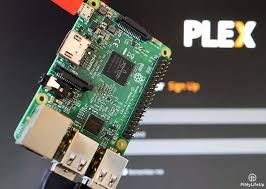
A Raspberry Pi Plex media server lets you stream your movies, music, and photos to any device on your network. It’s a budget-friendly way to organize and enjoy your digital library. This guide covers setup, benefits, and common questions for a great home media experience.
What is a Raspberry Pi Plex Media Server?
A raspberry pi media server plex is a small, low-power computer. It’s called a Raspberry Pi. You use it to store all your digital media files.
Think of movies, TV shows, music, and even photos.
Then, you install Plex software on it. Plex is a program that organizes your media. It adds artwork and details.
It makes it look nice and easy to browse.
Your Raspberry Pi server shares these files. It shares them with other devices in your home. This can be your smart TV, phone, tablet, or another computer.
You can watch your content on any screen.
This is super handy. You don’t need to copy files to each device. Everything is in one place.
It’s like your own Netflix, but with your own stuff. It’s a neat project for tech fans.
Why Build a Raspberry Pi Plex Media Server?
There are many good reasons to set this up. It’s a very popular project. Let’s look at why people love it.
First, it’s cost-effective. Raspberry Pis are cheap to buy. They use very little electricity.
This saves you money on your power bill. Buying a big, fancy server computer would cost much more. And it would use a lot more power.
Second, it’s easy to use. Once set up, Plex makes managing media simple. The interface is clean and friendly.
Finding what you want to watch is quick.
Third, it’s accessible anywhere in your home. As long as your Pi is on and connected to your home network, you can stream. Your smart TV in the living room?
Yes. Your tablet in bed? Yes.
Your computer in the office? Yes.
Fourth, it offers great control. You decide what media goes on your server. You own the files.
You don’t rely on streaming services. This is great for privacy too.
Finally, it’s a fun learning experience. Many people enjoy the process of setting it up. You learn about small computers, networking, and software.
It’s a rewarding DIY project.
Benefits at a Glance
Lower Cost: Raspberry Pi is affordable.
Energy Efficient: Uses little power, saves money.
Simple Management: Plex interface is user-friendly.
Home Access: Stream to any device in your house.
Media Ownership: You control your files.
Educational Value: Learn new tech skills.
Getting Started: What You Need
To build your raspberry pi media server plex, you’ll need a few things. Don’t worry, it’s not a long list. Most items are easy to find.
First, you need the Raspberry Pi board itself. The Raspberry Pi 4 Model B is a great choice. It’s fast enough for Plex.
It has good connectivity.
Next, you need a power supply. Make sure it’s the right one for your Pi model. A weak power supply can cause problems.
You’ll also need a microSD card. This is like the Pi’s hard drive. A 32GB or 64GB card is usually enough.
Class 10 or faster is best.
An Ethernet cable is highly recommended. While Wi-Fi works, a wired connection is more stable. This is important for smooth streaming.
Buffering is no fun!
You will need a case for your Raspberry Pi. This protects the board. Some cases have fans to keep it cool.
For the initial setup, a USB keyboard and USB mouse are helpful. You’ll also need a monitor or TV with an HDMI input. And an HDMI cable.
Finally, you need storage for your media. The microSD card is small. You’ll want an external hard drive or a USB flash drive.
Larger is better if you have many movies.
Oh, and you need a computer to download the operating system and Plex software. This can be any Windows, Mac, or Linux machine.
Essential Gear List
- Raspberry Pi (Pi 4 Model B recommended)
- Official Raspberry Pi power supply
- MicroSD card (32GB or larger, Class 10)
- Ethernet cable (for stable connection)
- Raspberry Pi case
- USB keyboard and mouse (for setup)
- Monitor with HDMI input and cable
- External USB storage for media
- A separate computer for setup
Step-by-Step: Installing Raspberry Pi OS
The first major step is getting the operating system onto your microSD card. We’ll use Raspberry Pi OS. It’s user-friendly and works well.
First, download the Raspberry Pi Imager tool. You can find this on the official Raspberry Pi website. Install it on your main computer.
Next, insert your microSD card into your computer. If you have an adapter, use that. Open the Raspberry Pi Imager.
In the Imager, click “Choose OS”. Select “Raspberry Pi OS (32-bit)” or “Raspberry Pi OS (64-bit)”. The 64-bit version is generally better if your Pi supports it.
Pick the “Lite” version if you don’t plan to use the desktop interface. It saves space and resources.
Then, click “Choose Storage”. Select your microSD card from the list. Be very careful here!
Choosing the wrong drive will erase it.
Before you write, click the gear icon for advanced options. Here, you can set a hostname (like “plexserver”). You can also enable SSH.
This lets you connect remotely later. Set a username and a strong password. Also, pre-configure your Wi-Fi if you aren’t using Ethernet.
Once all settings are correct, click “Write”. This process will take some time. It downloads the OS and writes it to the card.
It will verify the write afterwards.
When it’s done, safely eject the microSD card from your computer. It’s now ready for your Raspberry Pi.
Raspberry Pi OS Installation Flow
- Download Raspberry Pi Imager.
- Insert microSD card into computer.
- Open Imager, choose OS (e.g., Raspberry Pi OS Lite 64-bit).
- Choose storage (your microSD card).
- Set hostname, enable SSH, set password in advanced settings.
- Click “Write” and wait for completion.
- Safely eject the microSD card.
Setting Up Your Raspberry Pi
Now it’s time to power up your Raspberry Pi. Insert the prepared microSD card into the slot on the Pi. Connect your Ethernet cable to the Pi and your router.
Connect the keyboard, mouse, and monitor. Then, plug in the power supply. The Pi will boot up.
If you chose the Lite version, you will see a text-based login prompt.
Log in using the username and password you set in the Imager. If you didn’t set them up, the default is usually “pi” and “raspberry”. You’ll be prompted to change the password.
The first thing to do is update your system. This ensures you have the latest software and security patches. Open the terminal and type:
sudo apt update
Press Enter. This fetches lists of available updates. Then, run:
sudo apt upgrade -y
Press Enter. The -y flag means it will automatically say “yes” to prompts. This process can take a while.
Be patient.
You should also set a static IP address for your Raspberry Pi. This ensures its IP address doesn’t change. Plex relies on a consistent address.
You can do this through your router’s settings. Find your Pi in the list of connected devices and reserve its current IP address. Or, you can configure it on the Pi itself.
To do this on the Pi, you’d edit network configuration files. This can be a bit more technical. For most users, setting it via the router is easier.
Look for “DHCP reservation” or “static lease” in your router’s manual.
If you enabled SSH, you can now disconnect your keyboard, mouse, and monitor. You can manage the Pi remotely from your main computer. Find the Pi’s IP address.
Then use an SSH client like PuTTY (on Windows) or the built-in terminal (on Mac/Linux).
To connect via SSH, type: ssh your_username@your_pi_ip_address. For example: ssh pi@192.168.1.150.
Initial Pi Setup Checklist
- Insert microSD card and boot up.
- Log in with your credentials.
- Run
sudo apt update. - Run
sudo apt upgrade -y. - Set a static IP address for the Pi (via router recommended).
- Test SSH connection if enabled.
Installing Plex Media Server on Raspberry Pi
Now for the exciting part: installing Plex Media Server! There are a few ways to do this. The easiest and most common way is to add the Plex repository.
First, we need to download and install the Plex package signing key. This helps ensure you’re getting software from a trusted source.
In your Pi’s terminal, run these commands:
curl https://downloads.plex.tv/plex-keys/PlexSign.key | gpg --dearmor | sudo tee /usr/share/keyrings/plex-archive-keyring.gpg >/dev/null
This command downloads a key and saves it. It’s a bit technical, but it’s important for security.
Next, we add the Plex repository to your system’s sources list. This tells your Pi where to find Plex updates.
echo deb https://downloads.plex.tv/repo/deb public main | sudo tee /etc/apt/sources.list.d/plexmediaserver.list
Now, you need to update your package list again so it knows about the new Plex repository.
sudo apt update
Finally, install Plex Media Server:
sudo apt install plexmediaserver -y
This command downloads and installs the Plex server software. It should run automatically in the background.
To check if it’s running, you can use:
sudo systemctl status plexmediaserver
You should see output indicating it’s active and running.
Press q to exit the status view.
You might need to add the user running Plex (often “plex”) to your user group or vice versa. This helps with file permissions, especially for your media storage.
sudo usermod -aG pi plex (
And sometimes, the other way around:
sudo usermod -aG plex pi
These commands help Plex access your files. After running them, restart the Plex service:
sudo systemctl restart plexmediaserver
Plex Installation Steps Summary
- Import Plex GPG key.
- Add Plex repository to sources list.
- Run
sudo apt update. - Install Plex Media Server with
sudo apt install plexmediaserver -y. - Check status with
sudo systemctl status plexmediaserver. - Adjust user group permissions if needed (e.g.,
sudo usermod -aG pi plex). - Restart Plex service:
sudo systemctl restart plexmediaserver.
Configuring Your Plex Media Server
With Plex installed, it’s time to set it up. You’ll do this through a web browser on your main computer. Make sure your computer is on the same home network as your Raspberry Pi.
Open a web browser and go to:
http://Your_Pi_IP_Address:32400/web
For example, if your Pi’s IP is 192.168.1.150, you’d type: http://192.168.1.150:32400/web.
You’ll see the Plex setup wizard. You’ll need to sign in or create a Plex account. This account is free and used to manage your server.
The wizard will ask you to name your server. Something like “My Raspberry Pi Plex”. Make sure the “Allow me to access my media outside my home” box is checked if you want to stream remotely.
Next, you’ll add your media libraries. Click “Add Library”. Choose the type of media (Movies, TV Shows, Music, Photos, etc.).
Then, click “Browse for Media Folder”. You’ll see folders on your Raspberry Pi. This is where you need to connect your external storage.
Connecting External Storage:
Your external hard drive needs to be connected to the Raspberry Pi. Plug it into a USB port. It might show up automatically.
If not, you may need to mount it manually.
Using SSH, you can find your drive. Use the command lsblk. This lists block devices.
Your external drive will likely be something like /dev/sda1.
You need to create a mount point for it. For example:
sudo mkdir /mnt/mydrive
Then, mount the drive:
sudo mount /dev/sda1 /mnt/mydrive
To make it permanent (so it mounts after a reboot), edit the fstab file.
sudo nano /etc/fstab
Add a line like this (
/dev/sda1 /mnt/mydrive auto defaults,nofail 0 0
Save the file (Ctrl+X, Y, Enter). Then test it:
sudo mount -a
Now, back in the Plex web interface, when you browse for media, you can select the folder you mounted (e.g., /mnt/mydrive/Movies).
Add all your media folders (Movies, TV Shows, Music). Plex will start scanning your files. It will download metadata like cover art and plot summaries.
This can take a long time, especially for large libraries.
Go through the settings. You can adjust video quality for streaming, subtitle settings, and more. It’s good to explore these options.
Plex Configuration Flow
- Access Plex Web App:
http://Your_Pi_IP_Address:32400/web. - Sign in with your Plex account.
- Name your server.
- Add Media Libraries (Movies, TV Shows, etc.).
- Connect and mount external storage for media files.
- Browse and select your media folders within Plex.
- Let Plex scan and download metadata.
- Explore server settings for customization.
Optimizing Performance for Your Raspberry Pi Plex Server
Raspberry Pis are small but mighty. However, they have limits. To get the best streaming experience for your raspberry pi media server plex, some optimization helps.
Use Ethernet: I’ve said it before, but it’s crucial. Wi-Fi can be less stable and slower. A wired connection means fewer interruptions and better quality streams.
Use a Fast MicroSD Card: A speedy microSD card helps the OS run faster. This means quicker boot times and a more responsive system.
External Hard Drive: Don’t store your media library on the microSD card. Use a USB-powered external hard drive. This keeps the SD card for the OS and programs.
It also gives you more storage space.
Cooling: Raspberry Pis can get warm, especially when working hard. A case with a fan or heatsinks can keep the Pi from overheating. Overheating can slow down performance or cause crashes.
Disable Transcoding (When Possible): Plex can transcode media. This means it changes the file format on the fly so your device can play it. Raspberry Pis aren’t powerful enough for much transcoding.
Ideally, your media files are in a format that your playback devices can handle directly.
Use tools to check your media files. Make sure they are compatible with your TV or streaming device. If they are, Plex can “Direct Play” or “Direct Stream” them.
This uses very little power from the Pi.
Avoid Too Many Streams: A Raspberry Pi 4 can handle 1-2 direct streams well. If multiple people are trying to watch simultaneously, and transcoding is involved, it will struggle. If you have many users, you might need a more powerful server.
Keep Raspberry Pi OS Updated: Regular updates often include performance improvements. So, don’t skip the sudo apt update && sudo apt upgrade -y steps.
Monitor Resource Usage: Use the htop command in the terminal to see how much CPU and memory Plex is using. If it’s constantly maxed out, you know you need to optimize further.
Performance Tips Table
| Area | Recommendation | Why It Matters |
|---|---|---|
| Connection | Use Ethernet cable | Stable, faster streams, less buffering. |
| Storage | External USB drive for media | Keeps OS fast, more space, cooler Pi. |
| Cooling | Use a case with fan/heatsinks | Prevents overheating and slowdowns. |
| Transcoding | Ensure media is compatible with devices | Uses less Pi CPU power. |
| Simultaneous Streams | Limit to 1-2 direct streams | Pi has limited processing power for multiple tasks. |
Real-World Scenarios and Plex
Let’s imagine some common situations. How does a raspberry pi media server plex fit in?
Scenario 1: Movie Night at Home
You and your family want to watch a movie. You grab your smart TV remote. You open the Plex app.
Your Raspberry Pi server is running in the background. You select the movie from your library. It starts playing almost instantly.
The video is clear. No buffering. This is the ideal experience.
Scenario 2: Remote Viewing While Traveling
You’re on vacation. You want to show a friend a funny video you have. Or maybe you just miss watching your favorite show.
As long as your Raspberry Pi is on at home and connected to the internet, you can log into your Plex account from your phone or laptop. You can stream your media from anywhere in the world.
Scenario 3: Large Media Library Management
You’ve collected many movies and TV shows over the years. They’re scattered across different hard drives. Setting up your Plex server helps bring order.
You can copy all your media to a large external drive connected to the Pi. Plex then catalogs it all, making it easy to find and watch.
Scenario 4: Music Streaming in the House
It’s not just for videos. You can add your entire music collection to Plex. Then, you can play music through Plex apps on your phone or smart speaker.
Imagine having all your music available on any device in your home. Great for parties or just relaxing.
Scenario 5: Sharing with Friends (Carefully)
Plex allows you to share your libraries with friends or family who also have Plex accounts. You can grant them access to specific libraries. This is a neat way to share content.
However, be mindful of your internet upload speed. Too many shared streams can slow down your home network.
I remember setting up my first Pi Plex server. I had a whole folder of old home videos. They were on a dusty external drive.
Getting them onto the Pi and organized by Plex felt like magic. Seeing my kids’ faces light up watching old clips on the big screen was the best part. It made all the setup worth it.
What This Means for Your Home Entertainment
Having a raspberry pi media server plex changes how you think about your digital content. It puts you in charge.
Your Media, Your Rules: You are the curator. You decide what’s stored and how it’s organized. No more worrying about streaming services removing content or changing their offerings.
Consolidated Library: All your movies, shows, music, and photos can live in one accessible place. This eliminates the hunt for files spread across multiple devices.
Cost Savings: Compared to expensive NAS (Network Attached Storage) devices or dedicated media servers, the Raspberry Pi is a very budget-friendly option. Plus, its low power consumption means ongoing savings.
Flexibility: Whether you’re on the couch or on vacation, your media is usually available. The Plex apps are available on almost every modern device.
Simplicity: While the initial setup has steps, the day-to-day use of Plex is very straightforward. It’s designed for ease of use.
When it’s Normal: It’s normal for your Pi to hum quietly in the corner. It’s normal for your media to be ready when you want it. It’s normal for your server to be accessible from your phone.
These are the goals!
When to Worry: You might worry if your Pi is constantly overheating. Or if streams are always buffering even with direct play. Or if Plex becomes unresponsive.
These could point to an issue with the Pi, the storage, the network, or the media itself.
Simple Checks: Always check your network connection first. Is the Pi plugged in with Ethernet? Is your router working?
Is the Pi powered on? Then check the Plex server status. Is it running?
Is your external drive connected and mounted?
Understanding Your Server’s Role
Normal Use:
- Quiet operation.
- Quick media playback.
- Remote access to your files.
- Organized media library.
Potential Concerns:
- Frequent overheating.
- Constant buffering.
- Unresponsive Plex server.
- Network connectivity issues.
Quick Checks:
- Is the Pi powered on?
- Is the network cable connected?
- Is Plex server running?
- Is external storage mounted?
Quick Fixes and Tips for Your Plex Server
Sometimes things don’t work perfectly. Here are a few common issues and tips for your raspberry pi media server plex.
Plex Server Not Found:
Make sure your Raspberry Pi is powered on and connected to your network. Double-check the IP address you are using in your browser. Try restarting the Plex service on the Pi: sudo systemctl restart plexmediaserver.
Media Not Showing Up:
Verify that your media files are in the folders you added to your Plex libraries. Ensure your external storage is properly mounted. Permissions can be tricky; make sure the plex user can read the files.
Try refreshing your library in Plex (Settings > Libraries > Scan Library Files). Sometimes, Plex needs a nudge.
Buffering Issues:
This is often a network problem or a transcoding issue. Ensure you are using an Ethernet connection for the Pi. If you are trying to play files that need transcoding, and they are playing slowly, try to convert those files to a more compatible format for your playback devices.
Check your internet upload speed if streaming remotely.
Remote Access Problems:
In Plex settings, under Remote Access, check if it’s enabled and connected. Sometimes, your router’s firewall can block this. You might need to manually configure port forwarding on your router.
The default port is 32400. Consult your router’s manual.
Slow Performance Overall:
Ensure your Raspberry Pi has adequate cooling. Close any unnecessary programs running on the Pi. Limit the number of simultaneous streams.
Try to have media in direct-play formats. Running htop can show you if a specific process is hogging resources.
Keep Plex Updated:
Plex releases updates regularly. These can fix bugs and improve performance. You can update Plex via the terminal: sudo apt update && sudo apt install plexmediaserver.
Organize Your Media:
Plex works best when your files are organized logically. For movies, a folder like /mnt/mydrive/Movies/Movie Title (Year)/Movie Title (Year).ext is good. For TV shows, /mnt/mydrive/TV Shows/Show Name/Season XX/Show Name - SXXEYY - Episode Title.ext works well.
Plex can match these names to its database more easily.
Quick Fix & Tip Guide
- Not Found? Check Pi connection, IP, and restart Plex service.
- No Media? Verify files, mount, permissions, and refresh library.
- Buffering? Use Ethernet, direct play files, check upload speed.
- Remote Access Off? Check Plex settings and router firewall/port forwarding.
- Slow Pi? Ensure cooling, close apps, direct play, check
htop. - Always Update: Keep Raspberry Pi OS and Plex current.
- Organize Files: Use clear naming conventions for movies and TV shows.
Frequently Asked Questions About Raspberry Pi Plex
Can a Raspberry Pi 4 handle multiple Plex streams?
A Raspberry Pi 4 Model B can typically handle 1-2 direct streams smoothly. If those streams require transcoding (converting the file format on the fly), it will struggle significantly, likely only handling one or none. For multiple transcoded streams, a more powerful computer is needed.
Do I need to buy Plex Pass for my Raspberry Pi server?
No, you do not need Plex Pass to run a Plex Media Server on a Raspberry Pi. Plex Pass offers premium features like hardware transcoding (which the Pi can’t do well anyway), mobile sync, live TV DVR, and parental controls. The core media serving functionality is free.
What is the best external storage for a Raspberry Pi Plex server?
A powered external USB hard drive (HDD) or SSD is best. HDDs offer more storage for the cost, which is great for large movie libraries. SSDs are faster but more expensive.
Ensure the drive is formatted in a common format like NTFS or ext4. Using a drive that doesn’t require a separate power adapter (powered by the Pi’s USB) is also convenient, but make sure your Pi’s power supply is robust enough.
Can I use a USB flash drive instead of a hard drive for media?
Yes, you can. However, flash drives are generally slower and have a limited number of write cycles compared to hard drives. For a large media library, a hard drive is a more reliable and cost-effective choice.
A flash drive might be okay for a very small collection of music or a few movies.
How do I make my Raspberry Pi Plex server accessible outside my home?
Ensure the “Allow me to access my media outside my home” option is checked in your Plex server settings. You may also need to configure port forwarding on your home router. This involves directing incoming traffic on a specific port (usually 32400) to your Raspberry Pi’s IP address.
Consult your router’s manual for instructions.
Will a Raspberry Pi 3 be sufficient for Plex?
A Raspberry Pi 3 can run Plex Media Server, but its performance will be significantly limited compared to a Pi 4. It’s best suited for serving very small libraries, primarily audio, or a few direct-play video files. Transcoding will be extremely slow, if possible at all.
For a good experience, a Pi 4 is strongly recommended.
How do I update Plex Media Server on my Raspberry Pi?
You can update Plex through the terminal using the same commands you used for installation. Run sudo apt update followed by sudo apt install plexmediaserver. This will check the Plex repository for the latest version and install it if available.
Conclusion: Your Personal Media Hub Awaits
Building a raspberry pi media server plex is a rewarding project. It brings all your digital entertainment together. You gain control and save money.
While there are steps involved, they are manageable. With a little patience, you’ll have your own streaming service. Enjoy your media collection like never before.