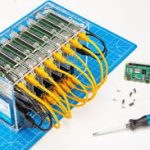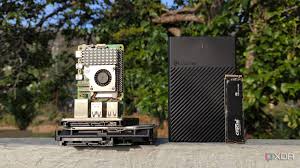
A Raspberry Pi home server lets you store files, stream media, and run apps from a small, low-power computer. It’s a flexible and affordable way to manage your digital life without needing a bulky, power-hungry machine.
What is a Raspberry Pi Home Server?
A Raspberry Pi is a small, credit-card-sized computer. Think of it as a tiny, super-cheap desktop computer. You can connect a screen, keyboard, and mouse to it.
But its real power shines when you use it for specific jobs. A home server is a computer that stays on most of the time. It serves files or content to other devices on your home network.
Your phone, tablet, or other computers can use it.
Setting up a Raspberry Pi as a home server means giving it a dedicated job. This could be storing all your family photos. It might also be streaming your movie collection to your TV.
Or it could even host a simple website. It uses much less electricity than a regular desktop computer. This makes it a great choice for a device that runs 24/7.
You can install special software on it. This software tells the Pi how to act as a server.
My First Home Server Fiasco
I remember my first attempt at building a home server. I wasn’t using a Raspberry Pi back then. I tried to repurpose an old desktop PC.
I had grand plans of a giant media library. I spent days downloading software. I read through endless forums.
The computer hummed loudly in the corner. Lights blinked all over it. Then, one morning, I woke up and it was dead.
Completely unresponsive. It turned out I had overloaded it. I didn’t understand power needs or cooling.
The smell of burnt electronics filled my small office. It was frustrating and made me think a home server was just too hard. I almost gave up then and there.
I learned a lot from that smelly disaster, though.
Raspberry Pi vs. Old Computer Server
Old Computer:
- Uses a lot of power.
- Takes up space.
- Can be noisy.
- More complex to set up for simple tasks.
Raspberry Pi Server:
- Uses very little power.
- Super small and quiet.
- Easy to manage for specific jobs.
- Affordable to buy and run.
Why Choose a Raspberry Pi for Your Server?
There are several reasons why a Raspberry Pi is a fantastic choice. First, its size is a huge plus. You can hide it away easily.
It fits on a small shelf or even behind your TV. Second, it’s incredibly energy efficient. This means it costs very little to run all day and night.
Think of it like a light bulb’s energy use, not a refrigerator’s. This saves you money on your electricity bill. Also, the cost of a Raspberry Pi itself is very low.
You can get started for under $100. This is much cheaper than buying a dedicated NAS (Network Attached Storage) device or a new PC.
The Raspberry Pi community is huge. This means there are tons of guides and tutorials available. If you get stuck, someone has likely faced the same problem.
They’ve probably written about how to fix it. You can do many different things with a Pi server. You can use it for file sharing.
This means all your family’s photos and documents are in one place. You can access them from any device. You can also set it up for media streaming.
This lets you watch movies from your collection on your smart TV or phone. It’s a versatile little device.
Key Benefits of a Pi Server
Cost-Effective: Low initial purchase price and minimal running costs.
Energy Efficient: Uses very little electricity, saving money and reducing environmental impact.
Compact Size: Easily fits into any space without being obtrusive.
Quiet Operation: Unlike noisy desktop PCs, a Pi is virtually silent.
Strong Community Support: Access to a vast online community for help and guidance.
Versatility: Can be used for file storage, media streaming, personal cloud, and more.
Getting Started: What You Need
To build your Raspberry Pi home server, you’ll need a few things. The first is a Raspberry Pi board itself. The Raspberry Pi 4 Model B is a great choice.
It has more RAM and faster networking. This makes it better for server tasks. You’ll also need a power supply.
Make sure it’s the correct one for your Pi model. A good quality power supply prevents many common issues.
Next, you need a microSD card. This is where the operating system will be installed. A card of 16GB or 32GB is usually enough.
Faster cards will make your Pi boot up quicker. You’ll also need a way to store your data. For a file server, you’ll want external storage.
This could be a USB hard drive or an SSD. Using external storage is better than using the microSD card for your main files. It’s safer and offers more space.
Don’t forget an Ethernet cable. While Wi-Fi works, a wired connection is much more reliable for a server. This ensures a stable connection to your network.
You might also want a case for your Raspberry Pi. This protects the board. Some cases have cooling fans.
These are helpful if your Pi will be running heavy tasks. Finally, you’ll need a way to set it up. This usually involves a computer to flash the operating system onto the microSD card.
Essential Hardware Checklist
1. Raspberry Pi Board: Raspberry Pi 4 Model B recommended.
2. Power Supply: Official or high-quality USB-C power adapter.
3. MicroSD Card: 16GB or 32GB, Class 10 or faster.
4. External Storage: USB hard drive or SSD for your files.
5. Ethernet Cable: For a stable network connection.
6. Case: To protect the Pi board (optional but recommended).
7. Keyboard, Mouse, Monitor: For initial setup (can be removed later).
8. Computer: To download and flash the OS onto the microSD card.
Choosing an Operating System (OS)
The most common operating system for Raspberry Pi is Raspberry Pi OS. It’s based on Debian Linux. It’s designed for the Pi and works very well.
For a server, you’ll likely want the “Lite” version. This version doesn’t have a desktop environment. It’s leaner and uses fewer resources.
This is good for a dedicated server. You’ll interact with it using the command line.
Another option is a specialized server OS. For example, Ubuntu Server. Or DietPi.
DietPi is very lightweight. It’s optimized for single-board computers like the Pi. It makes installing common server software very easy.
No matter which OS you choose, you’ll need to “flash” it onto your microSD card. This means writing the OS image file to the card. You can use tools like Raspberry Pi Imager or Etcher for this.
Once the OS is on the card, you can put it into your Raspberry Pi. Connect your power supply. The Pi will boot up.
For the first boot, you’ll want to connect a monitor and keyboard. This helps you set up your network connection. You can also set it up for “headless” installation.
This means no monitor or keyboard needed after the initial setup. You connect to it over the network. This is very handy for a server you want to tuck away.
OS Selection Guide
Raspberry Pi OS Lite:
- Pros: Official, well-supported, stable.
- Cons: Requires more manual setup for specific server roles.
Ubuntu Server:
- Pros: Familiar for Linux users, vast software repositories.
- Cons: Can be more resource-intensive than other options.
DietPi:
- Pros: Extremely lightweight, easy software installation tools.
- Cons: Smaller community than Raspberry Pi OS or Ubuntu.
Setting Up for Headless Access
Headless setup is crucial for a server. It means you don’t need a screen or keyboard attached to the Pi all the time. This lets you place your Pi server anywhere.
You can easily manage it from your main computer. To do this, after flashing your OS, you need to enable SSH. SSH (Secure Shell) is a way to log into your Pi remotely.
You can also set up Wi-Fi before shutting down.
On the microSD card, there’s a boot partition. You need to create a file named `ssh` in this partition. This file should be empty.
Just its presence enables SSH. You also need to configure your Wi-Fi. You can create a file named `wpa_supplicant.conf`.
This file tells the Pi your Wi-Fi network name (SSID) and password. Once these files are in place, your Pi can connect to your network automatically on boot.
After booting, you need to find your Pi’s IP address. You can usually find this in your router’s settings. Look for a device named “raspberrypi” or similar.
Once you have the IP address, you can use an SSH client. For Windows, PuTTY is popular. On Mac and Linux, you can use the built-in terminal.
You’ll connect using `ssh pi@YOUR_PI_IP_ADDRESS`. The default username is `pi`. The default password is `raspberry`.
It’s VERY important to change this default password immediately for security.
Headless Setup Steps
1. Flash OS: Use Raspberry Pi Imager or Etcher.
2. Enable SSH: Create an empty file named `ssh` in the boot partition.
3. Configure Wi-Fi: Create `wpa_supplicant.conf` in the boot partition with your network details.
4. Boot Pi: Insert the card and power on.
5. Find IP Address: Check your router’s connected devices list.
6. Connect via SSH: Use a client (like PuTTY or Terminal) to connect. Default user: `pi`, default password: `raspberry`.
Change password immediately!
Configuring Your External Storage
Your Raspberry Pi’s microSD card is not ideal for storing lots of data. It’s small and can wear out over time. You need to connect an external hard drive or SSD.
Plug your drive into one of the Pi’s USB ports. It’s best to use a USB 3.0 port if available (usually blue). These are faster.
For spinning hard drives, a powered USB hub might be needed. Some drives draw too much power for the Pi alone.
The Pi needs to recognize your drive. You’ll format it. Use a Linux-friendly format like ext4.
NTFS (used by Windows) can work, but ext4 is better for Linux. You can format the drive using commands in the SSH terminal. First, identify the drive.
Use `lsblk` to see connected storage devices. Your external drive will likely appear as `/dev/sda` or similar.
You then need to mount the drive. Mounting makes the drive’s storage accessible. You’ll create a directory where the drive will be located.
For example, `/mnt/mydrive`. Then you mount the drive to this directory. You also want it to mount automatically every time the Pi starts.
You do this by editing the `/etc/fstab` file. This file tells Linux what to mount and where. This step is very important for a reliable server.
External Drive Setup Flow
1. Connect Drive: Plug your USB drive into the Raspberry Pi.
2. Identify Drive: Use `lsblk` command to find its device name (e.g., `/dev/sda1`).
3. Format Drive (if needed): Use `mkfs.ext4 /dev/sda1` (
4. Create Mount Point: Use `sudo mkdir /mnt/mydrive` (or a name you like).
5. Mount Drive: Use `sudo mount /dev/sda1 /mnt/mydrive`.
6. Automount on Boot: Edit `/etc/fstab` to add an entry for your drive.
Setting Up a File Server (Samba)
One of the most common uses for a Pi home server is file sharing. This lets you access your files from Windows, Mac, and Linux computers. The easiest way to do this is using Samba.
Samba is a software suite that implements the SMB/CIFS protocol. This is what Windows uses for file sharing. You’ll install it on your Raspberry Pi.
First, update your Pi’s software packages. Use `sudo apt update` and `sudo apt upgrade`. Then, install Samba: `sudo apt install samba samba-common-bin`.
Once installed, you need to configure it. The main configuration file is `/etc/samba/smb.conf`. You’ll edit this file to define your shared folders.
You can create a share for your external drive. You’ll set permissions so only certain users can access it. You’ll also set up Samba users.
These users will log in from your other computers. You’ll need to create a Samba password for your `pi` user (or create new users). After saving the configuration file, you restart the Samba service for changes to take effect.
From your Windows computer, you can then access the share. Open File Explorer. In the address bar, type `\\YOUR_PI_IP_ADDRESS`.
You should see your shared folder. You’ll be prompted for a username and password. Use the Samba username and password you set up.
This makes your Pi’s storage appear like a network drive on your computer.
Samba Server Quick Steps
1. Update Pi: sudo apt update && sudo apt upgrade
2. Install Samba: sudo apt install samba samba-common-bin
3. Configure `smb.conf`: Edit /etc/samba/smb.conf to define shares.
4. Create Samba User/Password: Use sudo smbpasswd -a pi (for the ‘pi’ user).
5. Restart Samba: sudo systemctl restart smbd nmbd
6. Connect from Windows: Go to \\YOUR_PI_IP_ADDRESS in File Explorer.
Building a Media Server (Plex, Jellyfin, Emby)
If you have a large movie or music collection, a media server is fantastic. It organizes your media. It provides a nice interface to browse and play your content.
Popular options include Plex, Jellyfin, and Emby. Jellyfin is completely free and open-source. Plex and Emby have free tiers with paid upgrades.
Installing a media server involves downloading its specific software package for ARM architecture (which the Raspberry Pi uses). You’ll often add a repository. Then you install the package using `apt`.
Once installed, you access the media server’s web interface through your browser. You’ll point it to your media folders. These are usually on your external drive.
The media server software will scan your files. It downloads metadata like movie posters, actor names, and descriptions. It then creates a beautiful library.
You can then install client apps on your smart TV, phone, or tablet. These apps connect to your Pi server. You can stream your media anywhere in your home.
Some even allow remote access outside your home, though this can be more complex to set up securely.
The Raspberry Pi 4 can handle streaming. It might struggle if you try to transcode media on the fly. Transcoding means converting video on the fly to match your device’s capabilities.
If your files are in a format your devices can play directly (direct play), the Pi will do much better. Many modern TVs and streaming devices support common formats like H.264 or H.265 (HEVC).
Media Server Options
Jellyfin:
- Pros: Free, open-source, no ads, great customization.
- Cons: Can sometimes lag behind Plex/Emby in polish or features.
Plex:
- Pros: Very polished interface, wide client support, easy to use.
- Cons: Some features require a paid Plex Pass, some data collection.
Emby:
- Pros: Good feature set, mobile app support.
- Cons: Many advanced features are behind a paid subscription.
Creating a Personal Cloud (Nextcloud)
What if you want something like Dropbox or Google Drive, but running on your own server? That’s where a personal cloud solution comes in. Nextcloud is a very popular option.
It’s free, open-source, and gives you control over your data. It’s a powerful tool for syncing files and calendars across all your devices.
Setting up Nextcloud on a Raspberry Pi can be a bit more involved. It requires a web server (like Apache or Nginx), a database (like MariaDB or PostgreSQL), and PHP. You can install these components separately.
Or you can use a pre-made stack like Docker. Docker lets you run applications in isolated containers. This makes installation and management easier.
Once Nextcloud is installed, you create your user account. You can then access it through a web browser. You upload files, create folders, and manage your data.
Nextcloud also has apps for desktop and mobile. These apps sync your files automatically. So, when you add a photo on your phone, it shows up on your computer.
It feels just like using a commercial cloud service. But your data stays on your Pi server at home. This offers a great balance of convenience and privacy.
It’s a really empowering project.
Nextcloud at a Glance
Function: File syncing, calendar, contacts, photos, notes.
Privacy: Your data stays on your server.
Access: Web browser, desktop clients, mobile apps.
Cost: Free and open-source (software). Requires hardware and electricity.
Setup: Can be complex, often involves LAMP/LEMP stack or Docker.
Other Cool Projects for Your Pi Server
The possibilities with a Raspberry Pi home server are vast. You can set up a Pi-hole. Pi-hole is a network-level ad blocker.
It blocks ads for all devices on your network. It’s surprisingly effective and easy to manage. You can also run a VPN server.
This lets you securely connect to your home network when you’re away. It’s great for accessing your files or streaming media from public Wi-Fi.
Another fun project is a print server. If you have an older USB printer that isn’t network-enabled, your Pi can make it so. You can install CUPS (Common Unix Printing System).
Then, you can print to your printer from any device on your network. You can even set up a personal notes server. Or a password manager.
Or a home automation hub. The Raspberry Pi is a gateway to a more connected and personalized digital home.
Think about running a Git server for your coding projects. Or a simple web server for a personal blog. The key is that the Pi is always on.
It’s low-power. And it’s very capable for many tasks. It empowers you to take control of your digital services.
You’re not relying on third-party companies. This can be a big deal for privacy-conscious users. It’s also a great learning experience.
You’ll pick up useful IT skills along the way.
Beyond Files and Media
Pi-hole: Network-wide ad blocking.
VPN Server: Secure remote access to your home network.
Print Server: Make non-networked printers accessible.
Home Automation: Hub for smart devices (e.g., Home Assistant).
Git Server: Host your own code repositories.
Web Server: Host a personal website or blog.
Real-World Context: Where This Fits In
In today’s world, we create and consume more digital content than ever. Photos from vacations, videos of kids’ first steps, music playlists, important documents. Having these scattered across multiple devices can be a nightmare.
Trying to find that one picture from three years ago might mean searching your phone, laptop, and an old USB stick. A Raspberry Pi home server brings order to this chaos.
It’s about convenience. Imagine being on your couch and wanting to watch a movie you own. Instead of needing a physical disc or scrambling to find a file on your PC, you just open your TV app.
Your entire movie library is there, organized and ready to play. Or think about a family member needing a specific tax document. They can access it from their computer, even if you’re not home.
This is especially true if you set up secure remote access.
The design of modern homes often means limited space. A bulky server is out of the question for many. The Raspberry Pi’s small footprint is perfect.
It can sit unobtrusively in a media console, a study, or even a closet. Its low power consumption also means it’s not a drain on your wallet or the environment. It fits seamlessly into a smart, connected home.
It’s practical technology that solves real everyday problems.
What This Means for You: When to Worry
For most home users, setting up a Raspberry Pi server is a rewarding experience. It offers great functionality at a low cost. However, there are a few things to keep in mind.
Firstly, security is paramount. Always change default passwords. Keep your operating system and installed software updated.
If you expose your server to the internet (for remote access), be extra cautious.
Secondly, understand the limitations of the hardware. A Raspberry Pi is not a supercomputer. If you plan to run many demanding services at once, or if you have a very large household with many users, you might experience slowdowns.
For example, if multiple people are streaming high-definition video while others are doing heavy file transfers, the Pi might struggle. In such cases, you might need a more powerful server or multiple Pis.
When to worry? If your server becomes consistently slow and unusable. If you notice unusual network traffic.
If you’re unable to access your files. These could indicate a problem. It might be a hardware issue with the Pi or the storage.
It could be a software misconfiguration. Or it could be a security breach. If you suspect any of these, it’s time to investigate.
Check your logs, review your settings, and perhaps seek help from the Raspberry Pi community.
Troubleshooting & Red Flags
Performance Issues: Server is slow, apps lag. Check Pi’s CPU and RAM usage. Consider simplifying services or upgrading hardware.
Network Problems: Cannot connect to the server. Verify IP address, router settings, and Pi’s network connection.
Data Access Failure: Files are missing or inaccessible. Check external drive connection, mount status, and file permissions.
Unusual Activity: High network traffic when idle, unexpected file changes. This could be a security concern. Investigate logs immediately.
Power Fluctuation: Pi unexpectedly reboots. Ensure you have a stable, adequate power supply. Consider a UPS (Uninterruptible Power Supply).
Quick Tips for a Smooth Experience
Here are some simple tips to help your Raspberry Pi home server run smoothly. Always use a good quality power supply. Cheap ones can cause instability.
Use a wired Ethernet connection for your Pi. It’s much more reliable than Wi-Fi for a server. Keep your operating system and all installed software up to date.
This patches security holes and improves performance.
Regularly back up your important data. Your Pi server and its connected storage are still vulnerable. Hardware can fail.
You can make mistakes. Use an external backup solution. This could be another USB drive, a cloud backup service, or even another computer.
Automate tasks where possible. For example, schedule backups. Schedule software updates if you’re comfortable.
Monitor your server’s performance. Tools like `htop` can show you what’s using your Pi’s CPU and memory. If something is using too much, you can investigate.
Overclocking your Pi can offer a performance boost. But it increases heat and power consumption. Only do this if you understand the risks.
And ensure you have adequate cooling.
Essential Maintenance Tips
Stable Power: Always use a quality power adapter.
Wired Network: Prefer Ethernet over Wi-Fi for servers.
Updates: Regularly update OS and software (sudo apt update && sudo apt upgrade).
Backups: Implement a robust backup strategy for your data.
Monitoring: Use tools like htop to check resource usage.
Cooling: Ensure adequate ventilation or use a fan case, especially if overclocking.
Frequently Asked Questions
Can I access my Raspberry Pi server from outside my home?
Yes, you can. This is often called remote access. It requires configuring your router and often setting up a dynamic DNS service.
It also adds security risks, so it must be done carefully. Services like Plex or Nextcloud have built-in options for this.
How much data can a Raspberry Pi home server store?
The storage capacity is limited by the external drives you connect. You can use USB hard drives or SSDs, which come in many sizes, from a few hundred gigabytes to many terabytes. The Raspberry Pi itself doesn’t have much built-in storage beyond the microSD card.
Is it safe to run a server 24/7?
Yes, Raspberry Pis are designed for continuous operation. They use very little power and generate minimal heat. Unlike older computers, they are built with reliability in mind for such tasks.
Ensure good ventilation for longevity.
What is a good speed for the microSD card?
For the operating system, a fast card helps with boot times and general responsiveness. Aim for a Class 10 or UHS-I speed rating. Cards with speeds of 90MB/s or higher are excellent.
For example, a SanDisk Extreme or Samsung EVO card.
Can I run multiple server applications on one Raspberry Pi?
Yes, you can. A Raspberry Pi 4 can handle several services simultaneously. However, performance will depend on how resource-intensive each service is.
For very demanding tasks or many services, you might need a more powerful Raspberry Pi or multiple Pis.
Do I need to know Linux to set up a Raspberry Pi server?
Some basic Linux command-line knowledge is very helpful, especially for advanced configurations. However, many setup guides and tools are designed for beginners. For common tasks like file or media servers, you can often follow step-by-step instructions without being a Linux expert.
Conclusion
Building a Raspberry Pi home server is an achievable project. It puts you in control of your digital life. You can store files, stream media, and run useful applications.
It’s a cost-effective and energy-efficient solution. With a little patience and the right guidance, you can create a powerful server for your home.