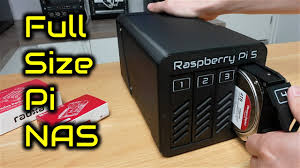
A Raspberry Pi NAS is a custom-built network attached storage device using a Raspberry Pi computer. It allows you to store files centrally and access them from any device on your home network. This guide covers the key steps and components needed for a successful build.
What Exactly Is a Raspberry Pi NAS?
At its heart, a Raspberry Pi NAS is just that: a Raspberry Pi computer turned into a storage hub. Think of it as a mini-server for your home. Instead of one big external hard drive that plugs into just one computer, a NAS connects to your home network.
This means everyone in your house can reach the same files. You can save photos, videos, documents, and music there. You can also back up your computers automatically.
It’s a way to manage your digital life more easily.
Why choose a Raspberry Pi for this? Well, they are small. They don’t use much electricity.
And they are quite affordable. This makes them a great starting point for a DIY project like a NAS. You get a lot of control over how it works.
You can tailor it to your exact needs. This is different from buying a pre-made NAS. Those are often more expensive and might have features you don’t need.
Building your own also gives you a chance to learn. You’ll get hands-on experience with operating systems, storage setups, and basic networking. It’s a project that’s both practical and educational.
You’re not just buying a gadget; you’re building one. This is a huge part of the appeal for many DIY enthusiasts.
My Own NAS Journey: A Little Scare and a Big Win
I remember my first attempt at building a Raspberry Pi NAS vividly. It was a few years ago. I had just gotten a new Raspberry Pi 4.
I’d read all about how it could be a NAS. So, I bought some hard drives and a case. The goal was to finally get all my family photos off multiple phones and laptops and into one safe place.
I felt pretty confident. I’d tinkered with Pis before, running retro game consoles and simple home automation. This seemed like the next logical step.
I spent a whole weekend on it. Following online guides, I installed the operating system. I formatted the drives.
I set up the network sharing. Everything seemed to be working! I copied a few files over.
They were there. Success! I went to bed feeling really proud.
The next morning, I woke up excited to show my partner. I tried to access the shared folder. Nothing.
The drive wasn’t showing up. Panic set in. All my precious photos!
What if they were gone? My heart sank. I spent hours retracing my steps.
I checked all the cables. I rebooted everything. Still nothing.
It turned out I had accidentally unplugged one of the power cables for the hard drive enclosure in my haste the night before. It was a simple mistake, but in that moment, it felt like a disaster. Once I plugged it back in, everything worked perfectly.
That scare taught me to be more careful with connections. But the relief of seeing all my files safe and sound was incredible. It was worth all the effort.
Your Raspberry Pi NAS Shopping List
The Brains: A Raspberry Pi board. A Raspberry Pi 4 is ideal for speed and USB 3.0 ports. A Pi 3B+ can work but will be slower.
Storage: One or more USB hard drives (HDDs) or solid-state drives (SSDs). The capacity depends on your needs. For best performance, use powered USB drives or a powered USB hub.
This ensures the Pi isn’t trying to power the drives itself, which can cause issues.
Power: A reliable power supply for your Raspberry Pi. Use the official one or a high-quality alternative. Also, a powered USB hub if your drives need extra juice.
Case: A case for your Raspberry Pi. Some cases even have bays for hard drives, which can make for a neat build.
SD Card: A good quality microSD card for the operating system. 16GB or 32GB is usually enough.
Cables: USB cables to connect your drives. Ethernet cable for a wired network connection (highly recommended for NAS performance).
Optional: A small fan for cooling, especially if you’re running multiple drives or your Pi is in a warm spot.
Setting Up the Operating System
The first technical step is getting the operating system onto your Raspberry Pi. For a NAS, the most popular choice is Raspberry Pi OS Lite. This version doesn’t have a desktop environment.
It’s leaner and uses fewer resources. This is perfect for a server-like task. You’ll need to download this image file.
Then, you’ll use a tool like Raspberry Pi Imager or Etcher to write the image to your microSD card.
When you write the image, you can actually pre-configure some settings. This is super handy. You can set up your Wi-Fi details if you plan to use wireless.
More importantly, you can set up SSH (Secure Shell). This lets you connect to your Pi remotely from another computer. You won’t need a keyboard or monitor attached to the Pi itself after the initial setup.
This is called “headless” setup.
Once the OS is on the card, put it in your Pi. Connect your Ethernet cable to your router and your power supply. Turn it on.
Give it a few minutes to boot up. Then, you’ll need to find its IP address on your network. You can usually find this in your router’s settings.
Or, you can use a network scanning app on your phone or computer.
Now, you can SSH into your Pi. The default username is usually ‘pi’, and the password is ‘raspberry’. It’s very important to change this password right away for security!
You’ll then run a few commands to update the system. This makes sure you have the latest software and security patches. You’ll type `sudo apt update` and then `sudo apt upgrade`.
These commands download and install updates.
Headless Setup: Your Pi Without a Screen
Why do it? It means you don’t need to keep a monitor, keyboard, and mouse attached to your Pi. This saves space and makes your NAS setup cleaner.
How? Use Raspberry Pi Imager. Before writing the OS, click the gear icon. You can set a hostname, enable SSH, and set a username/password.
You can also configure Wi-Fi.
Connect: After booting, find your Pi’s IP address. Use an SSH client (like PuTTY on Windows or Terminal on Mac/Linux) to connect using the IP address and your chosen username/password.
Connecting Your Storage Drives
This is where your NAS starts to become a storage device. You’ll connect your USB hard drives to the Raspberry Pi. If you are using a Raspberry Pi 4, use the blue USB 3.0 ports.
These offer much faster speeds. If your drives are not self-powered, you’ll need a powered USB hub. Connect the hub to the Pi, and then connect your drives to the hub.
Then, power up the hub and the Pi.
On your SSH session, you need to identify the drives. You can use the command `lsblk`. This command lists block devices.
You’ll see your SD card and your USB drives. They might be named something like `sda`, `sdb`, etc. It’s important to know which is which.
You don’t want to accidentally format the wrong drive!
Before you can use a drive, it needs to be formatted. Most people use the ext4 file system. This is common for Linux systems and works well.
If your drive is brand new, it might not have any partitions. If it already has data, you might want to back it up first before formatting. Formatting erases everything on the drive.
To format a drive, you’ll use commands like `sudo fdisk /dev/sda` (
Once formatted, you need to mount the drive. Mounting makes the drive accessible in the Pi’s file system. You’ll create a directory where you want to access the drive.
For example, `sudo mkdir /mnt/mydrive`. Then, you mount it: `sudo mount /dev/sda1 /mnt/mydrive`. To make it permanent, so it mounts every time the Pi starts, you’ll edit the `/etc/fstab` file.
This file tells the system what to mount and where.
Adding multiple drives is similar. You’ll identify each one, format it, and mount it to a separate directory (e.g., `/mnt/mydrive2`, `/mnt/mydrive3`). Having them mounted this way makes them available for sharing.
Quick Drive Check and Mount
Command: lsblk
Purpose: Shows connected drives and their partitions. Example: sda, sdb.
Command: sudo mkfs.ext4 /dev/sdX1
Purpose: Formats partition 1 of drive X as ext4. (Caution: ERASES DATA!)
Command: sudo mkdir /mnt/mynasdrive
Purpose: Creates a folder to access the drive.
Command: sudo mount /dev/sdX1 /mnt/mynasdrive
Purpose: Makes the formatted drive available in the new folder.
Setting Up Network Sharing
Now that your drives are connected and mounted, you need to make them available on your network. The most common way to do this is using Samba. Samba is software that lets Linux systems share files with Windows, macOS, and Linux computers.
It makes your Raspberry Pi act like a Windows file share.
First, you need to install Samba. You do this with the command: `sudo apt install samba samba-common-bin`. Once installed, you’ll configure Samba by editing its main configuration file: `sudo nano /etc/samba/smb.conf`.
This file can look a bit intimidating, but we only need to change a few things.
You’ll add new sections to the end of this file. Each section defines a shared folder. A simple share might look like this:
comment = Raspberry Pi NAS Share
path = /mnt/mydrive
browseable = yes
writeable = yes
guest ok = no
create mask = 0775
directory mask = 0775
Let’s break that down:
- “ is the name of the share you’ll see on your network.
- `comment` is a description.
- `path` is the location on your Pi where the drive is mounted.
- `browseable = yes` means it will show up when you browse the network.
- `writeable = yes` allows you to add and change files.
- `guest ok = no` means users need to log in.
- `create mask` and `directory mask` control permissions for new files and folders.
After editing the file, you need to save it (Ctrl+X, then Y, then Enter in nano). Then, you need to restart the Samba service for the changes to take effect: `sudo systemctl restart smbd nmbd`.
To access the share, you’ll need to create a Samba user. This user needs to be a Linux user on your Pi as well. You can add a new user with `sudo adduser username`.
Then, set a password for Samba access with `sudo smbpasswd -a username`. This password can be different from your Linux login password.
Now, on another computer on your network (Windows, Mac, or Linux), you should be able to find your Raspberry Pi NAS. In Windows File Explorer, you can type `\\RASPBERRYPI` (if you set the hostname to RaspberryPi) or `\\IP_ADDRESS` in the address bar. You’ll be prompted for the username and password you created with `smbpasswd`.
Samba Share Settings Explained
: How the share appears on the network.
path: The exact folder on your Pi where the drive is mounted.
browseable: Makes the share visible in network browsing.
writeable: Allows users to add/edit files. Set to no for read-only access.
guest ok: Controls if anonymous access is allowed. no requires a username/password.
valid users: You can list specific users who can access the share.
Improving Performance and Reliability
A basic Raspberry Pi NAS is great, but you can make it better. Performance is often the first thing people want to improve. For a NAS, speed matters.
This means ensuring your storage is as fast as possible.
Use USB 3.0 Ports: If you have a Raspberry Pi 4, always use the blue USB 3.0 ports for your drives. These are much faster than USB 2.0. This makes a huge difference when copying large files.
Wired Network Connection: Wi-Fi is convenient, but it’s usually slower and less reliable for a NAS. Connect your Raspberry Pi directly to your router using an Ethernet cable. This provides a stable, fast connection.
Powered Drives: Raspberry Pis don’t have a lot of power to spare. Trying to power one or more external hard drives directly from the Pi’s USB ports can lead to instability. Drives might disconnect randomly.
Using drives that have their own power supply is best. If not, a good quality powered USB hub is essential.
SSD vs. HDD: Solid-state drives (SSDs) are much faster than traditional hard disk drives (HDDs). If your budget allows, using SSDs for your NAS storage will make file transfers significantly quicker.
However, HDDs offer more storage space for the money, making them a popular choice for large media libraries.
RAID (Redundant Array of Independent Disks): For reliability, you might consider RAID. There are different levels. RAID 1, for example, mirrors data across two drives.
If one drive fails, your data is still safe on the other. Software RAID can be set up on the Raspberry Pi. This adds complexity and requires at least two drives.
It’s a more advanced topic but offers excellent protection against drive failure.
Cooling: Raspberry Pis can get warm, especially when working hard. If your Pi is in a warm room or you’re running it 24/7, consider a case with a fan or add a small heatsink. Overheating can cause performance issues and shorten the life of your components.
Regular Backups: Even with RAID, it’s wise to have a separate backup. The 3-2-1 backup rule is a good principle: 3 copies of your data, on 2 different types of media, with 1 copy off-site. Your NAS is one copy.
Consider an external drive you plug in weekly, or a cloud backup service.
Performance Boosters
Use USB 3.0: Crucial for speed on Pi 4.
Wired Ethernet: Always better than Wi-Fi for NAS.
Powered Drives/Hub: Ensures stable power for drives.
SSDs: Offer the fastest file access.
RAID 1: For drive failure protection (requires 2+ drives).
Good Cooling: Keeps the Pi running smoothly.
Real-World NAS Use Cases
What can you actually do with your Raspberry Pi NAS? The possibilities are quite broad, fitting many home needs. It’s more than just a place to dump files.
It becomes a central hub for your digital life.
Centralized File Storage: This is the main point. All your important documents, photos, music, and videos can live in one place. Your kids can save their school projects there.
You can put your movie collection there. Everyone in the house can access it easily from their computer, tablet, or phone.
Media Server: You can install software like Plex Media Server or Jellyfin on your Raspberry Pi. This turns your NAS into a media server. You can then stream your movies, TV shows, and music to smart TVs, phones, or other devices throughout your home.
It organizes your media with artwork and descriptions, making it look professional.
Automatic Backups: You can set up automatic backups from your computers to the NAS. For Windows users, you can use built-in backup tools or free software. Mac users can use Time Machine, pointing it to your network share.
This ensures your important data is protected without you having to remember to do it manually.
Download Station: Some people use their NAS to download files directly. You can set up clients like Transmission or qBittorrent. These can run on the Pi, downloading content directly to your NAS storage.
This is often more efficient than downloading to a laptop and then moving files.
Cloud Sync Alternative: If you use services like Dropbox or Google Drive, you can often set up your NAS to sync with these services. This gives you a local copy of your cloud files, and also acts as a backup for your cloud storage. Services like `rclone` are excellent for this.
Home Automation Hub Storage: If you’re into smart home tech, your NAS can store logs, camera footage, or configuration files for your home automation systems like Home Assistant. This keeps all your smart home data in one secure, accessible location.
What’s in it for You? (Real-World Scenarios)
Scenario 1: Family Photos
Everyone uploads photos from their phones. The NAS organizes them. You can easily view them on any TV.
No more “Where did that picture go?” moments.
Scenario 2: Movie Buff
Rip your DVDs or download movies. Store them on the NAS. Stream them to any device in the house.
Your own personal Netflix.
Scenario 3: Remote Worker
Keep all your work documents on the NAS. Set up automatic backups from your work laptop. Peace of mind that your projects are safe.
What This Means for You: Normal vs. Concerning Behavior
Your Raspberry Pi NAS is a tool, and like any tool, it needs to be understood. Knowing what’s normal helps you spot when something might be wrong. This is key to preventing data loss.
Normal Behavior:
- Slow transfers occasionally: If you’re copying a very large file or many small files, it can take time. Network traffic on your home can also affect speed.
- Pi gets warm: Raspberry Pis often run warm to the touch. This is usually fine if it’s not overly hot.
- LED lights blinking: Drive activity lights blinking is a good sign. It means the drives are being accessed.
- Slight fan noise: If you added a fan, a gentle hum is normal.
- Accessing from different devices: Being able to connect from Windows, Mac, or phone is exactly what a NAS should do.
Concerning Behavior:
- Drives not showing up: If your NAS share disappears or the drives are not visible after a reboot, check connections and power.
- Clicking or grinding noises from drives: This is a serious warning sign. It usually means a hard drive is failing. Back up data immediately.
- Frequent disconnects: If your NAS share keeps dropping, it could be a power issue, a bad USB cable, or overheating.
- Raspberry Pi crashing or freezing: This might indicate a power supply problem, overheating, or a software issue.
- Data corruption: If files you saved are suddenly unreadable or changed, it’s a major concern. This can point to a failing drive or a bad filesystem.
- Pi is extremely hot to the touch: If it’s too hot to comfortably hold, it needs better cooling.
If you notice concerning behavior, acting quickly is important. First, try restarting the Pi and your router. Check all power and data cables.
If a drive makes odd noises, stop using it and plan to replace it. For software issues, checking system logs (`sudo journalctl -xe`) can sometimes provide clues.
Quick Tips for a Smoother Experience
Here are some practical tips that make running your Raspberry Pi NAS easier and more reliable:
- Label Everything: Label your drives, power supplies, and cables. This saves confusion later, especially if you need to swap something out.
- Use Static IP Addresses: Set a static IP address for your Raspberry Pi in your router settings. This way, its IP address never changes. This makes connecting to it more reliable.
- Regularly Update Your System: Keep Raspberry Pi OS and Samba updated. These updates often include bug fixes and security improvements. Run `sudo apt update && sudo apt upgrade` regularly.
- Monitor Drive Health: You can use tools like `smartmontools` to check the health of your hard drives. This can give you advance warning of a drive failure.
- Organize Your Shares: Create separate Samba shares for different types of data (e.g., “Photos”, “Movies”, “Documents”). This keeps things tidy.
- Set Permissions Wisely: Think about who needs access to what. Use Samba’s `valid users` option to restrict access to specific users if needed.
- Don’t Overload Your Pi: While powerful, a Raspberry Pi has limits. Running too many services at once (like a media server, download client, and Samba) can slow it down.
- Have a Plan for Drive Failure: If you’re using single drives, accept that a drive can fail. Have a plan for replacing it and restoring data from your backup.
Essential Maintenance
Update OS: sudo apt update && sudo apt upgrade -y
Check Logs: sudo journalctl -xe
Check Disk Usage: df -h
Reboot Regularly: A weekly reboot can help clear temporary issues.
Frequently Asked Questions
How much data can a Raspberry Pi NAS store?
The storage capacity is limited only by the size of the USB hard drives you connect. You can use one large drive or multiple smaller drives. Some setups can even use large external enclosures with multiple bays.
Is a Raspberry Pi NAS fast enough for my needs?
For basic file storage and light media streaming, yes. Using a Raspberry Pi 4 with USB 3.0 and a wired Ethernet connection provides good speeds. For very heavy usage, like streaming multiple high-definition video streams simultaneously or very large file transfers constantly, a more powerful dedicated NAS might be better.
But for most home users, it’s plenty fast.
Is it secure to use a Raspberry Pi as a NAS?
Yes, if set up correctly. Always change the default password, use strong passwords for Samba users, and keep your system updated. Consider setting up a firewall if you expose it to the internet, but for a home network, these steps are usually sufficient.
Can I access my Raspberry Pi NAS from outside my home?
Yes, but it requires more advanced setup and security considerations. You’d typically use a VPN (Virtual Private Network) or a service like Tailscale. Exposing your NAS directly to the internet without proper security measures is not recommended.
What’s the difference between a Raspberry Pi NAS and a commercial NAS?
Commercial NAS devices are pre-built with dedicated hardware and software. They are usually easier to set up and manage out-of-the-box. A Raspberry Pi NAS is a DIY project that offers more customization, lower cost, and a great learning experience.
Performance and features can vary greatly depending on your build.
Do I need to know Linux to build a Raspberry Pi NAS?
Some basic Linux command-line knowledge is very helpful. You’ll need to be comfortable with commands for installing software, editing configuration files, and managing files. However, many excellent online guides and tutorials make it achievable even for beginners by carefully following instructions.
Conclusion
Building a Raspberry Pi NAS is a rewarding project. It transforms a small, affordable computer into a powerful storage solution for your home. You get control over your data and a deeper understanding of how your network works.
While it requires some technical steps, the payoff is a custom-tailored system that meets your exact needs. From organizing photos to streaming media, your Pi NAS can become the central hub for your digital life. Enjoy your new setup!