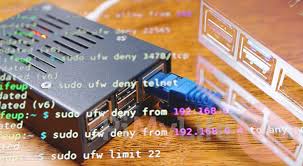
Setting up a Raspberry Pi web server allows you to host websites, files, or applications from a small, low-power computer in your home. It’s a great way to learn about networking and web hosting with a hands-on project. This guide will walk you through the essentials.
What is a Raspberry Pi Web Server?
A Raspberry Pi is a tiny, affordable computer. It’s about the size of a credit card. You can plug it into a monitor and keyboard, just like a regular computer.
A web server is software that listens for requests from web browsers. When you type a web address, your browser asks a web server for the page. The server then sends that page back to your browser.
So, a Raspberry Pi web server means you’re using this small computer to run that web server software. This lets you host things that people can access online. Think of it like your own mini-internet hub.
You can put a website on it for your family to see. Or, you could run a private cloud storage for your files.
The main idea is giving your Raspberry Pi the job of serving web content. This content can be anything from simple text pages to complex applications. It’s a fantastic way to learn about how the internet works behind the scenes.
You get to build something real that others can interact with.
Why Use a Raspberry Pi for a Web Server?
Low Power Use: Raspberry Pis use very little electricity. This means they can run 24/7 without costing a lot on your power bill. It’s much cheaper than a full desktop computer.
Small Size: They are tiny! You can easily tuck a Raspberry Pi away somewhere discreet. It doesn’t take up much space at all.
Affordable: The Pi itself is inexpensive. This makes it a low-risk way to start experimenting with web hosting and servers.
Great for Learning: It’s a perfect platform for learning about Linux, networking, and web development. You can break things and fix them without much worry.
Many people start with a Raspberry Pi for specific projects. They might want to host a blog. Others use it for home automation.
Some just want to learn coding. The flexibility is a huge draw. You’re not limited to just one thing.
You can change what it does as you learn more.
Getting Started: The Basic Setup
To get a Raspberry Pi web server running, you’ll need a few things. First, a Raspberry Pi board itself. The Raspberry Pi 4 is a good choice for a web server.
It’s powerful enough for many tasks. You’ll also need a microSD card. This acts as the Pi’s hard drive.
Make sure it’s at least 16GB, or 32GB for more space.
You will need a power supply for the Pi. A case is also a good idea to protect it. An internet connection is crucial.
This is usually via an Ethernet cable. Wi-Fi works too, but Ethernet is often more stable for servers. A keyboard, mouse, and monitor are needed for the initial setup.
But once it’s running, you can often control it remotely.
The first step is to install an operating system on the microSD card. The most common OS for Raspberry Pi is Raspberry Pi OS (formerly Raspbian). You can download it for free.
Use a tool like Raspberry Pi Imager to write the OS to your microSD card. This tool is very user-friendly.
Once the OS is on the card, insert it into your Raspberry Pi. Connect your keyboard, mouse, and monitor. Plug in the power.
Your Pi will boot up. Follow the on-screen instructions to set up your country, language, and Wi-Fi password if you’re using that. You should also change the default password for security.
After the initial setup, you’ll have a desktop environment. It looks like a regular computer. Now, you need to make it a web server.
This involves installing web server software. The most popular choice is Apache. Another is Nginx.
Both are free and widely used. Let’s focus on Apache for simplicity.
Open the terminal application on your Raspberry Pi. This is where you type commands. First, update your system’s software.
Type: sudo apt update and then sudo apt upgrade. This makes sure you have the latest software versions.
Essential Gear for Your Pi Web Server
Raspberry Pi Board: Raspberry Pi 4 or newer recommended.
MicroSD Card: 16GB or larger, Class 10 or faster.
Power Supply: Official Raspberry Pi power adapter for stability.
Case: Protects the board. Consider one with a fan for cooling.
Ethernet Cable: For a reliable internet connection.
(Optional) Keyboard, Mouse, Monitor: Needed for initial setup.
Next, install the Apache web server. Type: sudo apt install apache2 -y. The -y flag automatically says “yes” to any prompts.
Once installed, Apache starts running automatically. You can test it!
Find your Raspberry Pi’s IP address. You can do this by typing hostname -I in the terminal. It will show you one or more IP addresses.
Usually, it’s a string of numbers like 192.168.1.100. Open a web browser on another computer on the same network. Type your Pi’s IP address into the address bar.
If you see the default Apache Debian page, congratulations! Your Raspberry Pi is now a web server. It’s serving a basic page.
This is the foundation for everything else you’ll build. This step is often the most exciting for beginners.
Choosing Your Web Server Software
We talked about Apache. It’s a solid choice. It’s very well-documented.
Many tutorials are available. Apache is known for being robust and flexible. It handles many different types of websites and applications.
Another popular option is Nginx (pronounced “engine-x”). Nginx is often praised for its speed and efficiency. It’s great at handling many connections at once.
This makes it a good choice for busy websites. Nginx is also known for using fewer resources than Apache.
For a beginner, Apache is often easier to get started with. The configuration files are a bit more straightforward for simple tasks. However, if you plan to run a very high-traffic site or an application that needs to be super-fast, Nginx might be worth exploring later.
There are other options too. Lighttpd is another lightweight web server. It’s good for low-power devices like the Pi.
Caddy is a newer server that boasts automatic HTTPS setup, which is a big deal for security. But for most home users starting out, Apache or Nginx are the main contenders.
Let’s stick with Apache for now. It’s a great starting point. You can always switch later if you have specific needs.
The core concepts of setting up a web server remain similar across different software. You’re still telling the computer what files to show and how to respond to requests.
Apache vs. Nginx: A Quick Look
Apache:
- Very popular and widely used.
- Flexible and feature-rich.
- Easier for beginners to configure for simple sites.
- Runs as separate processes for each connection (can use more memory).
Nginx:
- Known for speed and efficiency.
- Excellent for high traffic and static content.
- Uses less memory.
- Can be slightly more complex for initial setup of dynamic sites.
The choice between them often comes down to what you want to achieve. For simple personal projects, either will work fine. As you grow and learn, you might find yourself drawn to one over the other based on performance needs.
Don’t stress too much about this choice early on.
Putting Your Website Files On It
Now that Apache is installed, you need to put your own files where Apache can find them. The default location for Apache’s web files is in a folder called /var/www/html/. This is where Apache looks for the files to serve when someone visits your server’s IP address.
You can use the file manager on your Raspberry Pi to navigate to this folder. Or, you can use commands in the terminal. To create a simple HTML file, you can use a text editor.
The nano editor is easy to use in the terminal.
First, make sure you are in the correct directory. Type: cd /var/www/html/. Then, create a new file.
Type: sudo nano index.html. This will open a blank file in nano. Type some simple HTML code in it.
Here’s an example of basic HTML:
<!DOCTYPE html>
<html>
<head>
 <title>My Pi Server</title>
</head>
<body>
 <h1>Hello from my Raspberry Pi!</h1>
 <p>This page is being served by my awesome Pi web server.</p>
</body>
</html>
When you’re done typing, press Ctrl + X to exit. Then press Y to save, and press Enter to confirm the filename. Now, if you visit your Pi’s IP address in a browser again, you should see this new page instead of the default Apache one.
This is how you
I remember the first time I put a custom page on my Pi server. It was just a simple “Under Construction” sign. But seeing it appear in my browser, from my own little computer, felt like magic.
It made the whole concept feel real. It showed me that I was really building something.
Website Files Location
Default Directory: /var/www/html/
Main File: Apache looks for index.html or index.htm first. If it doesn’t find that, it might show a directory listing or an error.
Creating Files: Use text editors like nano in the terminal, or transfer files using methods like SCP or SFTP.
Transferring files can be done using tools like scp from another computer. For example, on your main computer’s terminal (if it has SSH access enabled on the Pi), you could type: scp /path/to/your/local/file pi@YOUR_PI_IP_ADDRESS:/var/www/html/. This copies your local file to the Pi’s web directory.
Remember to manage permissions correctly. Sometimes, the web server might not be able to read your files if permissions are set too strictly. Use sudo chown -R www-data:www-data /var/www/html/ to give ownership to the web server user.
This is a common fix if you see permission errors.
Making Your Server Accessible from Outside
Right now, your web server only works on your home network. If you try to access it from a friend’s house, it won’t work. To make it accessible to the world, you need to do a few more things.
First, your home internet connection has a public IP address assigned by your Internet Service Provider (ISP). This address can change, which is called a dynamic IP. To handle this, you’ll want to use a Dynamic DNS (DDNS) service.
Services like No-IP or DynDNS give you a fixed hostname (like mycoolpiserver.ddns.net).
You set up an account with a DDNS provider. You then install a small client program on your Raspberry Pi or configure your router to tell the DDNS service when your public IP address changes. This way, your hostname always points to your current home IP address.
The next step is port forwarding on your router. Routers act as a gatekeeper for your home network. They block incoming connections by default.
You need to tell your router to send traffic on a specific port to your Raspberry Pi’s IP address. The standard port for web traffic is port 80 (for HTTP) and port 443 (for HTTPS).
You’ll need to log into your router’s settings. This is usually done by typing a special IP address (like 192.168.1.1 or 192.168.0.1) into a web browser. Look for a section named “Port Forwarding,” “NAT,” or “Firewall.” You’ll create a rule that says: “When traffic comes to my router on port 80, send it to my Raspberry Pi’s IP address on port 80.”
I spent hours trying to get port forwarding right the first time. My router’s interface was confusing. I kept typing the wrong IP address for my Pi.
Eventually, after much trial and error, I saw my website load from my phone while I was at a coffee shop. It was a huge relief and a great feeling of accomplishment.
Accessing Your Server Remotely
Dynamic DNS (DDNS): Use services like No-IP or DynDNS to get a consistent hostname.
Port Forwarding: Configure your router to direct traffic on port 80 (HTTP) and 443 (HTTPS) to your Raspberry Pi’s local IP address.
Static IP for Pi: It’s good practice to assign a static IP address to your Raspberry Pi within your home network. This prevents its local IP from changing, which would break your port forwarding rule.
You can usually set a static IP for your Pi within your router’s settings as well. Look for “DHCP Reservation” or “Static Leases.” This tells the router to always give your Pi the same local IP address. This is much more reliable than relying on the Pi getting the same IP from the DHCP server each time it boots.
Security Warning: Making your server accessible to the internet opens it up to potential threats. It’s crucial to keep your Raspberry Pi’s operating system updated. Use strong passwords.
Consider installing a firewall like ufw (Uncomplicated Firewall) on your Pi. Limit access to only what’s necessary.
If you plan to host sensitive data, you absolutely must set up HTTPS. This encrypts the connection between the browser and your server. Let’s Encrypt offers free SSL certificates.
You can automate the process of getting and renewing them. Tools like Certbot can help with this on your Raspberry Pi.
Common Challenges and How to Solve Them
Running a web server, especially from home, can come with its own set of headaches. One of the most common issues is network connectivity. Sometimes, your Pi might lose its connection to your router, or your home internet might go down.
If your website is suddenly unreachable, the first thing to check is your home internet connection. Is your router working? Can other devices access the internet?
If not, the problem is with your ISP. If your internet is fine, check the Ethernet cable connection to your Pi. Make sure it’s securely plugged in.
Another frequent problem is forgetting to update your DDNS service. If your ISP changes your public IP address, and your DDNS client on the Pi (or your router) doesn’t update it, your hostname will point to the wrong place. Log into your DDNS provider’s website to see if your IP address is current.
I once had a DDNS problem where my IP changed overnight, and my client failed to update. For a whole day, my personal website was unreachable, and I had no idea why. I was convinced my Pi had died.
It turned out to be a simple credential issue with the DDNS service. Double-checking those settings saved the day.
Performance can also be a challenge. Raspberry Pis are small computers. They aren’t as powerful as dedicated servers or cloud hosting.
If you try to run a very complex website or serve many users at once, your Pi might slow down. You might see slow loading times.
To improve performance:
- Use optimized images for your website.
- Minimize the use of heavy scripts or plugins.
- Consider using a more efficient web server like Nginx.
- Upgrade to a more powerful Raspberry Pi model if needed.
- Ensure your Pi has good cooling. Overheating can slow it down.
One of the trickiest areas for beginners is understanding IP addresses. You have your local IP address (like 192.168.1.x) which is used within your home network. Then you have your public IP address (assigned by your ISP) which is what the outside world sees.
DDNS and port forwarding bridge these two worlds.
Troubleshooting Quick Tips
Website Not Loading:
- Check your home internet connection.
- Verify the Raspberry Pi is powered on and connected to the network.
- Restart the Apache service:
sudo systemctl restart apache2 - Check Apache error logs:
/var/log/apache2/error.log
Can’t Access from Outside:
- Confirm your DDNS hostname is updated to your current public IP.
- Double-check your router’s port forwarding settings for ports 80 and 443.
- Make sure your ISP isn’t blocking these ports (some do for residential connections).
Another common issue is file permissions. When you upload files, the web server process (often running as the user www-data) needs permission to read them. If you get a “Forbidden” or “Access Denied” error, it’s often a permission problem.
Running sudo chown -R www-data:www-data /var/www/html/ can fix many of these.
Don’t get discouraged by these issues. Every system administrator faces them. The key is to be patient, work through them step-by-step, and learn from each problem.
There are vast online communities for Raspberry Pi and web hosting that can help.
What Else Can You Host?
Once you have a basic web server running, the possibilities expand quickly. Beyond just static HTML pages, you can host dynamic websites and applications.
WordPress: This is a very popular choice. You can install WordPress to create a blog or a full website. You’ll need to install PHP and a database server like MariaDB or MySQL first.
The Raspberry Pi 4 can handle a single-user WordPress site quite well.
Private Cloud Storage: Use software like Nextcloud or ownCloud. These apps allow you to sync files between your devices and store them privately on your Pi. It’s like your own Dropbox, but under your control.
Media Server: Install Plex or Jellyfin to stream your movies, TV shows, and music to any device in your home or even remotely. This turns your Pi into a home entertainment hub.
Home Automation Dashboard: If you use smart home devices, you can create a central dashboard to control them. Software like Home Assistant can run on a Raspberry Pi and connect to many different smart home platforms.
Personal Notes/Wiki: Tools like DokuWiki or Obsidian can be hosted on your Pi for personal notes, project documentation, or a private wiki. They offer a structured way to organize information.
I set up a Nextcloud instance on my Pi, and it was a game-changer for my photos. I could upload them from my phone directly. I didn’t have to rely on third-party cloud services.
It felt so much more secure. Plus, I learned a lot about setting up databases and PHP.
Popular Applications to Host
Blogs/Websites: WordPress, Ghost, Static Site Generators
File Sync & Share: Nextcloud, ownCloud
Media Streaming: Plex, Jellyfin, Emby
Home Automation: Home Assistant, OpenHAB
Note Taking: DokuWiki, Wiki.js, Obsidian Publish (indirectly)
Password Managers: Bitwarden (requires Docker)
Running multiple applications on the same Raspberry Pi can be resource-intensive. You might need to use techniques like Docker to containerize your applications. Docker allows you to run applications in isolated environments, which can help manage dependencies and resources more efficiently.
For example, if you want to run WordPress, Nextcloud, and Plex, it’s often best to install Docker and then run each of those as separate Docker containers. This makes management easier and prevents conflicts between different applications. Many guides are available for setting up Docker on a Raspberry Pi.
Security Considerations for Your Pi Server
This is super important. Whenever you open a device to the internet, you must think about security. A compromised web server can be used to launch attacks on others or to steal your data.
Here’s what you need to keep in mind:
Keep Software Updated: Regularly update your Raspberry Pi OS and all installed software. Use sudo apt update and sudo apt upgrade often. This patches security holes.
Strong Passwords: Use unique, strong passwords for your Pi user account, SSH access, and any web applications you install (like WordPress). Avoid default passwords!
SSH Security: Secure your SSH access. Consider disabling password authentication and using SSH keys instead. You can also change the default SSH port (22) to something else, though this is more of a security through obscurity measure.
Firewall: Install and configure a firewall like ufw. This controls which ports are open to the outside world. Only open the ports you absolutely need (like 80 and 443).
Deny all other incoming traffic.
HTTPS/SSL: Always use HTTPS for any sensitive data. Let’s Encrypt provides free SSL certificates. Tools like Certbot make it easy to automate this.
Browsers will show a padlock symbol, indicating a secure connection.
I once found out my Pi server had been targeted by a bot trying to brute-force my SSH password. Thankfully, I had disabled password login and was using SSH keys. It was a stark reminder that even small home servers are scanned by automated systems.
Staying vigilant is key.
Key Security Practices
Regular Updates: Keep OS and software patched.
Strong, Unique Passwords: For all accounts and services.
SSH Key Authentication: Disable password login for SSH.
Firewall Setup: Use ufw to restrict access.
HTTPS Everywhere: Use Let’s Encrypt for SSL certificates.
Limit Services: Only run what you need.
Disable Unused Services: If you install something and then decide not to use it, disable or uninstall it. Every running service is a potential attack vector.
Backups: Regularly back up your important data and your Raspberry Pi’s SD card image. If something goes wrong, you can restore your system. There are many backup scripts and tools available for Raspberry Pi.
Monitor Logs: Periodically check your server’s log files. They can reveal suspicious activity or errors. The Apache logs are usually found in /var/log/apache2/.
Is a Raspberry Pi Web Server Right for You?
A Raspberry Pi web server is an amazing project for learning and for creating personal digital services. It’s perfect if you’re curious about how the internet works, want to host your own small website, or need a private place for your files. The low cost and low power usage make it incredibly accessible.
However, it might not be the best solution for everyone. If you need to host a large, high-traffic commercial website, a Raspberry Pi will likely struggle. Dedicated hosting or cloud services are designed for that kind of load.
They offer better performance, reliability, and support.
Also, if you’re not comfortable with some basic command-line work or troubleshooting technical issues, it can be frustrating. While it’s a great learning platform, it does require some patience and a willingness to learn.
But if you’re up for the challenge, the rewards are immense. You gain a deep understanding of networking, server administration, and web technologies. You’ll have a device that does exactly what you want it to do, right in your own home.
It’s a very empowering experience.
Think about what you want to achieve. Do you want to experiment with a few personal projects? Want to host a family photo album?
Learn how to code? If the answer is yes, then a Raspberry Pi web server is likely an excellent choice for you. It’s a journey of discovery.
Frequently Asked Questions About Raspberry Pi Web Servers
Can I host a real website for my business on a Raspberry Pi?
For a small business with very low traffic, it might be possible. However, for most professional businesses, it’s not recommended. Reliability, uptime, and security are critical.
Dedicated hosting or cloud servers offer much better guarantees for these factors. A Raspberry Pi is better suited for personal projects or learning.
How fast is a Raspberry Pi web server compared to professional hosting?
A Raspberry Pi web server is generally much slower than professional hosting. It has less processing power, less RAM, and often a slower internet connection (especially upload speed from home). It’s suitable for low-traffic personal sites but will struggle with high demand.
Do I need a static public IP address to run a Raspberry Pi web server?
Not necessarily. Most home internet connections have dynamic IP addresses. You can use a Dynamic DNS (DDNS) service.
This service links a hostname (like yourname.ddns.net) to your ever-changing public IP address, making your server accessible even if your IP changes.
What is the best web server software for a Raspberry Pi?
For beginners, Apache is a great choice due to its ease of use and extensive documentation. Nginx is an excellent alternative if you need more performance and efficiency, especially for serving static content or handling many connections. Lighttpd is also a good lightweight option.
How do I access my Raspberry Pi server from anywhere on the internet?
You need to configure port forwarding on your home router to direct incoming web traffic (ports 80 and 443) to your Raspberry Pi’s local IP address. You also need a Dynamic DNS (DDNS) service to manage your home’s changing public IP address.
Is it safe to expose my Raspberry Pi server to the internet?
It can be, if done carefully. You must prioritize security by keeping software updated, using strong passwords, securing SSH, setting up a firewall, and enabling HTTPS. Regularly monitoring logs is also important.
If security is not a priority, exposing it is risky.
Conclusion
Setting up a Raspberry Pi web server is a rewarding project. It opens up a world of possibilities for learning and personal projects. You’ve learned about the basic setup, software choices, file management, remote access, and crucial security steps.
Remember, it’s a learning process. Embrace the challenges, celebrate the successes, and enjoy building your own corner of the web.